

Out Of Stock Notifications: Setup Guide
This guide is intended for developers setting up the Venta Out Of Stock Notifications module in a Magento project.
It assumes the module has been installed via Composer and that you are working with Venta Theme v1.5.11+ on top of Hyva Theme.
Prerequisites
Required
Magento - 2.4.x
PHP - 8.1 or higher
Themes and modules:
- Hyva Theme
- Venta Theme 1.5.11+
Magebit_VentaBackInStockenabled
Core Magento modules (normally present on any standard store):
Magento_StoreMagento_CustomerMagento_CatalogMagento_ProductAlertMagento_EmailMagento_AsynchronousOperationsMagento_Backend
Infrastructure - Magento cron correctly configured and running. Email sending configured and working (SMTP or equivalent). Message queue / asynchronous operations enabled for the
product_alerttopic (as per your hosting setup).
High-Level Setup Flow
- Verify module installation and status.
- Enable Magento Product Alerts (stock alerts).
- Configure Out Of Stock Notifications under
Stores → Configuration → Magebit → Out Of Stock Notifications. - Verify frontend behaviour on PDP, PLP, and in My Account.
- Verify email sending and queue processing in a non-production environment.
Step 1: Verify Installation & Module Status
- Confirm that the Composer package has been installed in your Magento project:
d/composer require magebitcom/magento2-venta-theme-back-in-stock-module- From inside your Docker container / project root, run:
d/magento module:status Magebit_VentaBackInStock- If the module is disabled, enable it:
d/magento module:enable Magebit_VentaBackInStock
d/magento setup:upgrade- Reindex and clear caches:
d/magento indexer:reindex
d/magento cache:flush
Step 2: Configure Magento Product Alerts
Out Of Stock Notifications builds on Magento’s native Product Alert system.
You must enable stock alerts before the module can function.
- Go to
Stores → Configuration → Catalog → Catalog → Product Alerts. - Under Product Stock Alert:
- Set Allow Alert When Product Comes Back in Stock to Yes.
- Choose a Stock Alert Email Template (or keep the default).
- Under Product Alerts Run Settings, ensure cron frequency is correct for your environment.
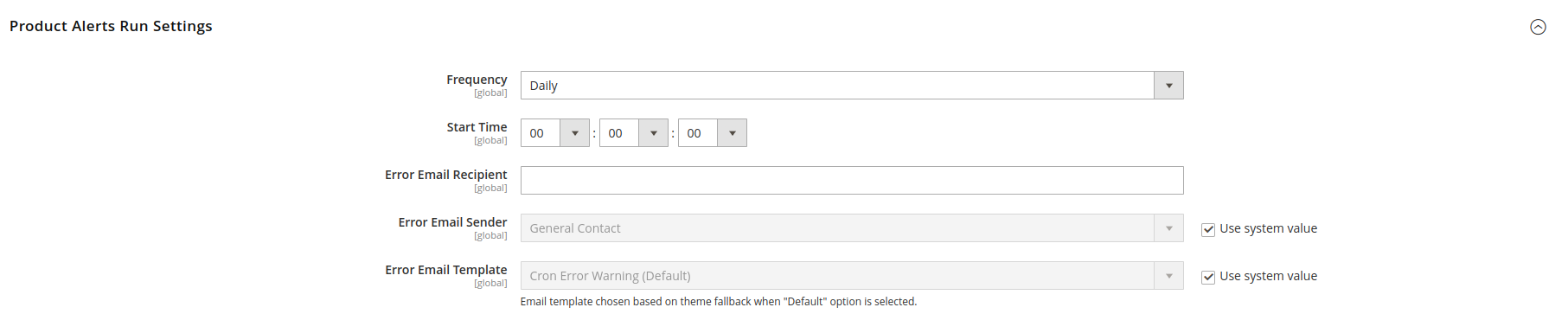
Make sure Magento cron is configured and running, otherwise no stock alerts (including Out Of Stock Notifications emails) will be sent.
Step 3: Configure Out Of Stock Notifications in Admin
Once Magento Product Alerts are enabled, configure the Venta module itself.
- Navigate to:
Stores → Configuration → Magebit → Out Of Stock Notifications
- Under General:
- Enable Back in Stock Notifications - Set to Yes to activate the module.
- Email Notification Frequency - Controls how often a single customer or guest email can receive reminders for the same product while it remains in stock. Backed by an internal time interval, exposed as Never (send only once when the product becomes available again), Daily, Weekly, Biweekly, or Monthly.
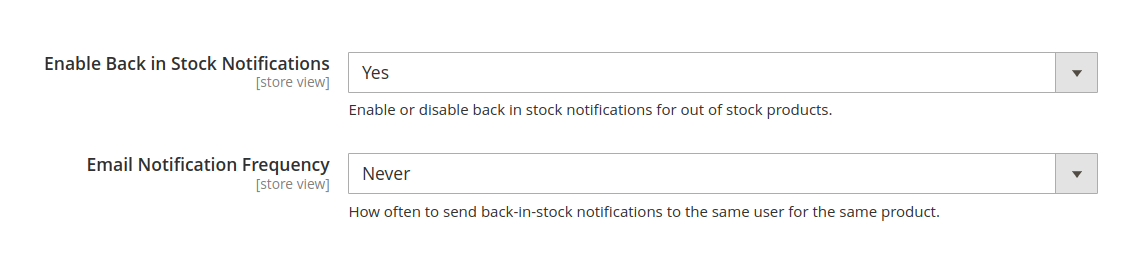
- Save the configuration and flush cache if needed:
d/magento cache:flushStep 4: Verify Frontend Behaviour
Use a test product to validate the end-to-end flow:
- PDP (guest) - Out-of-stock product shows an email + subscribe form and successfully creates a subscription.
- PDP (logged-in) - Shows Subscribe / Unsubscribe button and correctly toggles the subscription.
- PLP - Out-of-stock items show the Notify Me button (instead of a static "Out of stock" label) and behaviour matches guest / logged-in rules.
- My Account > My Stock Alerts - Subscriptions appear in the list and can be removed.
- Email - When the product is restocked, a stock alert email is sent to the subscriber after cron and queue consumers have run.
For a full UX walkthrough and screenshots, refer to the main Out Of Stock Notifications extension page.
Step 5: Cron, Queue, and Email Verification
Out Of Stock Notifications uses:
- Magento's Product Alert cron.
- Magento Asynchronous Operations to process emails via the
product_alertmessage queue topic.
To verify end-to-end:
Confirm cron is running:
- Depending on your hosting, this may be a system-level cron calling
d/magento cron:runregularly.
- Depending on your hosting, this may be a system-level cron calling
Ensure the queue consumer for product alerts is active (for example, a process similar to):
Create a test scenario:
- Subscribe to a product while it is out of stock (as guest and/or logged-in user).
- Restock the product (set it to In Stock, ensure salable quantity is positive).
- Wait for cron + queue consumers to run.
Check:
- Emails are sent to the subscribed addresses.
- The email contains per-product unsubscribe links and an “Unsubscribe from all stock alerts” link.
Email example:
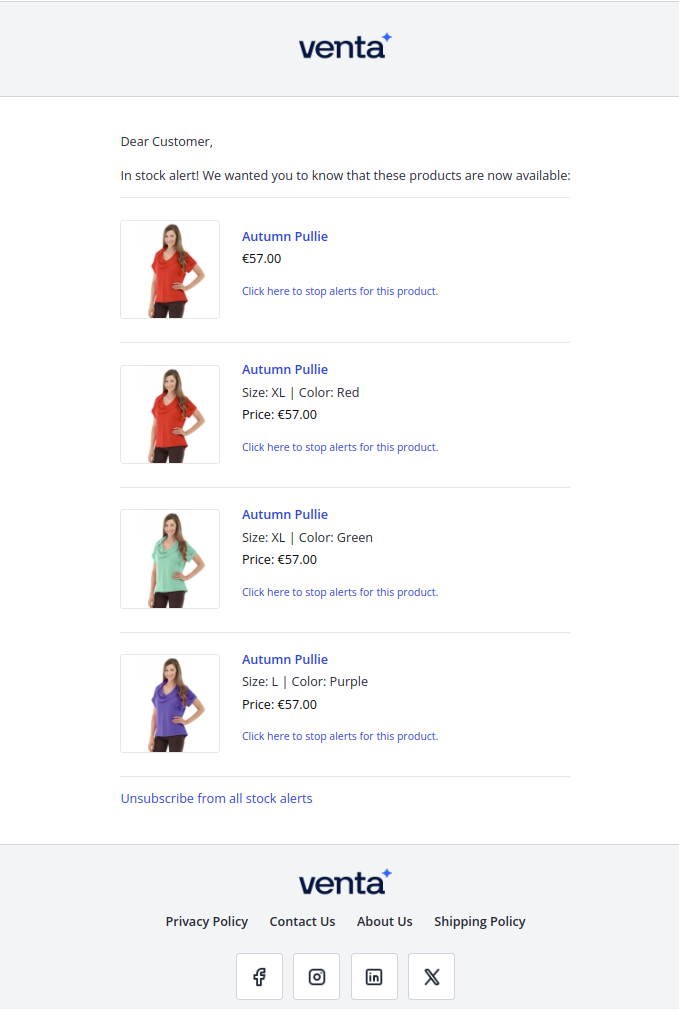
Troubleshooting & Tips
No Subscribe UI on PDP/PLP
- Verify the module is enabled:
d/magento module:status Magebit_VentaBackInStock- Confirm the product is actually Out of Stock and visible in the relevant website/store view.
- Ensure the current theme is Venta (or a child) and template overrides are not hiding the block.
- Clear caches and redeploy static content if theme changes were made.
No Emails After Restocking Products
- Check that Magento Product Alerts are enabled and configured correctly (see Step 2).
- Verify that cron is running and the product_alert queue consumer is active.
- Ensure products truly transition from out of stock to in stock with a positive salable quantity.
- Review logs for errors related to product alerts, queue processing, or mail sending.
Too Many or Too Few Reminder Emails
- Revisit Email Notification Frequency under
Stores → Configuration → Magebit → Out Of Stock Notifications → General. - Remember:
Never- one alert per subscriber per product, when it returns to stock.- Daily/Weekly/Biweekly/Monthly: minimum time between repeated alerts for the same subscriber/product pair.
Admin Grids Empty
- Check that subscriptions exist:
- Manually subscribe using PDP/PLP as guest and logged-in user.
- Confirm that the Products Stock Alerts and Out of Stock Subscriptions grids under
Marketing → Venta Stock Alertsare pointing at the correct website/store (filter settings). - Ensure database migrations have run successfully:
d/magento setup:upgrade