

Brand (Shop by Brand)
The Shop by Brand extension turns the options of a product attribute into brand landing pages. Each option gains a URL key, a logo, banners, a description, and its own meta title and description. The storefront gets an A-to-Z brand listing plus a page per brand that behaves like a category page, with layered navigation, sorting, and pagination intact. Manufacturer values on product pages become links to the matching brand page.
Documentation
- Benefits covers what the extension adds for merchants and shoppers.
Installation
Installation Command:
composer require magebitcom/magento2-venta-theme-shop-by-brandPost-Installation Steps:
bin/magento module:enable Magebit_VentaShopByBrand
bin/magento setup:upgrade
bin/magento cache:flush
bin/magento indexer:reindex
Configuration Access: Navigate to Stores > Configuration > Magebit > Shop by Brand to access the Shop by Brand configuration options.
Installation creates a magebit_venta_brand entity type to hold brand data, and adds a manufacturer product attribute, updating it if the store already has one. The attribute is set up as a global-scope dropdown that is filterable, searchable, comparable, and available in product listings.
INFO
Brand logos and banners render through the Image Resizer extension, and brand pages reuse Venta's ElasticSuite layered navigation. Both are part of a standard Venta install.
How brand data is stored
Brands are not a separate catalog entity to maintain. The module reads the options of one product attribute, manufacturer by default, and stores extra data against each option. Assigning a product to a brand is therefore the same as setting its manufacturer value, and a brand exists as soon as the attribute has an option for it.
Two consequences are worth knowing before setup:
- Brand pages are configured per attribute option, under
Stores > Attributes > Product, not in a menu of their own. - Pointing Brand Attribute at a different attribute switches the whole feature to that attribute's options. Data saved against the previous attribute's options stays in the database but stops being used.
Extension Configuration
Configure the module under Stores > Configuration > Magebit > Shop by Brand.
General
Configuration options
| Field | Description |
|---|---|
| Brand Attribute | The product attribute whose options represent brands. Defaults to manufacturer. Set at default scope only. |
| Brand Route | First URL segment for the brand pages. Default brand, which produces /brand and /brand/<url-key>. Required, and must be a valid URL identifier. |
| Brand Link Title | Heading and breadcrumb label for the brand listing page. Default Brands. Required. |
| Meta Title | Meta title for the brand listing page. Left empty, the page uses Shop by Brand - <Brand Link Title>. |
| Meta Description | Meta description for the brand listing page. Left empty, the page uses "Discover and shop products from your favorite brands." |
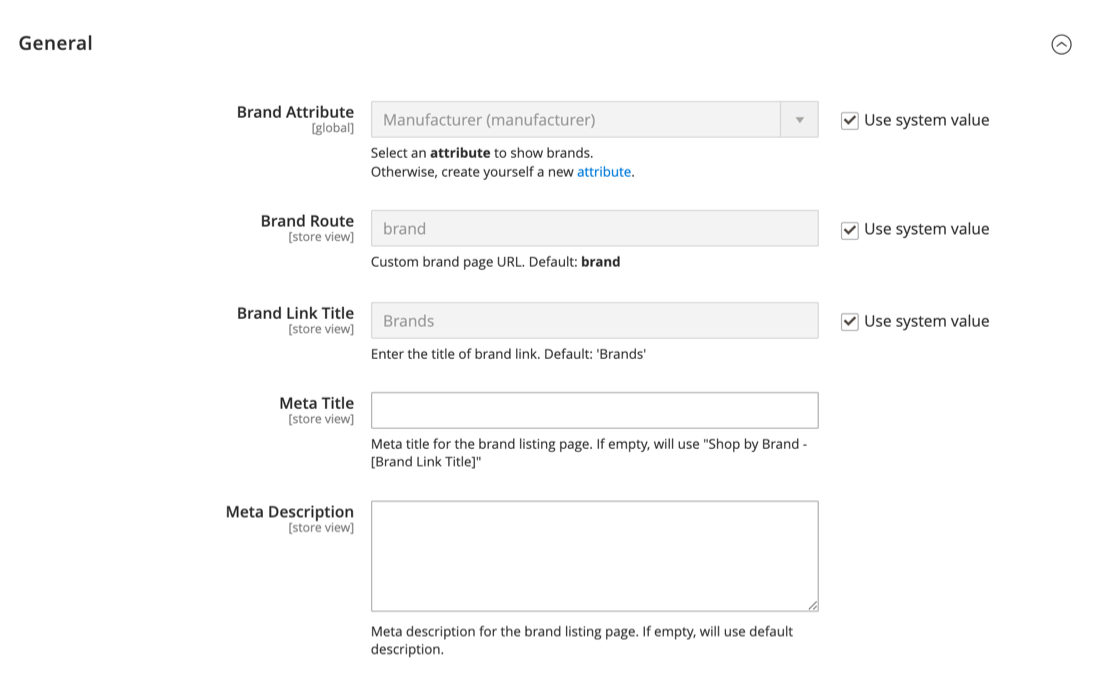
Configuring a brand
Each brand is configured through the attribute option it belongs to.
- Go to
Stores > Attributes > Productand open the attribute set as the brand attribute,manufacturerby default. - Open Manage Options (Values of Your Attribute). Every option row has a Configure button that the module adds.
- Click Configure to open the Brand Configuration form for that option.
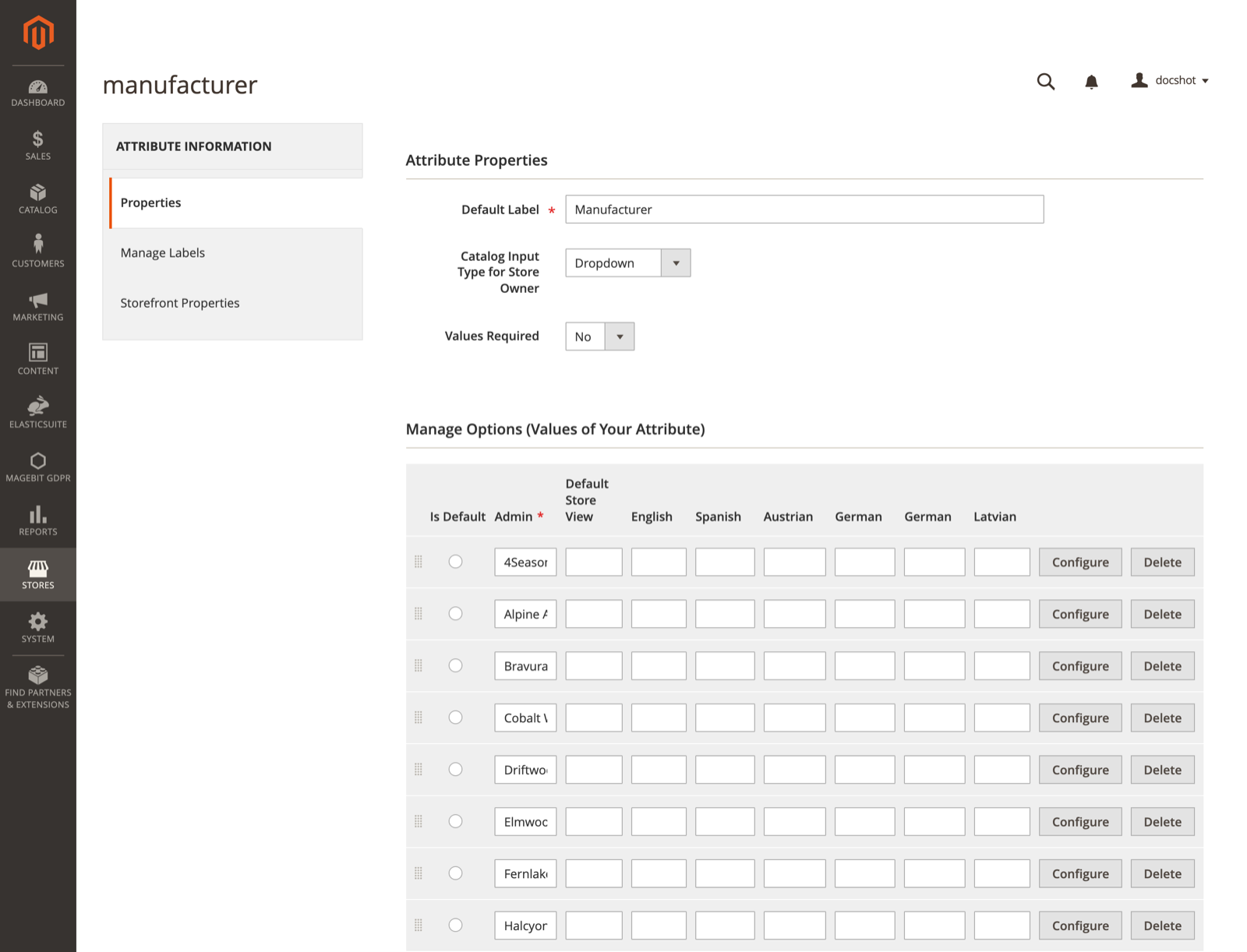
The Configure button only appears on the attribute named in Brand Attribute. Options that have been added but not yet saved have no option ID, so save the attribute before configuring a new brand.
Brand Information
Configuration options
| Field | Description |
|---|---|
| Page Title | Heading on the brand page. Left empty, the option's label for that store view is used. Maximum 255 characters. |
| URL Key | Last segment of the brand page URL, so sony produces /brand/sony. Required, and must be a valid URL identifier. |
| Brand Image | Logo shown on the brand listing and in the brand widget. Left empty, the option's visual image or the default configured image is used. |
| Display | Set to No to keep the brand out of the listing and the widget. |
| Brand Banner | Banner shown at the top of the brand page. |
| Brand Banner Mobile | Banner used on narrow viewports in place of the desktop banner. |
| Description | Text shown on the brand page, edited with the WYSIWYG editor. |
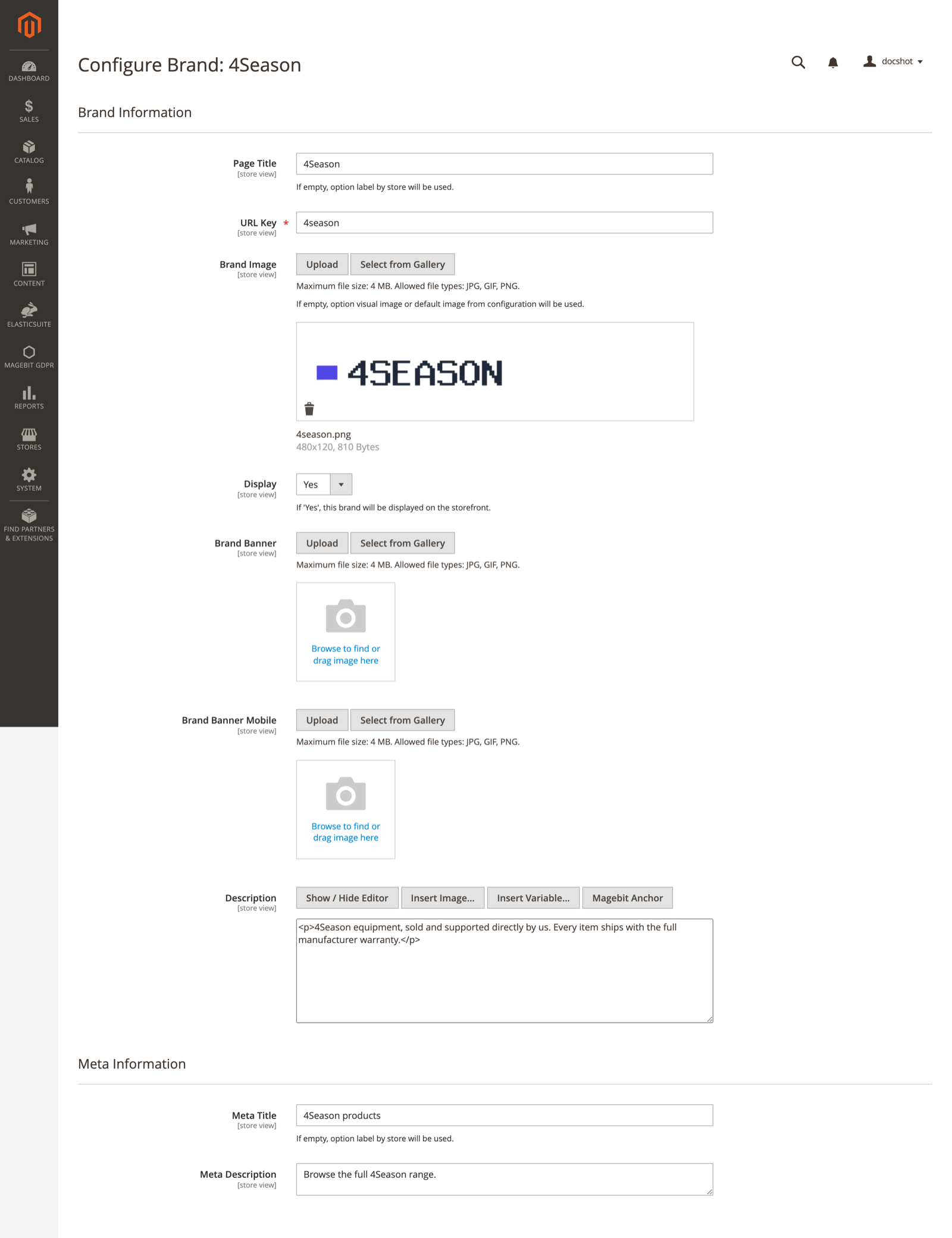
Meta Information
Configuration options
| Field | Description |
|---|---|
| Meta Title | Meta title for this brand's page. Left empty, the option's label for that store view is used. |
| Meta Description | Meta description for this brand's page. |
Every field on this form is store-view scoped, so a brand can carry a translated title, description, and URL key per store view. Image uploads accept jpg, jpeg, gif, and png up to 4 MB.
Storefront behaviour
Brand listing page
The listing lives at the configured route, /brand by default. Brands are grouped under letter headings, with a horizontal jump navigation above them that shows only the letters that have brands, plus a leading numbers group where brand names begin with a digit. Selecting a letter scrolls to that group.
Each brand renders as a card with its logo, falling back to the brand name where no logo is set. Logos go through the Image Resizer under the brand_logo image role; SVG logos are output directly without resizing. When a card has a logo, hovering it reveals the brand name. Brands with Display set to No are left out. With no brands to show, the page reads "No brands found."
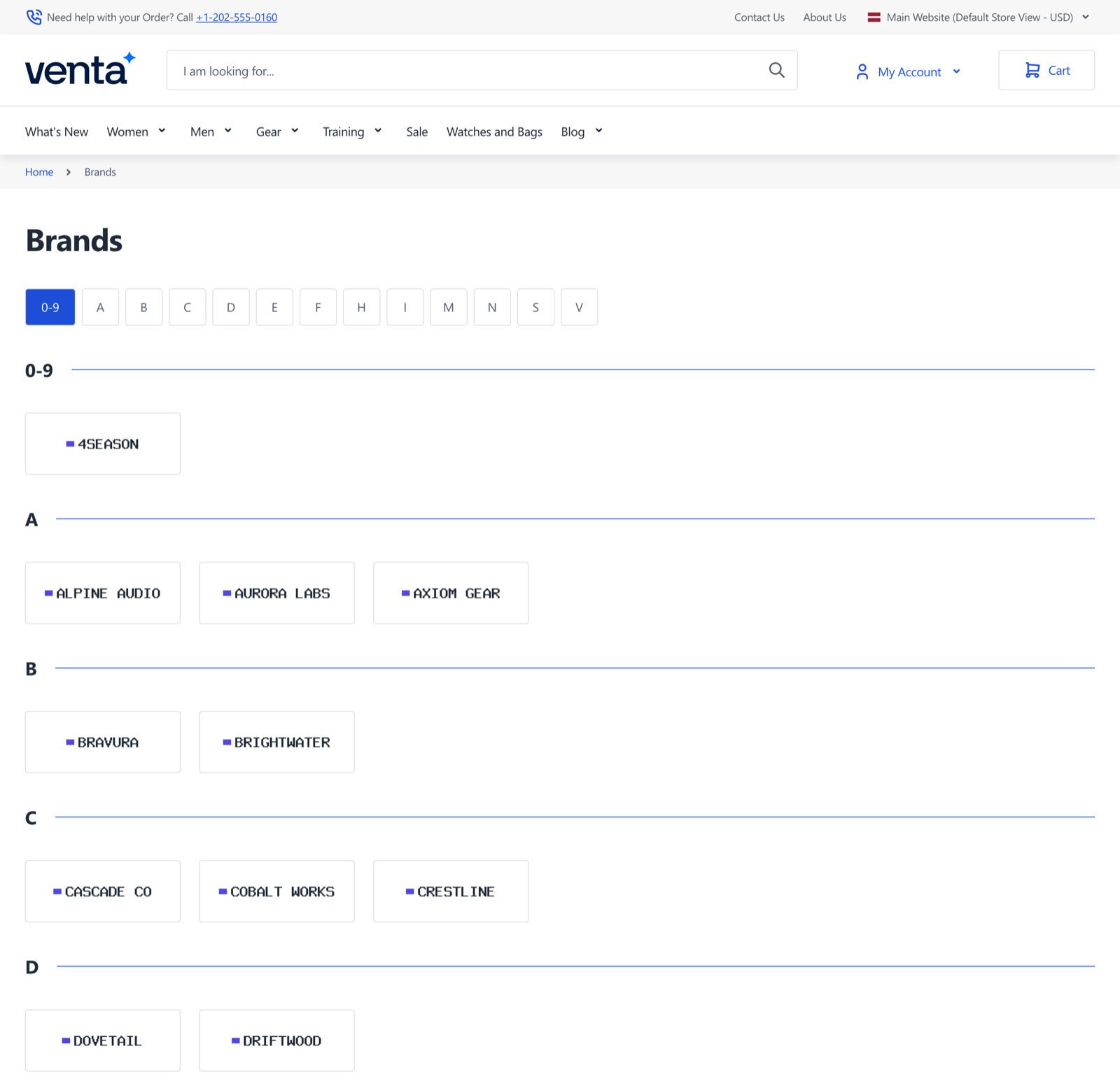
The card sizing comes from utility classes used only in this module's templates, so rebuild the theme's Tailwind CSS after installing. setup:upgrade registers the module in app/etc/hyva-themes.json, which is what puts its templates in the list the build scans.
Brand page
A brand page at /brand/<url-key> renders the brand's products by reusing the category listing layout, so layered navigation, sorting, pagination, AJAX filtering, and ElasticSuite search work as they do on a category page. The category tree, subcategory list, and category CMS block are removed, since a brand has none of them.
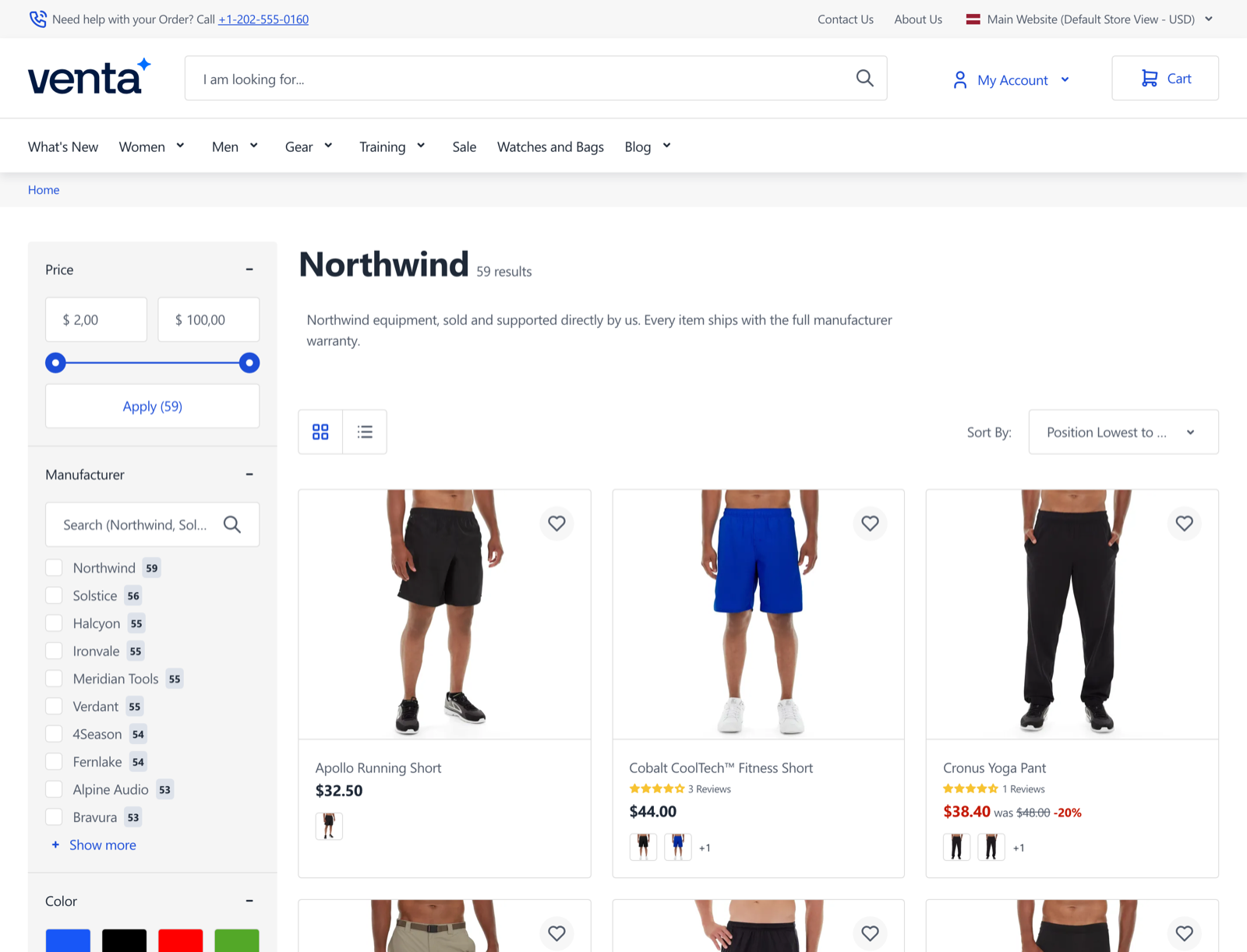
Breadcrumbs read Home > Brands on the listing and Home > Brands > Brand name on a brand page, using the Brand Link Title value for the middle crumb.
Product page links
On product pages the brand attribute's value is wrapped in a link to that brand's page. This applies where the product's brand option has a configured brand record; unconfigured options render as plain text. The link is added only on product view pages, so category listings and search results are unaffected.
Brand showcase widget
The module registers a widget for placing a row of brand logos into CMS pages, blocks, and layout positions. In the widget picker it appears as Venta - Shop By Brand Widget / Display Brand Showcase.
Configuration options
| Field | Description |
|---|---|
| Title Heading | Main heading above the brand row. |
| Button Text | Label for the call-to-action button beside the heading. |
| Button Link | URL the button points to, for example /about-us. The button renders only when both the text and the link are set. |
| Select Brands | Which brands to show. Required. |
Widget output is cached for 24 hours, so changes to a brand's logo or name appear on the next cache refresh.
Developer notes
Routing
Brand URLs are matched by a custom router registered at sort order 10, ahead of Magento's standard routers. It compares the first path segment against the Brand Route setting, then dispatches either the listing action, for a single segment, or the brand view action, for two segments where the second matches a brand's URL key. A URL key that matches nothing falls through to Magento's remaining routers, which produces the standard 404 rather than an empty brand page.
Matching happens in the router rather than through URL rewrites, so changing Brand Route takes effect as soon as the cache is flushed, with no rewrite regeneration.
Database
| Table | Holds |
|---|---|
magebit_venta_brand_entity | One row per configured brand, keyed to an eav_attribute_option row |
magebit_venta_brand_entity_varchar | URL key, page title, image and banner paths, meta title |
magebit_venta_brand_entity_text | Description, meta description |
magebit_venta_brand_entity_int | Display flag |
magebit_venta_brand_entity_datetime, magebit_venta_brand_entity_decimal | Available for further brand attributes |
Brand rows are removed with their attribute option, so deleting a manufacturer option deletes its brand data.
Product filtering
The brand page does not use a dedicated product collection. The selected brand is held in a session value and applied through plugins on the product list block, the category and search layers, Venta's product count block, and ElasticSuite's collection provider. Reusing the category listing this way is what keeps filters, sorting, and AJAX behaviour identical to a category page.
Templates and permissions
Templates are brand/list.phtml for the listing and widget/brand_widget.phtml for the widget. The brand page itself renders through the category listing templates.
Two ACL resources control admin access, both under Stores > Settings > Configuration: Magebit_VentaShopByBrand::shop_by_brand for the configuration section, and Magebit_VentaShopByBrand::brand_image for the image upload endpoint used by the brand form.
Troubleshooting
No Configure button on the attribute options
The button is only added to the attribute named in Brand Attribute. Confirm that setting matches the attribute you have open, then flush the cache. New options need the attribute saved once before they can be configured.
A brand page returns 404
Check that the brand has a URL Key saved for the store view you are testing, and that Display is set to Yes. Then confirm the first URL segment matches Brand Route.
A brand is missing from the listing
Brands are left out when Display is No, or when the attribute option has no configured brand record for that store view. The listing reads store-view scoped values, so a brand configured only at default scope while a store view overrides it will not appear there.
The brand page shows no products
Products reach a brand page through the brand attribute value, so confirm products have that attribute set and are assigned to the website. Then reindex, since the page relies on the catalog search index like any category page.
Logos are missing or wrongly sized
Logos render through the Image Resizer with the brand_logo role. Check that role exists in your theme's image configuration, and that the uploaded file is one of jpg, jpeg, gif, png, or an SVG.