

Product Attachments Extension
The Magebit Product Attachments Extension provides a flexible solution for attaching downloadable files to products in Magento 2. Built specifically for Venta Theme, this extension allows store administrators to manage product documentation, manuals, guides, and other downloadable content that customers can access directly from product pages.
Overview
The Product Attachments Extension enables seamless management of product-related files such as PDFs, manuals, installation guides, and documentation. The extension features a many-to-many relationship between products and attachments, allowing a single file to be shared across multiple products while providing intuitive management tools for both administrators and customers.
Installation
Requirements
System Requirements
- Magento 2.4.x
- PHP 8.1 or higher
- Composer 2.x
- Venta Theme
Installation via Composer
Install the Product Attachments extension using Composer.
Installation Command:
composer require magebitcom/magento2-venta-product-attachmentsPost-Installation Steps:
bin/magento module:enable Magebit_ProductAttachments
bin/magento setup:upgrade
bin/magento setup:di:compile
bin/magento setup:static-content:deploy
bin/magento cache:flush
Configuration
Admin Panel Access
Navigate to Catalog → Product Attachments in the admin panel to manage attachments.
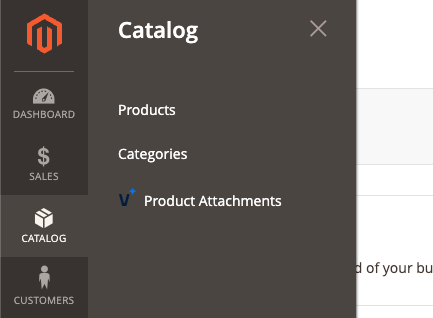
The admin interface provides two main areas:
- Attachment Management - Create and manage attachment files
- Product Linking - Associate attachments with products
Creating and Managing Attachments
Adding New Attachments
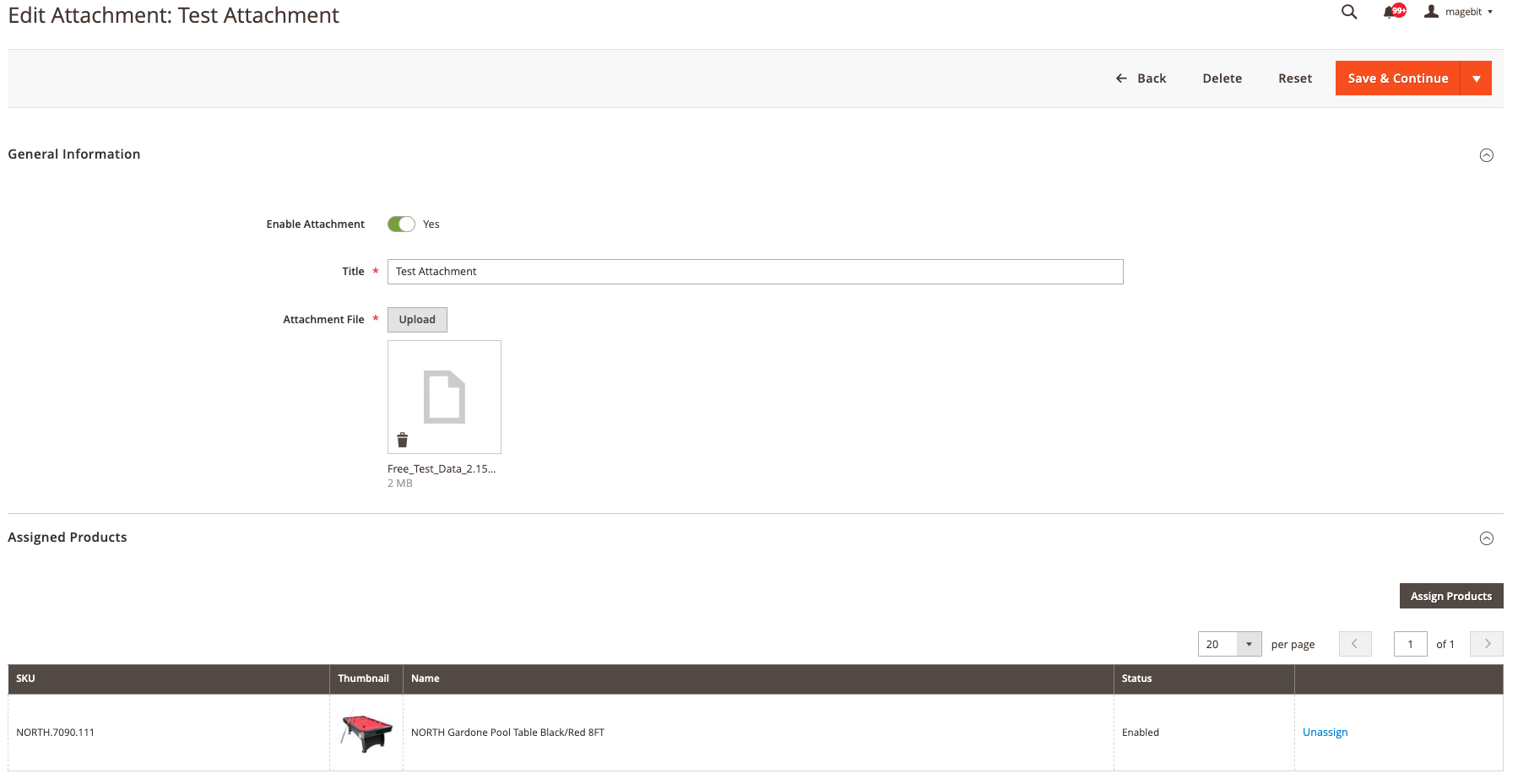
- Navigate to Catalog → Product Attachments
- Click Add New Attachment
- Fill in the required fields:
- Title - Display name shown to customers
- Enabled - Toggle attachment visibility
- File Upload - Upload the attachment file
- Save the attachment
File Upload Support
The extension supports drag-and-drop file upload in the admin panel for a streamlined workflow.
Linking Attachments to Products
The extension provides two flexible methods for linking attachments to products.
Method 1: From Attachment Edit Page
This method is ideal when you want to assign a single attachment to multiple products.
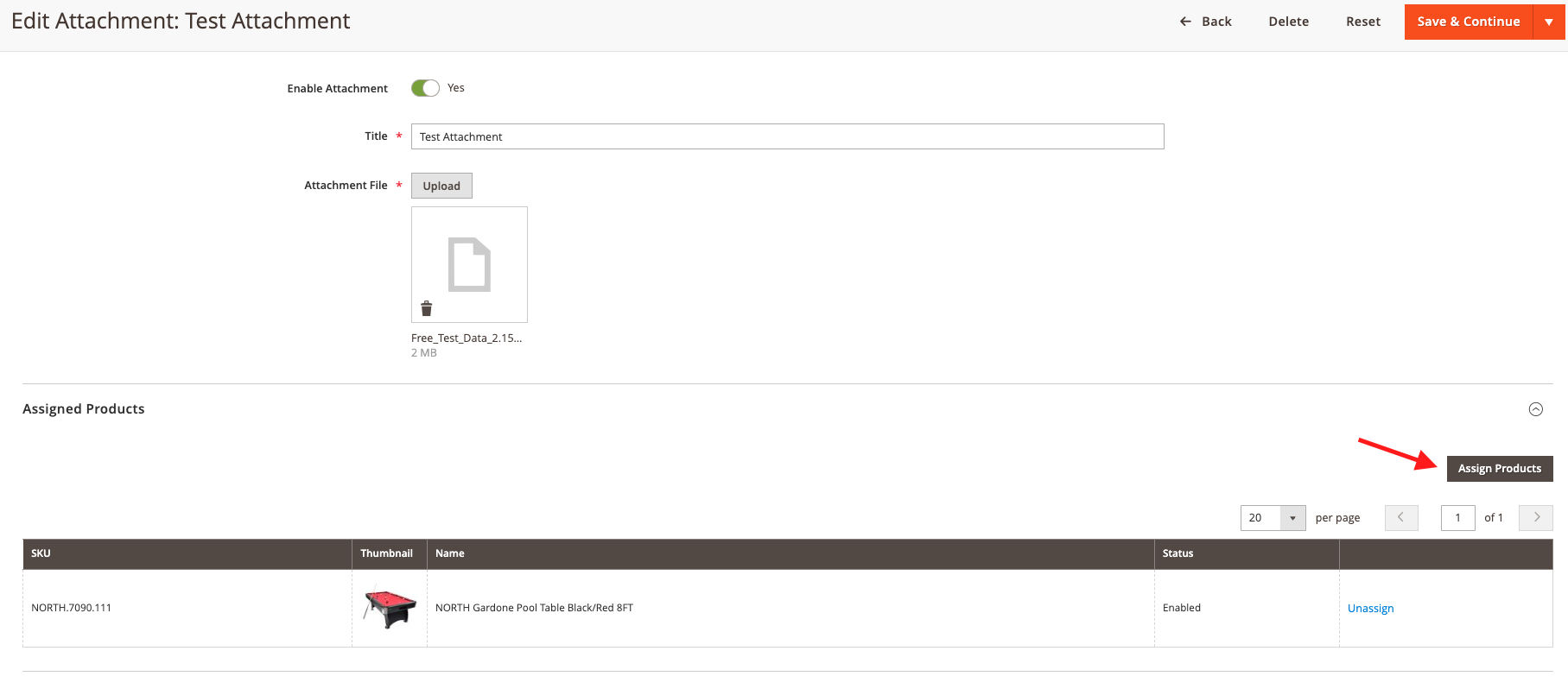
- Navigate to Catalog → Product Attachments
- Edit an existing attachment or create a new one
- In the Products section, use the product grid to select products
- Use filters and search to find specific products
- Select the products you want to link
- Save the attachment
Best Use Case
Use this method when adding user manuals, warranty documents, or other files that apply to multiple products in your catalog.
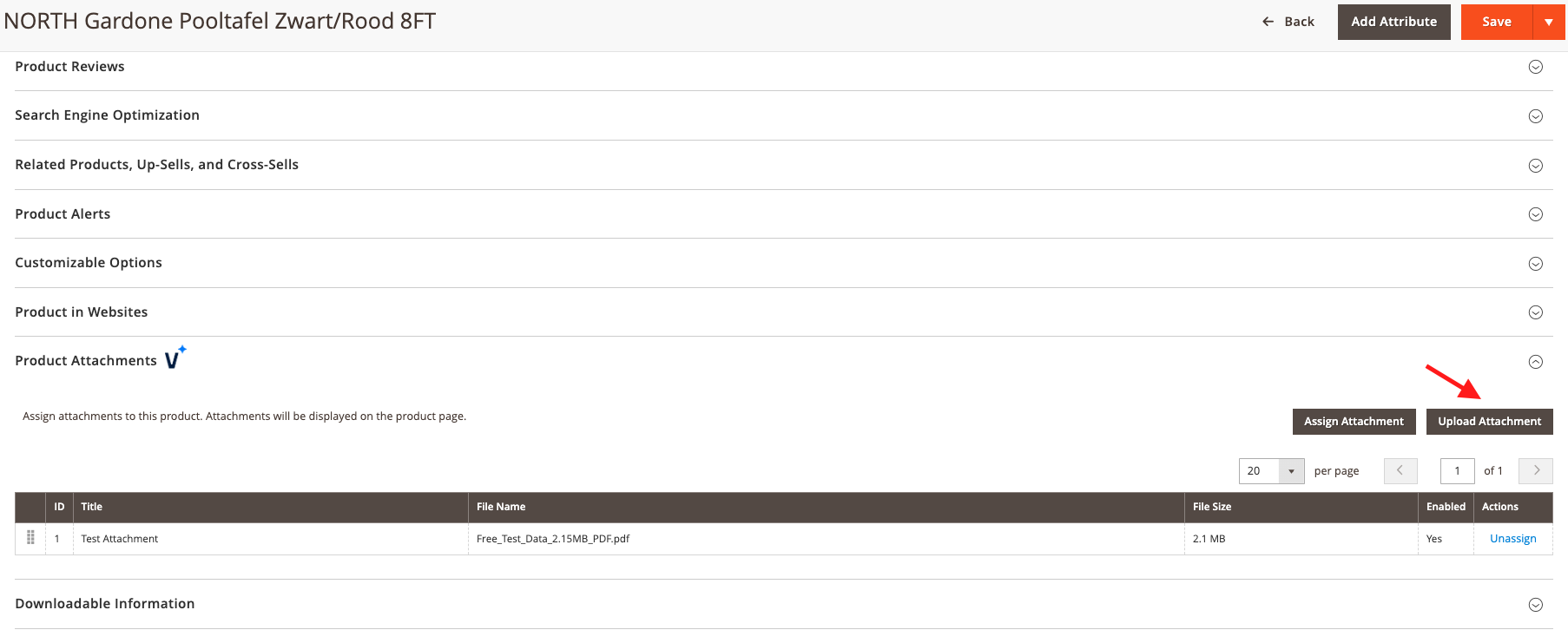
Method 2: From Product Edit Page
This method is ideal when managing attachments for a specific product.
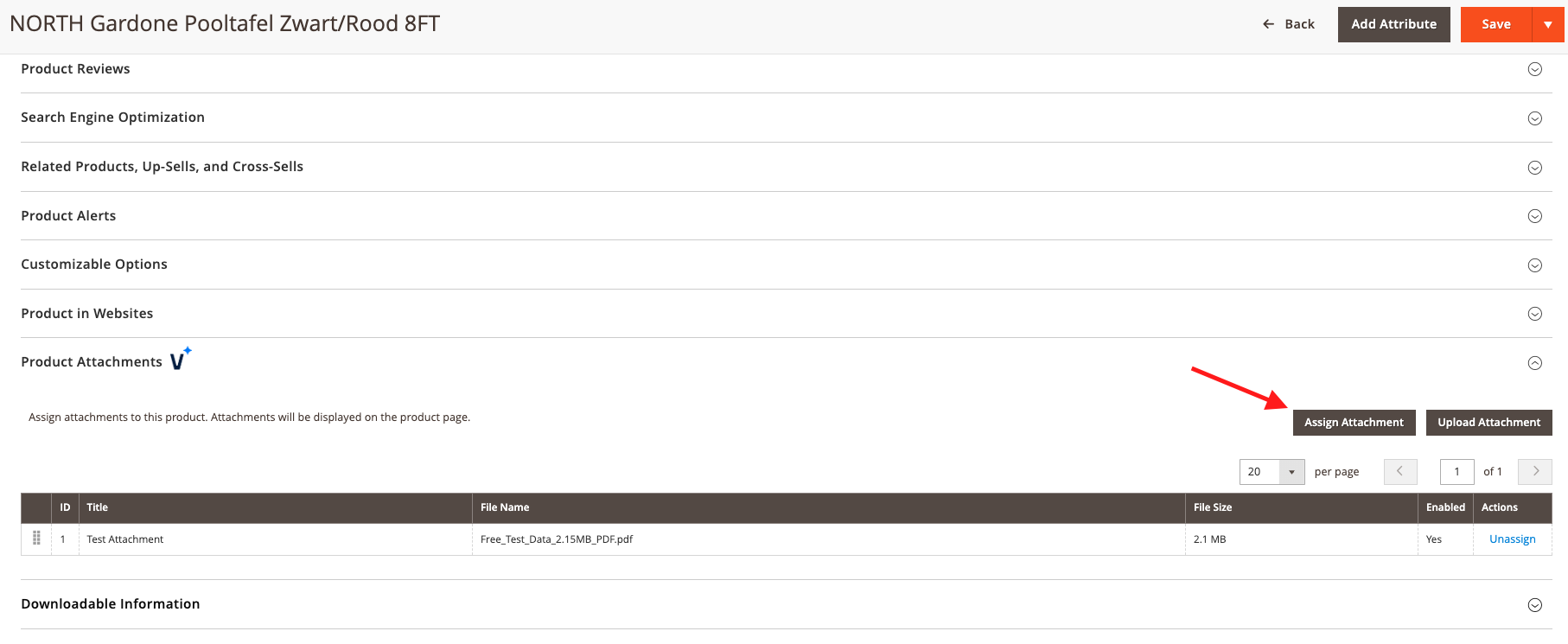
- Navigate to Catalog → Products
- Edit the product you want to add attachments to
- Scroll to the Product Attachments section
- Choose from existing attachments or upload new ones directly
- Set the sort order for attachment display
- Save the product
Direct Upload
You can upload new attachments directly from the product edit page without navigating to the attachment management interface.
Customizing File Types
The extension defaults to PDF files but can be configured to support additional file types.
Update Allowed File Types
To modify supported file types, create or update the dependency injection configuration:
File: app/code/[Vendor]/[Module]/etc/di.xml
<?xml version="1.0"?>
<config xmlns:xsi="http://www.w3.org/2001/XMLSchema-instance"
        xsi:noNamespaceSchemaLocation="urn:magento:framework:ObjectManager/etc/config.xsd">
    <type name="Magebit\ProductAttachments\Model\AttachmentFileManagement">
        <arguments>
            <argument name="allowedExtensions" xsi:type="array">
                <item name="pdf" xsi:type="string">pdf</item>
                <item name="doc" xsi:type="string">doc</item>
                <item name="docx" xsi:type="string">docx</item>
                <item name="zip" xsi:type="string">zip</item>
                <item name="jpg" xsi:type="string">jpg</item>
                <item name="png" xsi:type="string">png</item>
            </argument>
        </arguments>
    </type>
</config>
Update UI Component Configuration
After updating the allowed extensions in dependency injection, update the file uploader field in the admin form:
File: app/code/[Vendor]/[Module]/view/adminhtml/ui_component/attachment_form.xml
<field name="attachment_file" sortOrder="30" formElement="fileUploader">
    <argument name="data" xsi:type="array">
        <item name="config" xsi:type="array">
            <item name="uploaderConfig" xsi:type="array">
                <item name="url" xsi:type="url" path="attachments/attachment/upload"/>
            </item>
        </item>
    </argument>
    <settings>
        <label translate="true">Attachment File</label>
    </settings>
    <formElements>
        <fileUploader>
            <settings>
                <allowedExtensions>pdf doc docx zip jpg png</allowedExtensions>
                <maxFileSize>10485760</maxFileSize>
            </settings>
        </fileUploader>
    </formElements>
</field>
Cache Clearing Required
After modifying file type configurations, clear the cache and recompile:
bin/magento cache:flush
bin/magento setup:di:compile
Customizing File Size Limits
The default maximum file size is 10 MB (10,485,760 bytes). You can adjust this limit based on your server capabilities and requirements.
Update File Size Limit via Dependency Injection
File: app/code/[Vendor]/[Module]/etc/di.xml
<?xml version="1.0"?>
<config xmlns:xsi="http://www.w3.org/2001/XMLSchema-instance"
        xsi:noNamespaceSchemaLocation="urn:magento:framework:ObjectManager/etc/config.xsd">
    <type name="Magebit\ProductAttachments\Model\AttachmentFileManagement">
        <arguments>
            <!-- 50 MB = 52428800 bytes -->
            <argument name="maxFileSize" xsi:type="number">52428800</argument>
        </arguments>
    </type>
</config>
Update UI Component File Size
Ensure the UI component matches your configured limit:
File: app/code/[Vendor]/[Module]/view/adminhtml/ui_component/attachment_form.xml
<field name="attachment_file" sortOrder="30" formElement="fileUploader">
    <formElements>
        <fileUploader>
            <settings>
                <allowedExtensions>pdf</allowedExtensions>
                <maxFileSize>52428800</maxFileSize>
            </settings>
        </fileUploader>
    </formElements>
</field>
Server Configuration
Ensure your PHP configuration supports the file size limits you set:
upload_max_filesizein php.inipost_max_sizein php.ini- Web server request size limits (e.g., nginx
client_max_body_size)
Frontend Behavior
Product Page Display
When attachments are associated with a product, they appear in a dedicated section on the product detail page.
Frontend Features:
- Download Buttons - Clear, accessible buttons for each attachment
- File Size Display - Shows file size in MB (e.g., "11,2 MB")
- Responsive Design - Optimized layout for desktop, tablet, and mobile
- Accessibility - Proper ARIA labels and semantic HTML
- Icon Support - Download icon for visual clarity
- Multiple Files - Supports displaying multiple attachments per product
Display Example:
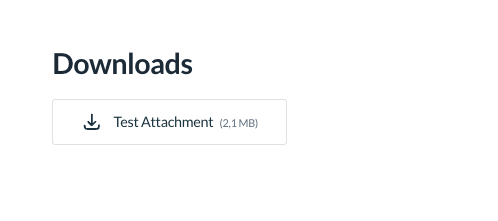
The attachments appear as styled buttons with:
- Download icon
- Attachment title
- File size in parentheses
- Opens in new tab with security attributes
Sort Order
Attachments display in the order specified by the sort order field when linking them to products. Lower numbers appear first.
Enable/Disable Control
Only attachments marked as "Enabled" will display on the frontend, allowing administrators to temporarily hide attachments without deleting them.
Admin Functionality
Attachment Grid
The main attachment grid provides overview and management capabilities:
Grid Features:
- Filter and Search - Find attachments by title, filename, or status
- Mass Actions - Delete multiple attachments at once
- Status Indicators - Visual indicators for enabled/disabled status
- File Information - View file size and type at a glance
- Quick Actions - Edit or delete individual attachments
- Sorting - Sort by any column
Product Grid in Attachment Form
When editing an attachment, the product grid allows selection of associated products:
Grid Features:
- Product Search - Search by name, SKU, or ID
- Filtering - Filter by category, status, or other attributes
- Selection - Checkbox selection for multiple products
- Visual Feedback - Selected products are highlighted
Inline Attachment Management
From the product edit page, administrators can:
- View all linked attachments
- Add new attachments
- Remove attachments
- Reorder attachments using drag-and-drop
- Upload files directly
Technical Details
API Integration
The extension provides programmatic access to attachments through the AttachmentRepositoryInterface. This enables integration with custom modules, REST APIs, GraphQL, and third-party systems.
Getting Attachments for a Product
The most common use case is retrieving all attachments for a specific product:
<?php
use Magebit\ProductAttachments\Api\AttachmentRepositoryInterface;

class YourClass
{
    public function __construct(
        private readonly AttachmentRepositoryInterface $attachmentRepository
    ) {
    }

    public function getProductAttachments(int $productId): array
    {
        // Get all enabled attachments for a product
        $attachments = $this->attachmentRepository->getByProductId($productId, true);

        foreach ($attachments as $attachment) {
            echo $attachment->getTitle() . "\n";
            echo $attachment->getUrl() . "\n";
            echo $attachment->getFileSize() . " bytes\n";
        }

        return $attachments;
    }
}
Parameters:
$productId(int) - Product entity ID$enabled(bool|null) - Filter by enabled status (true = enabled only, false = disabled only, null = all)
Getting a Single Attachment
Retrieve a specific attachment by its ID:
<?php
use Magebit\ProductAttachments\Api\AttachmentRepositoryInterface;
use Magento\Framework\Exception\NoSuchEntityException;

class YourClass
{
    public function __construct(
        private readonly AttachmentRepositoryInterface $attachmentRepository
    ) {
    }

    public function getAttachment(int $attachmentId): ?object
    {
        try {
            $attachment = $this->attachmentRepository->getById($attachmentId);

            // Access attachment properties
            $title = $attachment->getTitle();
            $url = $attachment->getUrl();
            $filename = $attachment->getFilename();
            $size = $attachment->getFileSize();
            $mimeType = $attachment->getMimeType();
            $isEnabled = $attachment->isEnabled();

            return $attachment;
        } catch (NoSuchEntityException $e) {
            // Attachment not found
            return null;
        }
    }
}
Advanced Queries with SearchCriteria
Use Magento's SearchCriteria for complex filtering and sorting:
<?php
use Magebit\ProductAttachments\Api\AttachmentRepositoryInterface;
use Magento\Framework\Api\SearchCriteriaBuilder;
use Magento\Framework\Api\SortOrderBuilder;

class YourClass
{
    public function __construct(
        private readonly AttachmentRepositoryInterface $attachmentRepository,
        private readonly SearchCriteriaBuilder $searchCriteriaBuilder,
        private readonly SortOrderBuilder $sortOrderBuilder
    ) {
    }

    public function findAttachments(): array
    {
        // Create sort order
        $sortOrder = $this->sortOrderBuilder
            ->setField('title')
            ->setDirection('ASC')
            ->create();

        // Build search criteria
        $searchCriteria = $this->searchCriteriaBuilder
            ->addFilter('enabled', 1, 'eq')
            ->addFilter('title', '%manual%', 'like')
            ->setPageSize(10)
            ->setCurrentPage(1)
            ->addSortOrder($sortOrder)
            ->create();

        // Execute search
        $searchResults = $this->attachmentRepository->getList($searchCriteria);

        return $searchResults->getItems();
    }
}
Common Filter Examples:
->addFilter('enabled', 1, 'eq')- Only enabled attachments->addFilter('title', '%guide%', 'like')- Title contains "guide"->addFilter('mime_type', 'application/pdf', 'eq')- PDF files only->addFilter('file_size', 5242880, 'lt')- Files smaller than 5MB
Creating Attachments Programmatically
Create and save attachments via code for integrations:
<?php
use Magebit\ProductAttachments\Api\AttachmentRepositoryInterface;
use Magebit\ProductAttachments\Api\Data\AttachmentInterfaceFactory;
use Magento\Framework\Exception\CouldNotSaveException;

class YourClass
{
    public function __construct(
        private readonly AttachmentRepositoryInterface $attachmentRepository,
        private readonly AttachmentInterfaceFactory $attachmentFactory
    ) {
    }

    public function createAttachment(): void
    {
        try {
            // Create new attachment
            $attachment = $this->attachmentFactory->create();
            $attachment->setTitle('Product Manual');
            $attachment->setFilename('manual.pdf');
            $attachment->setFilePath('product-attachments/manual.pdf');
            $attachment->setFileSize(2048576); // 2MB in bytes
            $attachment->setMimeType('application/pdf');
            $attachment->setEnabled(true);

            // Save attachment
            $savedAttachment = $this->attachmentRepository->save($attachment);

            echo "Attachment created with ID: " . $savedAttachment->getId();
        } catch (CouldNotSaveException $e) {
            // Handle save error
            echo "Error: " . $e->getMessage();
        }
    }
}
Attachment Interface Methods
Each AttachmentInterface object provides these methods:
getId()- Attachment ID (int)getTitle()- Display title (string)getFilename()- Original filename (string)getFilePath()- Storage path relative to media directory (string)getFileSize()- Size in bytes (int)getMimeType()- MIME type (string)getUrl()- Public download URL (string)isEnabled()- Enabled status (bool)
Database Schema
The extension uses two database tables with a many-to-many relationship.
Table: magebit_product_attachments
- Stores attachment metadata
- Indexed on
enabled,title, andfilename - Tracks creation and update timestamps
Table: magebit_product_attachment_link
- Links products to attachments
- Foreign key constraints ensure data integrity
- Unique constraint prevents duplicate links
- Supports sort order for display control
- Cascade delete removes orphaned links
Key Relationships:
- One attachment can link to multiple products
- One product can have multiple attachments
- Deleting a product removes its attachment links
- Deleting an attachment removes all its product links
Cache Management
The extension automatically manages Full Page Cache (FPC) to ensure customers always see current attachment data.
Automatic Cache Invalidation:
- When an attachment is created, updated, or deleted
- When product-attachment relationships are modified
- When attachment enabled status changes
Cache Tags:
- Product-specific cache tags ensure precise invalidation
- Only affected product pages are invalidated
- Minimizes cache clearing impact
File Storage
Upload Directory Structure:
- Permanent Storage:
pub/media/product-attachments/ - Temporary Storage:
pub/media/tmp/product-attachments/
File Naming:
- Uploaded files retain their original names
- System prevents duplicate filenames
- Temporary files use timestamp prefixes
Cron Job Maintenance
The extension includes a cron job to automatically clean up temporary files.
Cron Configuration:
- Schedule: Daily at 3:00 AM
- Purpose: Remove orphaned temporary files
- Job Name:
magebit_product_attachments_cleanup_temp_files
Developer Notes
Template Locations
Frontend Template:
view/frontend/templates/product/attachments.phtml
Admin Templates:
- UI Component forms in
view/adminhtml/ui_component/
Customization Points
Override Frontend Display:
Create a custom template in your theme:
app/design/frontend/[Vendor]/[Theme]/Magebit_ProductAttachments/templates/product/attachments.phtmlExtend ViewModel:
Create a plugin or preference for Magebit\ProductAttachments\ViewModel\ProductAttachments
Custom File Validation:
Create a plugin for Magebit\ProductAttachments\Model\AttachmentFileManagement::uploadFileToTemp()
Event Observers
The extension registers observers for:
- Product Save - Processes attachment links on product save
- Hyva Config - Registers module for Hyvä theme configuration
Security Features
File Upload Security:
- File type validation against whitelist
- File size limit enforcement
- MIME type verification
- Prevention of malicious file uploads
Download Security:
- Proper HTTP headers for file downloads
target="_blank"andrel="noopener"attributes- No direct file system access from frontend
Input Validation:
- Admin input sanitization
- SQL injection prevention via repository pattern
- XSS prevention with proper escaping
Troubleshooting
Attachments Not Displaying on Frontend
Possible Causes:
- Attachment is disabled - Check the enabled status in admin
- Product is not linked - Verify product-attachment relationships
- Cache issue - Clear Full Page Cache
- Template override - Check for custom template conflicts
Solutions:
# Clear cache
bin/magento cache:flush

# Reindex if needed
bin/magento indexer:reindex
File Upload Fails
Possible Causes:
- File size exceeds limit
- File type not allowed
- PHP configuration limits
- Directory permissions
Solutions:
- Check file size limit configuration
- Verify allowed file extensions
- Review PHP settings:
upload_max_filesizepost_max_sizememory_limit
- Ensure write permissions on
pub/media/
Attachments Not Showing in Product Edit
Possible Causes:
- Module not enabled
- Cache issue
- Admin cache needs clearing
Solutions:
# Verify module status
bin/magento module:status Magebit_ProductAttachments

# Clear admin cache
bin/magento cache:clean
Temporary Files Accumulating
Cause: Cron job not running or failing
Solution:
# Check cron status
bin/magento cron:run --group=default