

Product Feed Extension
The Magebit Product Feed Extension enables Magento store owners to efficiently generate, customize, and manage product feeds for shopping platforms like Google Shopping and Facebook. This extension simplifies feed configuration, helps meet channel requirements, and boosts visibility for products across marketplaces.
Installation
Install the Product Feed extension using Composer.
Installation Command:
composer require magebitcom/module-product-feedPost-Installation Steps:
bin/magento setup:upgradeConfiguration Access: Navigate to Stores > Settings > Configuration > Magebit to access Product Feed configuration options.
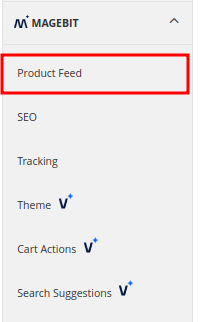
Extension Configuration
General Settings
Enable the Product Feed extension through the Magento admin panel.
Configuration Path: Store > Configuration > Magebit > Product Feed
Configuration Options:
- Enable Extension - Turn the Product Feed extension on/off
- Store View Level - Configure settings per store view
Product Feed Management Grid
Configure individual product feeds through the dedicated management interface.
Access Path: Catalog > Feeds > Product Feeds
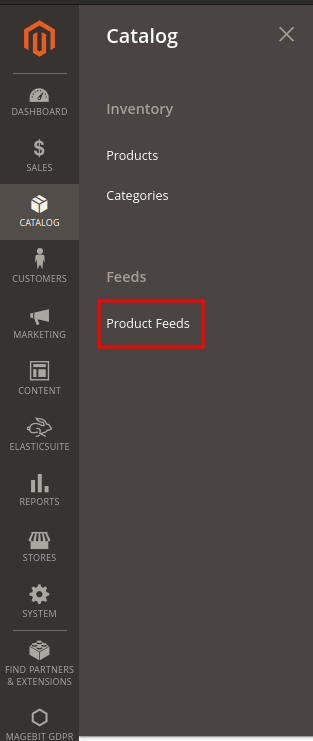
Create New Feed: Click "Add New Feed" to create a new product feed configuration.

Template Selection: Select a template for your product feed and click continue.
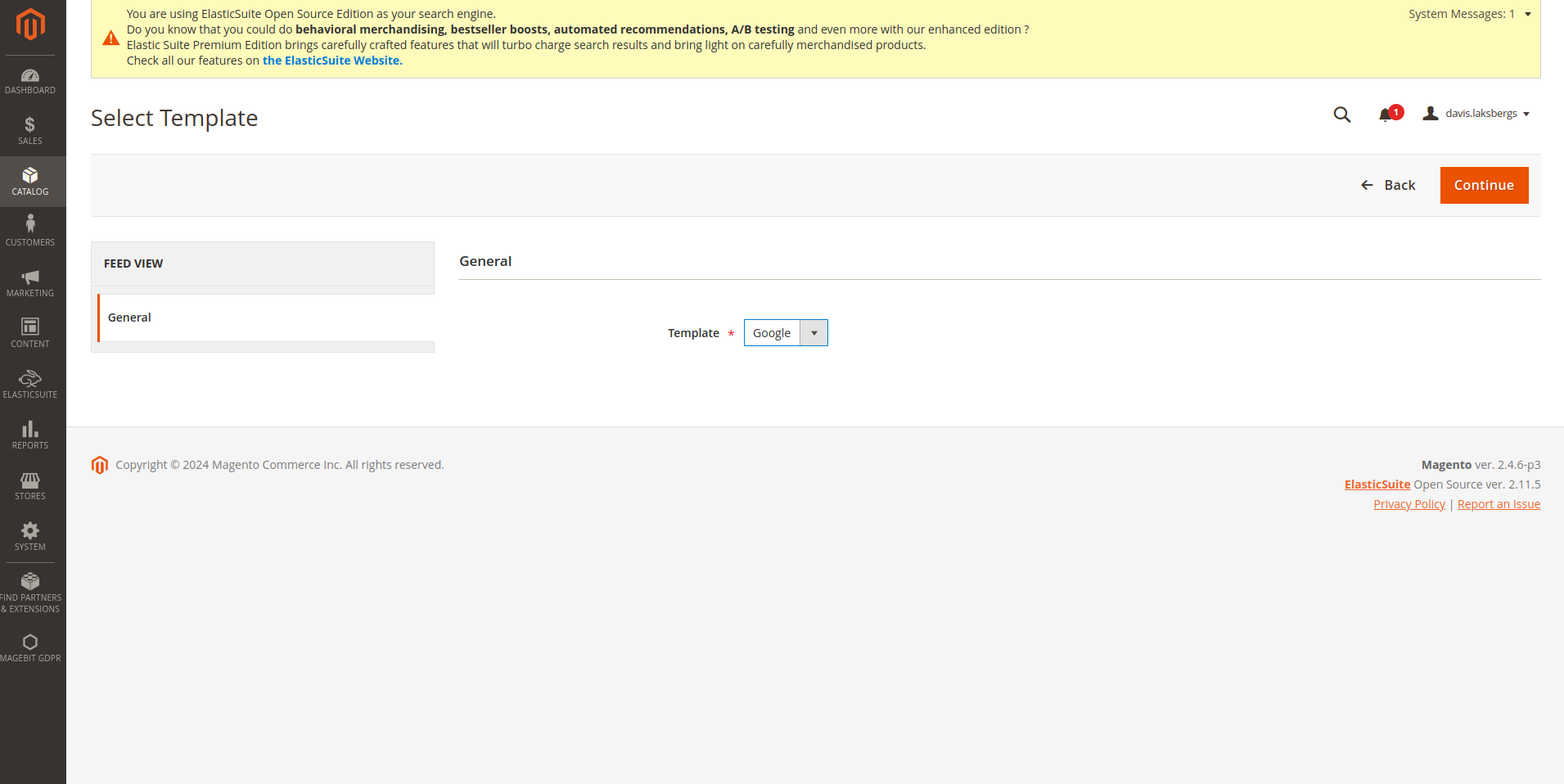
Save Configuration: After configuring the feed, click save to store the product feed settings.
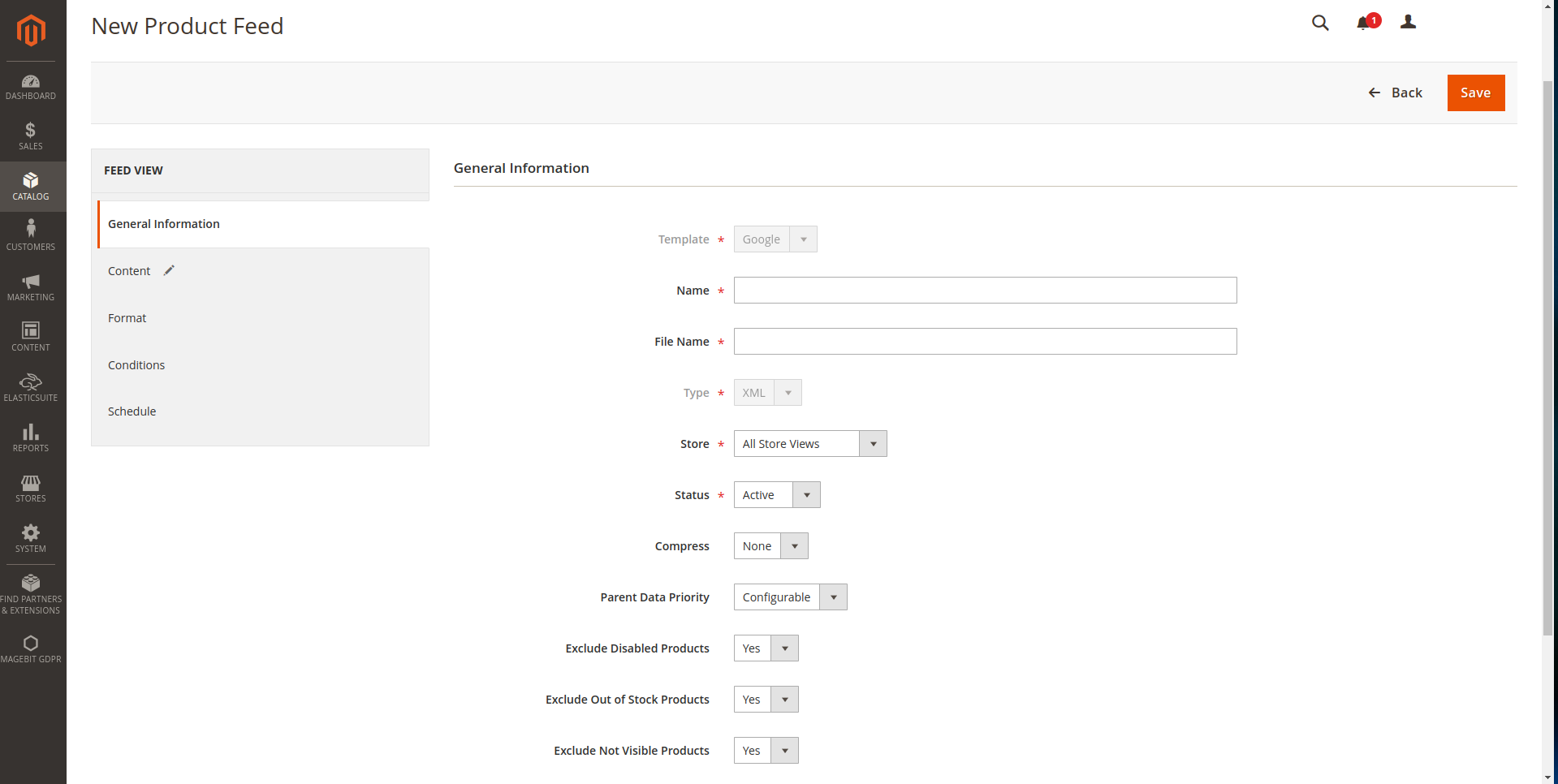
Configure New Product Feed
General Information
Configure the appearance and basic settings for the product feed.
Configuration Options:
- Feed Name - Descriptive name for the product feed
- Description - Detailed description of the feed purpose
- Status - Enable/disable the feed
- Store View - Assign feed to specific store views
Content
Configure XML tags and their mapping to product attributes.
Configuration Options:
- XML Tag Mapping - Map product attributes to XML tags
- Field Configuration - Define field structure and formatting
- Attribute Selection - Choose which product attributes to include
Format Settings
Configure data formatting options for the product feed.
Configuration Options:
- Date Format - Specify date format for feed file
- Decimal Precision - Set number of digits after decimal for prices
- Currency Settings - Define price currency and abbreviation
- Number Formatting - Configure number display format
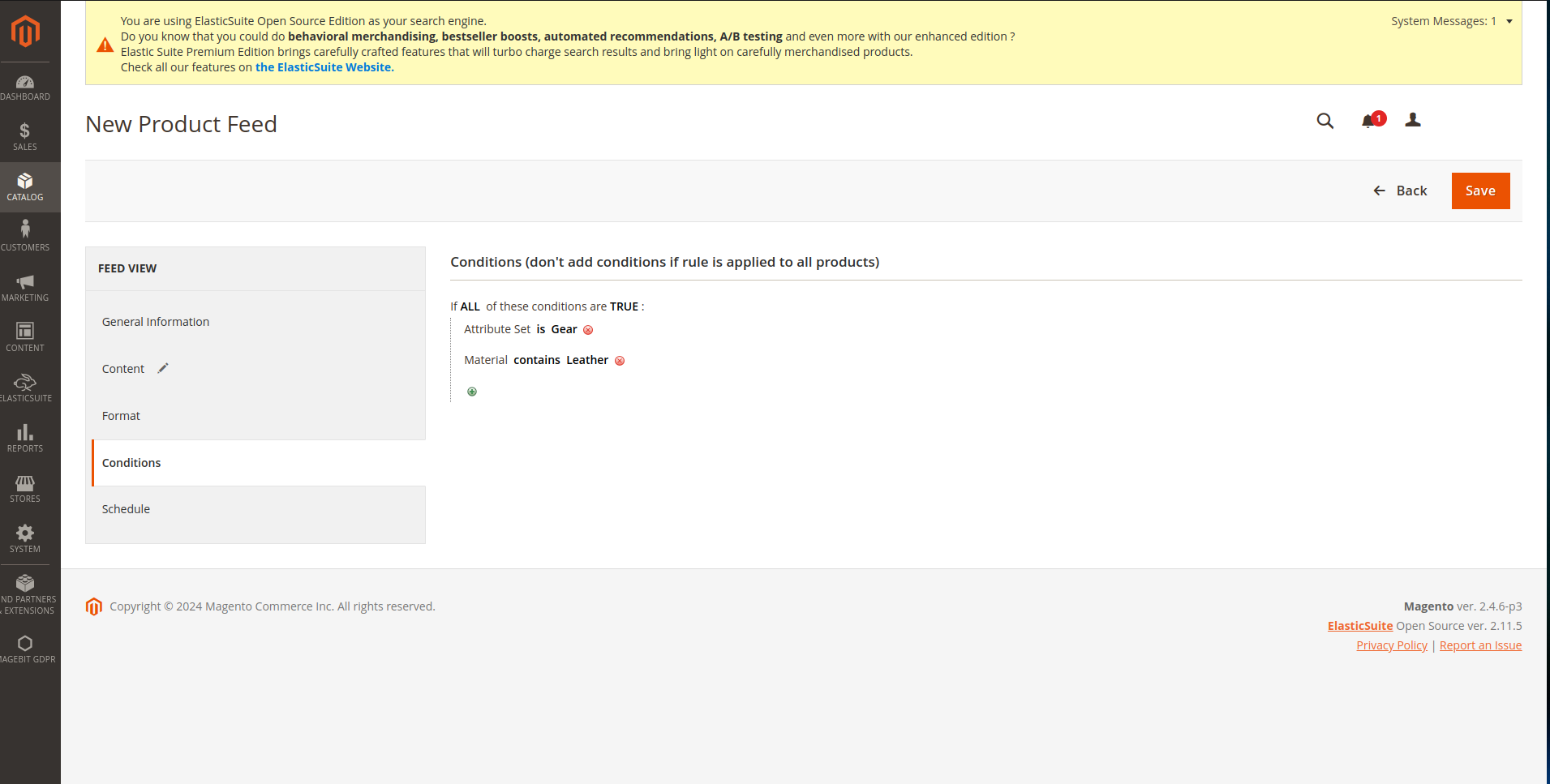
Conditions
Create feeds for specific products based on various criteria.
Configuration Options:
- Product Type Filtering - Include/exclude specific product types
- Category Filtering - Filter by product categories
- Stock Status - Include only in-stock or all products
- Visibility Settings - Filter by product visibility
Schedule
Configure automatic feed generation scheduling.
Configuration Options:
- Manual Generation - Generate feeds manually when needed
- Scheduled Generation - Set automatic generation schedule
- Generation Frequency - Define how often feeds are generated
- Time Settings - Specify exact time for scheduled generation
Product Data Configuration
Adding New Fields
Configure custom fields for the product feed.
Configuration Steps:
- Navigate to Product Data section
- Select Tag, Attribute, Format, Optional, Parent options
- Click "Insert" to add the new field
- Field will be added to the content configuration

Field Configuration Options:
- Tag - XML tag name for the field
- Attribute - Magento product attribute to map
- Format - Data formatting options
- Optional - Whether the field is required or optional
- Parent - Parent-child product relationship settings
Feed Validation
Testing Product Feed
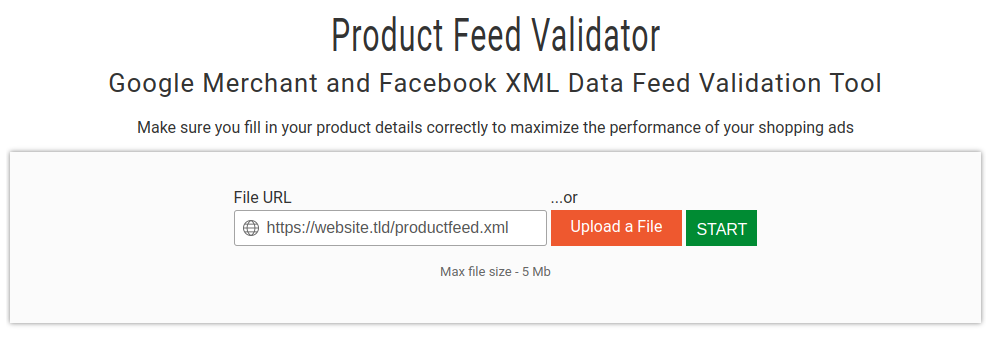
Validate product feed XML structure and content.
Validation Tool: Product Feed Validator
Validation Process:
- Insert the Product Feed URL or upload the file
- Click "Start" to begin validation
- Review validation results for errors or warnings
Valid Feed Output Example:
<channel>
  <title>Example Store</title>
  <link>https://www.examplestore.com</link>
  <description>Example Product Feed</description>
  <item>
    <g:id>12345</g:id>
    <g:title>Sample Product</g:title>
    <g:description>Sample product description</g:description>
    <g:link>https://www.examplestore.com/sample-product</g:link>
    <g:image_link>https://www.examplestore.com/image.jpg</g:image_link>
    <g:price>29.99 USD</g:price>
    <g:availability>in stock</g:availability>
  </item>
</channel>
Sample Feed Templates
Default CSV Template
A simple CSV template that mirrors Google's default Google Sheets setup structure.
Click to view CSV sample (demo data)
id,title,description,link,image_link,availability,price,condition,brand,gtin,mpn
SKU124,"Demo Sneakers","High-quality sneakers ideal for everyday use.","https://www.example.com/products/sneakers","https://www.example.com/images/sneakers.jpg",in_stock,"49.99 USD","new","DemoBrand","0987654321098","DEM-SNK-002"
Field Value Explanations
CSV Field Descriptions:
- id - Product SKU or unique identifier
- title - Product name or title
- description - Product description text
- link - Direct URL to the product page
- image_link - URL to the product image
- availability - Stock status (in_stock, out_of_stock)
- price - Product price with currency
- condition - Product condition (new, used, refurbished)
- brand - Product brand name
- gtin - Global Trade Item Number
- mpn - Manufacturer Part Number