SEO Extension
The Magebit SEO Extension enhances your Magento store's search engine optimization (SEO) performance, making your website more discoverable while improving user experience. This extension provides comprehensive SEO tools including structured data, social media optimization, and search engine visibility features.
Installation
Install the SEO extension using Composer.
Installation Command:
composer require magebitcom/module-seo-extensionPost-Installation Steps:
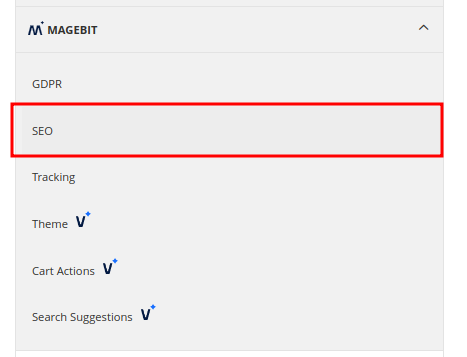
bin/magento setup:upgradeConfiguration Access: Navigate to Stores > Settings > Configuration > Magebit to access SEO configuration options.
Configuration
General Settings
Control the overall functionality of the SEO extension.
Configuration Options:
- Enable Extension - Turn the SEO extension on/off
- Store View Level - Configure settings per store view
Breadcrumbs Snippet
The SEO extension automatically enables breadcrumbs on all pages except the main landing page. Breadcrumbs provide navigation context and improve user experience.
Functionality:
- Automatic Display - Breadcrumbs are always visible on all pages except the main landing page
- Navigation Context - Helps users understand their location within the website
- SEO Benefits - Provides structured navigation data to search engines
Breadcrumbs Testing
Validate breadcrumbs implementation using Google's Rich Result Tester.
Testing Process:
- Navigate to Rich Result Tester
- Go to your website page and press Ctrl+U to view source code
- Copy the source code using Ctrl+A (for local/staging environments)
- For live sites, paste the URL in the URL section
- In Rich Result Tester, select "Code" and paste the source code
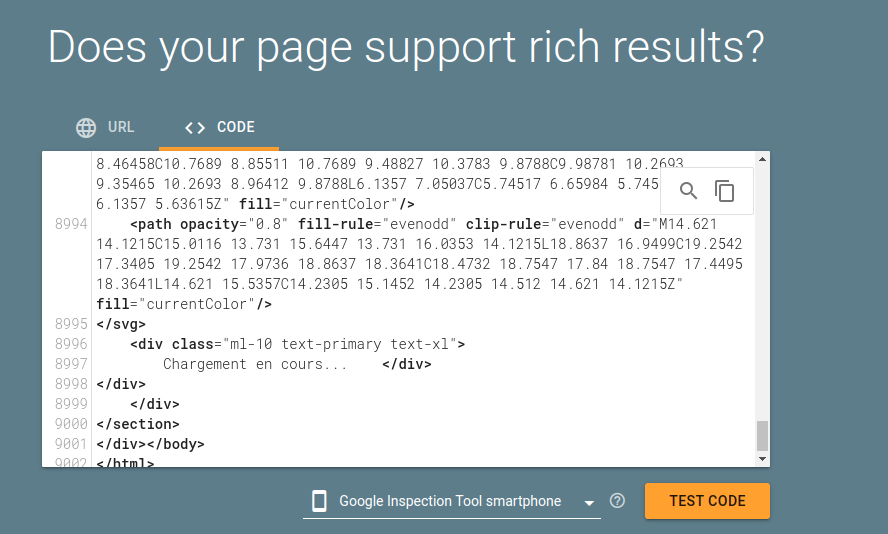
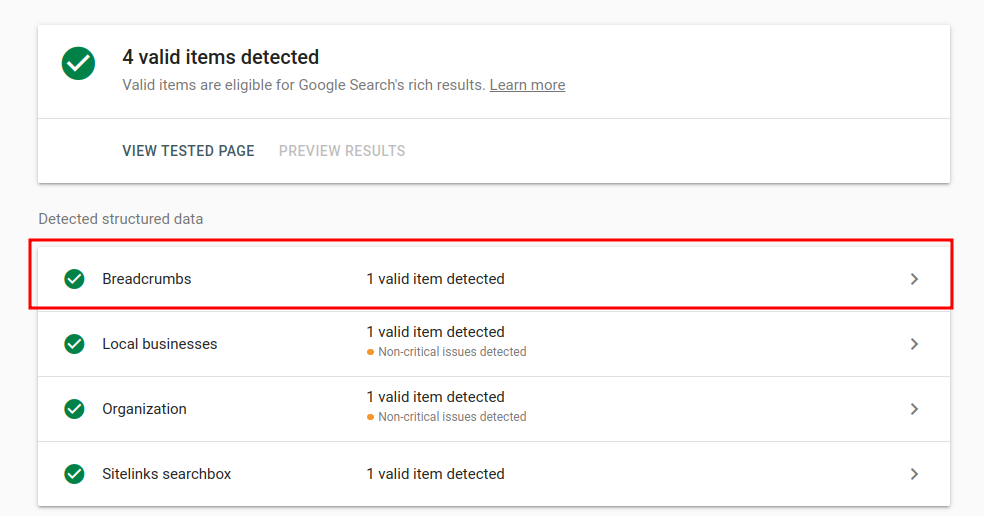
Test Results: Press "Test Code" and review the Breadcrumbs field to verify implementation.
FAQ Snippet
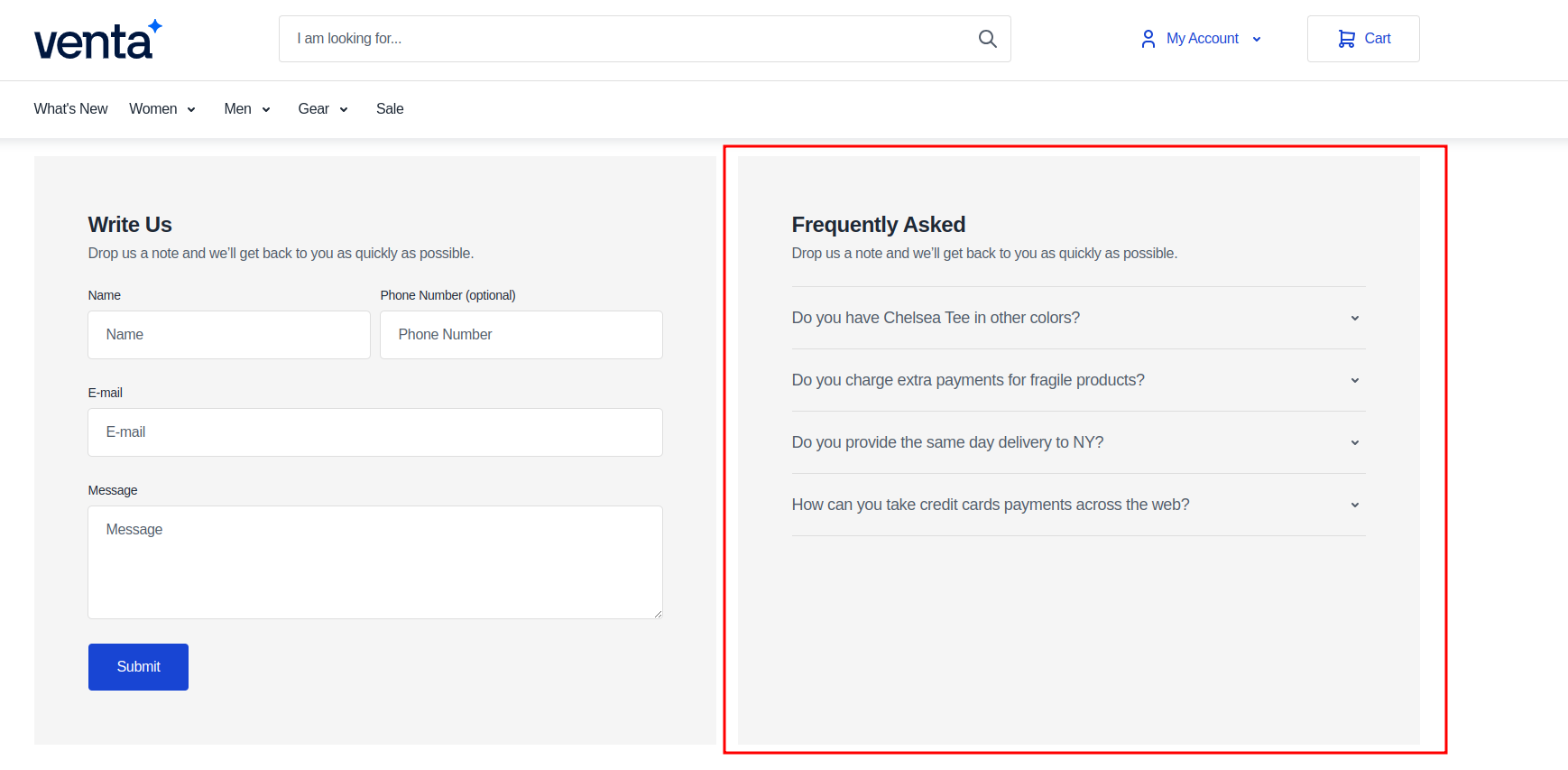
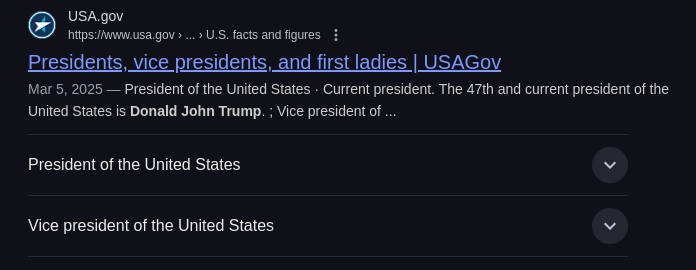
The FAQ Snippet consists of two parts: a visual FAQ block for the page and structured data snippets for search engines.
FAQ Implementation Types
Visual FAQ Block: A physical FAQ block displayed on the page for users to see and interact with.
FAQ Snippet: Structured data that appears in Google search results when relevant questions are searched.
Setup FAQ Snippet
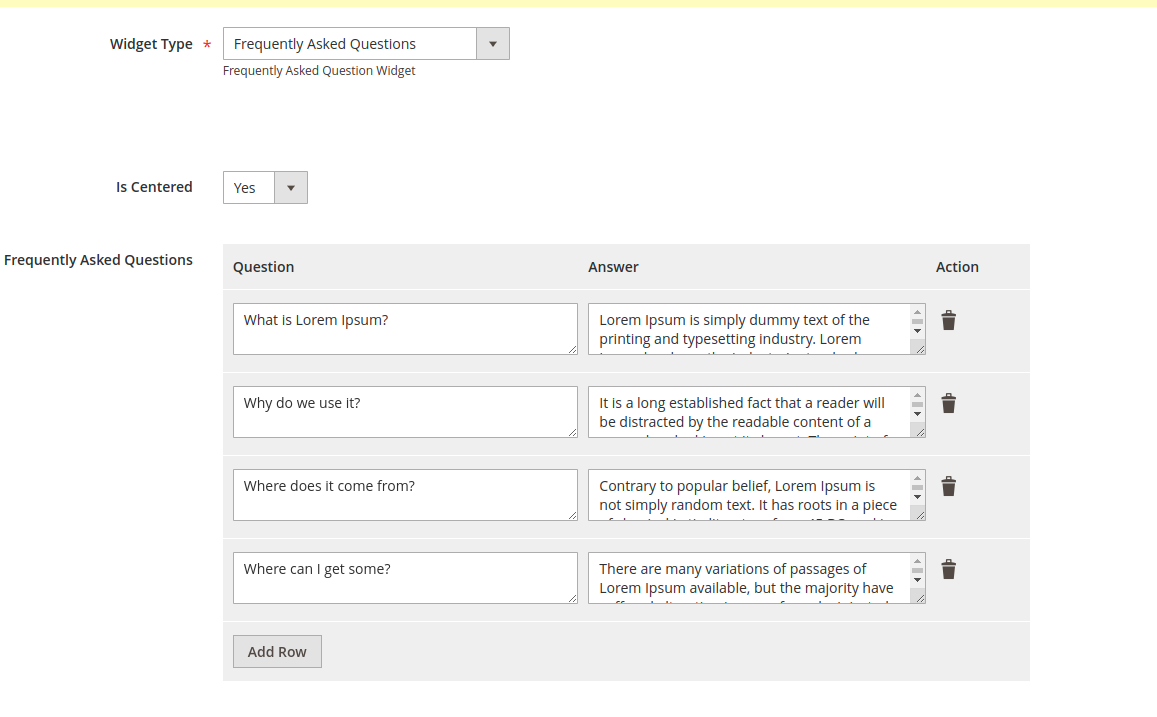
Configure FAQ snippets using Magento's Page Builder.
Configuration Steps:
- Navigate to
Content > Pages > Select a page - Under the Content section, press on Page Builder
- Select the Widget Button
- Select "Frequently Asked Questions"
- Fill out the Questions and Answers in the provided fields
FAQ Snippet Testing
Validate FAQ snippets using Google's Rich Result Tester.
Testing Process:
- Navigate to Rich Result Tester
- Go to the page with FAQ snippet and press Ctrl+U
- Copy the source code using Ctrl+A (for local/staging environments)
- For live sites, paste the URL in the URL section
- In Rich Result Tester, select "Code" and paste the source code
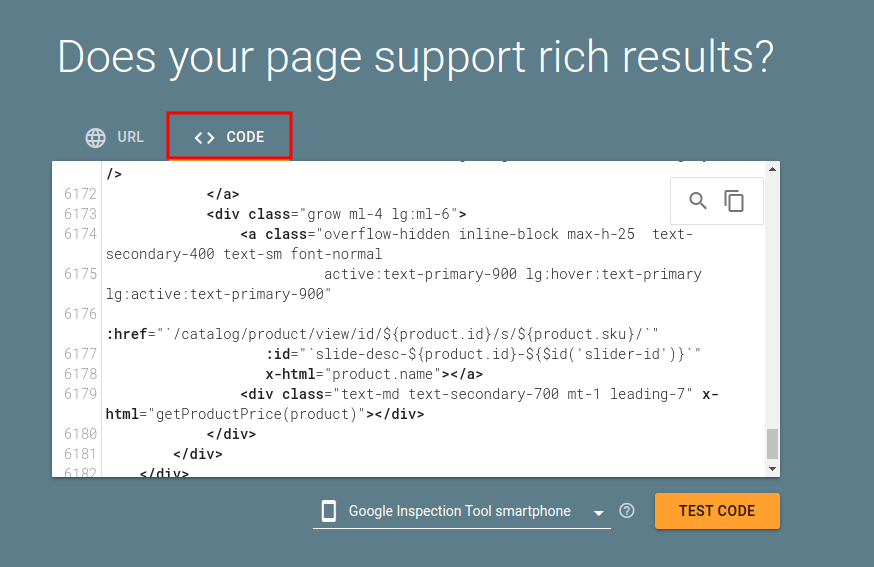
Test Results: Press "Test Code" and review the FAQ field to verify it matches your inputted values.
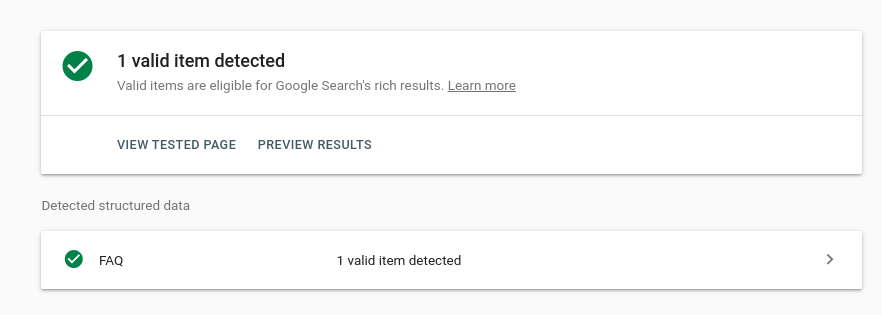
Question Verification: Compare the questions in the test results to your added questions.
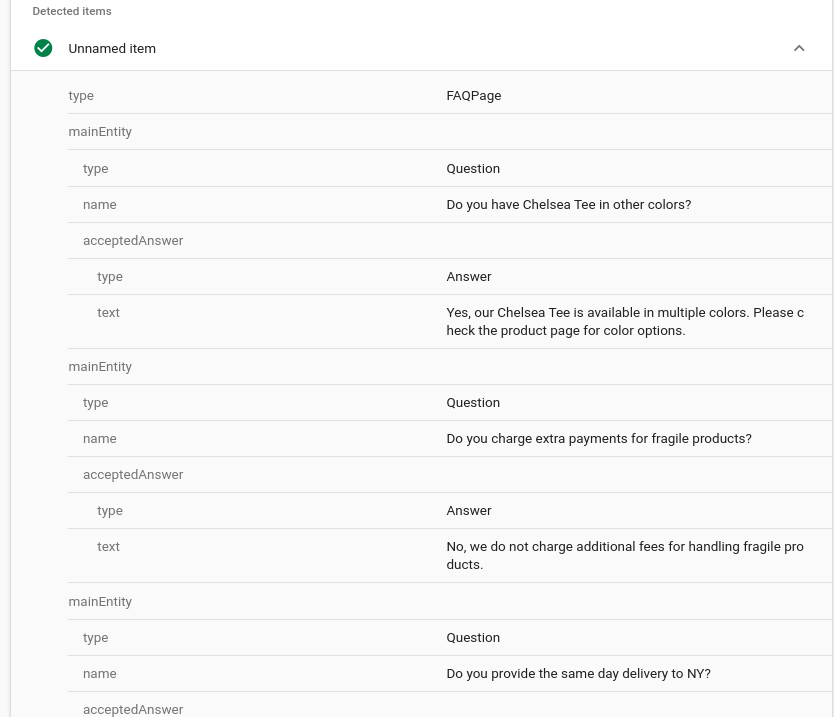
Successfully Implemented FAQ Snippet
Test FAQ snippets in actual search results.
Verification Process:
- Search for one of the questions you've added in the FAQ snippet
- Compare the question in search results to the one on your website
OG Tags
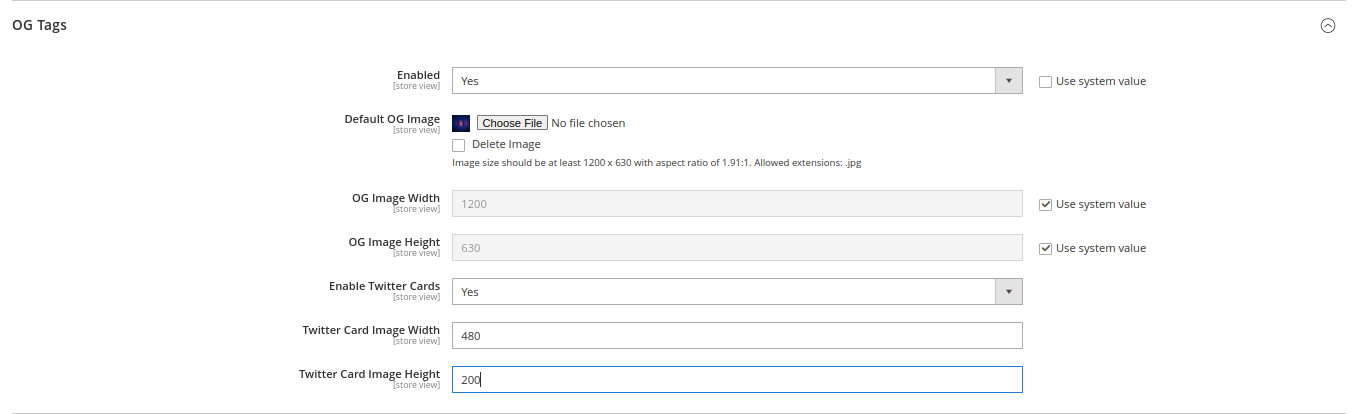
Open Graph (OG) and Twitter Card tags enhance how webpages are displayed when shared on social media platforms like Facebook, Twitter, LinkedIn, and others.
Functionality:
- Social Media Preview - Provides metadata for rich content previews
- Platform Optimization - Optimizes display for different social platforms
- Brand Consistency - Ensures consistent branding across social shares
OG Tags Testing
Test how OG tags appear when shared using online validators.
Testing Process:
- Navigate to OG Validator
- Input the link for the page you want to test
- Click "Validate"
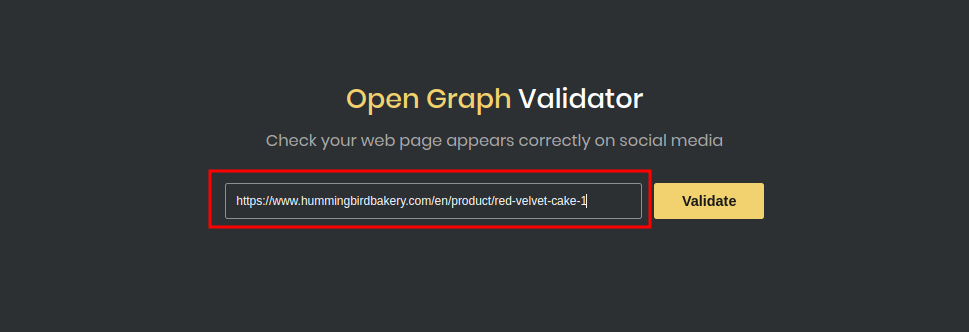
Test Results: The validator displays how the page will look when shared on social media.
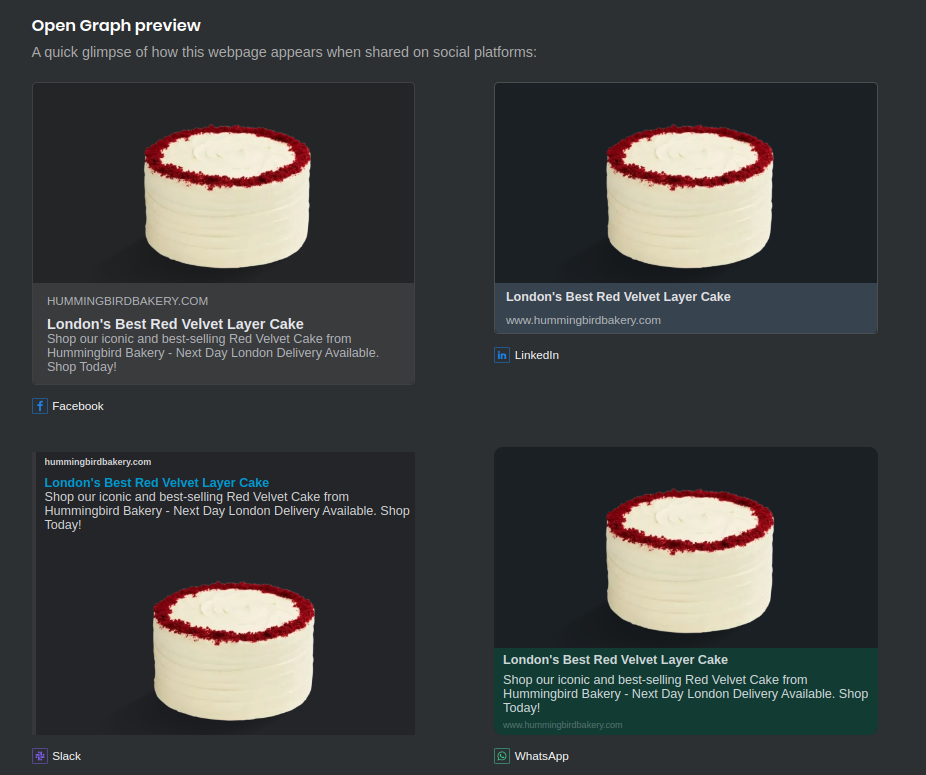
OG Tag Configuration Example
Configure OG tags for specific pages and content.
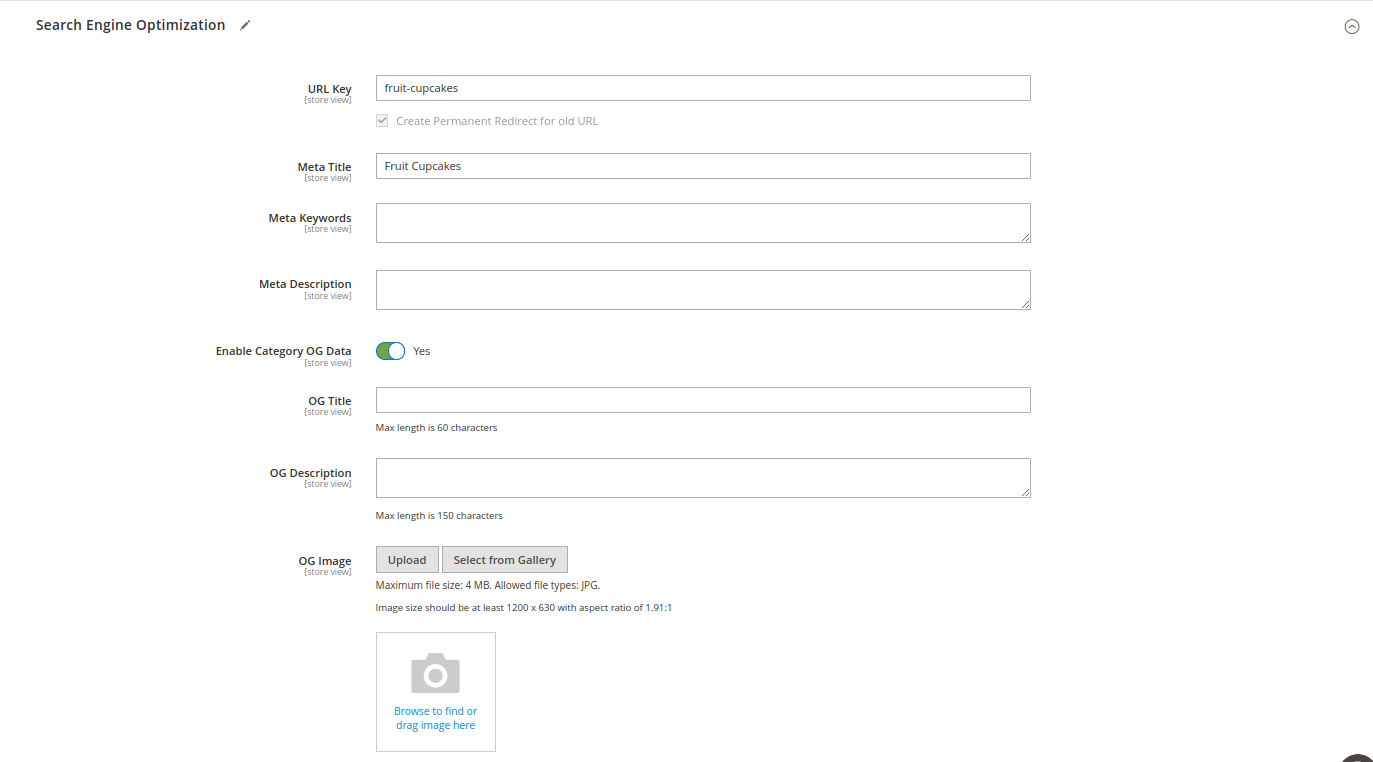
OG Tag Configuration for Categories/CMS/Products
Configure OG tags for specific content types.
Configuration Steps:
- Navigate to
Catalog > Categories > "Your specific category page" - Under "Search Engine Optimization," enable "OG Data"
- Input custom data or use default meta data
- Click "Save"
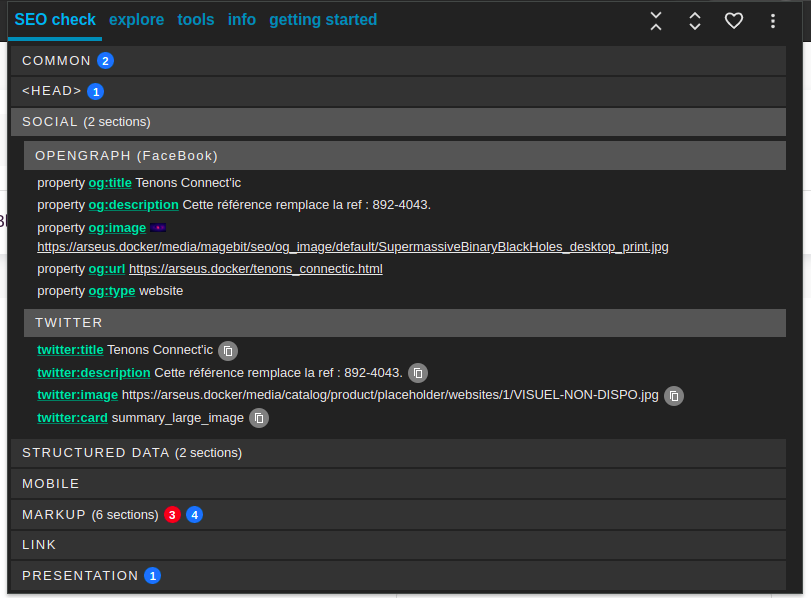
OG/Twitter Testing with Chrome Extension
Use browser extensions to test OG and Twitter card implementation.
Extension: Meta SEO Inspector
Testing Process:
- Navigate to any page and click on the extension
- Under "Social," view the OG and Twitter card data
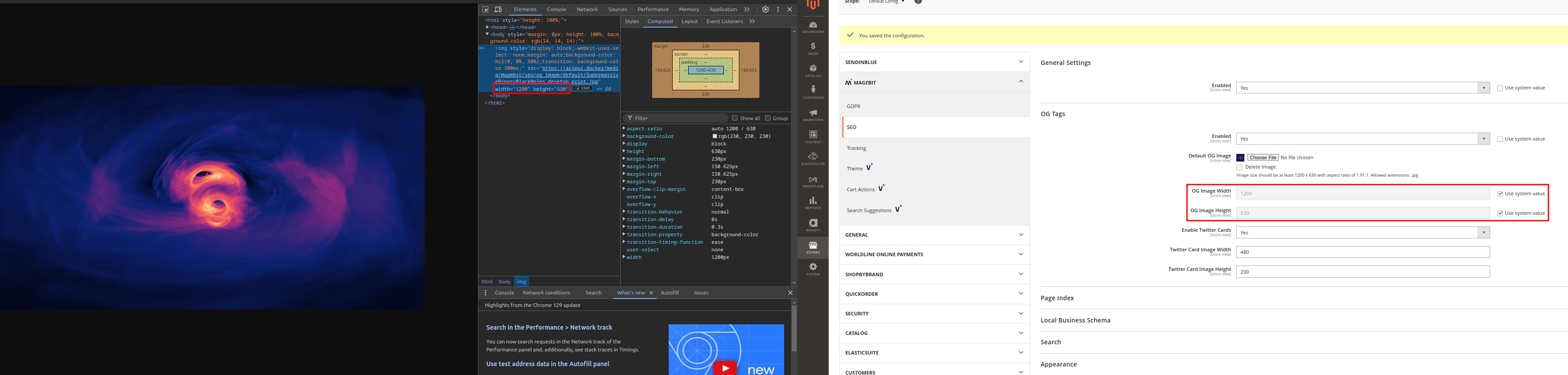
OG/Twitter Image Testing
Test OG and Twitter images for proper sizing and display.
Testing Process:
- OG and Twitter images are identical but may differ in size based on settings
- Test images using the og:image or twitter:image link
- Use inspect element to compare displayed image sizes with configured images
Page Index
Canonical tags prevent duplicate content issues and consolidate ranking signals for identical or similar pages.
Functionality:
- Duplicate Content Prevention - Specifies the preferred version of a webpage
- Ranking Signal Consolidation - Consolidates ranking signals for similar pages
- SEO Optimization - Helps search engines understand the preferred page version
Canonical Testing
Verify canonical tag implementation on your pages.
Testing Process:
- Navigate to any page
- Press Ctrl+U to view source code
- Press Ctrl+F and search for "canonical"

Local Business Schema
Local Business Schema provides structured data markup that helps search engines understand key information about a local business.
Functionality:
- Local Search Optimization - Improves visibility in local search results
- Business Information Display - Provides key business details to search engines
- Schema.org Compliance - Uses standardized structured data markup
Local Business Schema Testing
Validate Local Business Schema implementation.
Testing Process:
- Navigate to Rich Result Tester
- Go to your website page and press Ctrl+U
- Copy the source code using Ctrl+A (for local/staging environments)
- For live sites, paste the URL in the URL section
- In Rich Result Tester, select "Code" and paste the source code
Test Results: Press "Test Code" and review the Local Business field to verify it matches your inputted values.
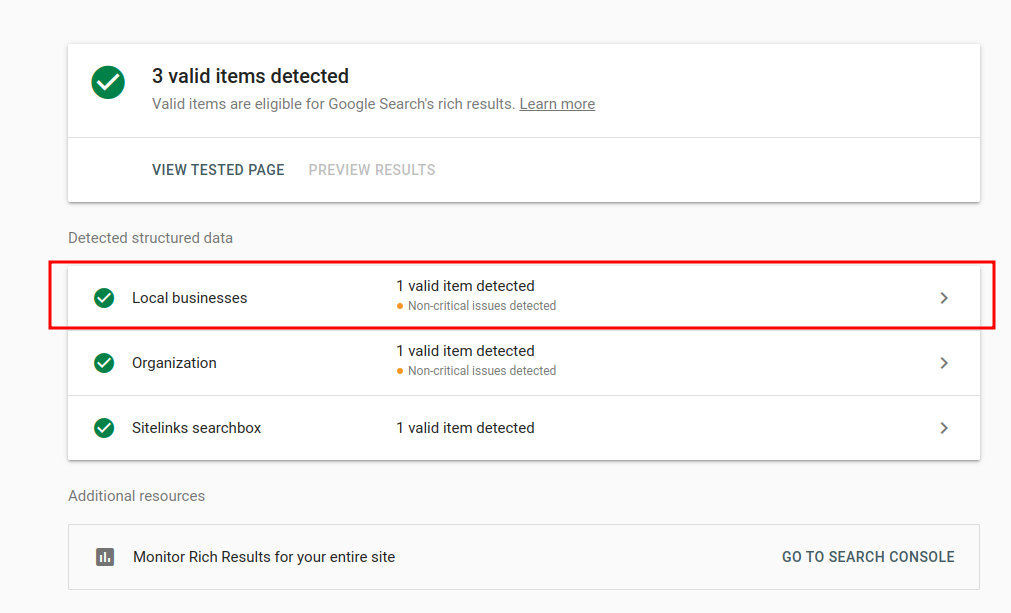
Successfully Implemented Local Business Schema
Test Local Business Schema in actual search results.
Verification Process:
- Search for your company name in Google
- Review the results on the right-hand side for business information
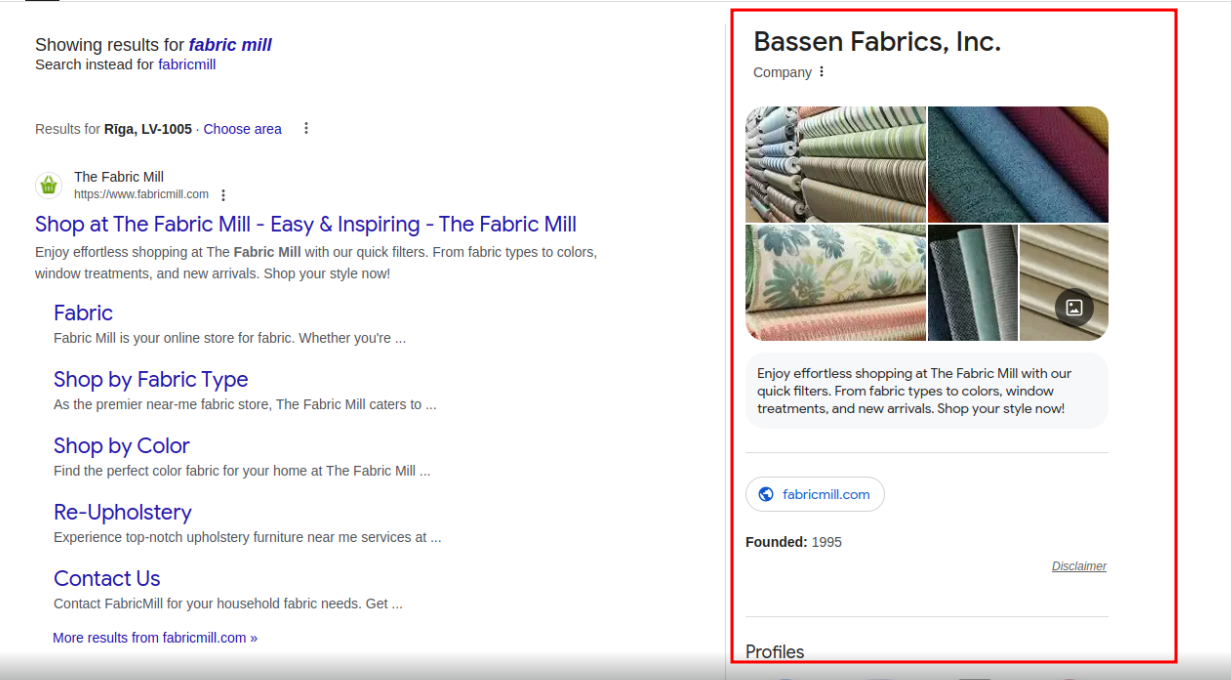
Search
The Search Bar Snippet enhances user experience by providing a search bar directly in search engine results pages.
Functionality:
- Direct Search Access - Allows users to search within your website from search results
- Improved User Experience - Reduces steps needed to find content
- Enhanced Visibility - Provides additional interaction options in search results
Search Box Snippet Testing
Validate Search Box Snippet implementation.
Testing Process:
- Navigate to Rich Result Tester
- Go to your website page and press Ctrl+U
- Copy the source code using Ctrl+A
- For live sites, paste the URL in the URL section
- In Rich Result Tester, select "Code" and paste the source code
- Press "Test Code" and review the fields under "Searchbox"
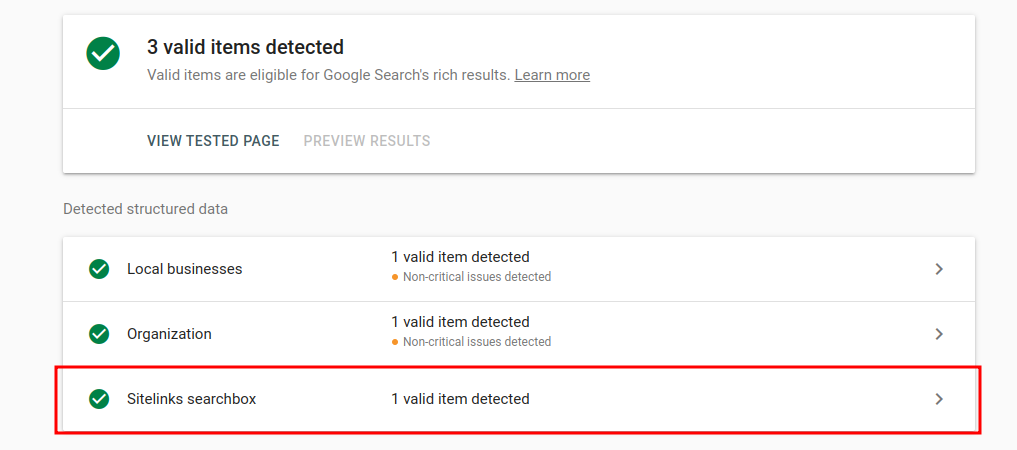
Search Box Snippet Example
Test Search Box Snippet in actual search results.
Verification Process: Search for your website name in Google to see if the search bar snippet appears under your page result.
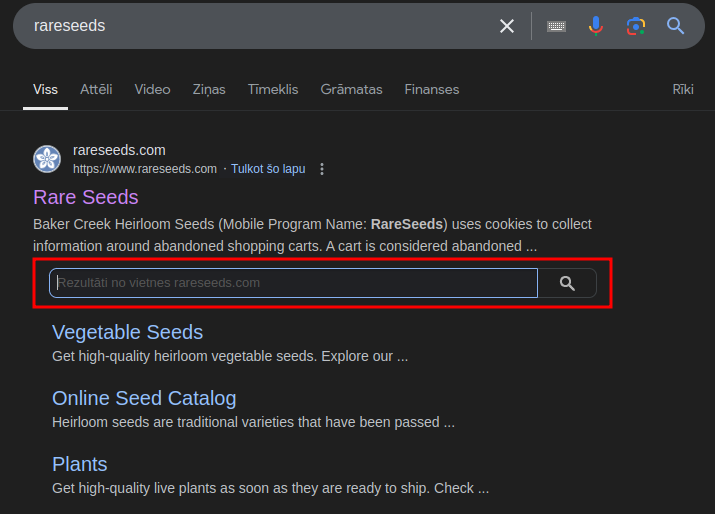
Appearance
Apple Touch Icons define the icons that appear when users bookmark or save a webpage to the home screen of Apple devices.
Functionality:
- Apple Device Optimization - Custom icons for iPhone and iPad bookmarks
- Brand Consistency - Maintains brand identity on device home screens
- Professional Appearance - Provides polished user experience
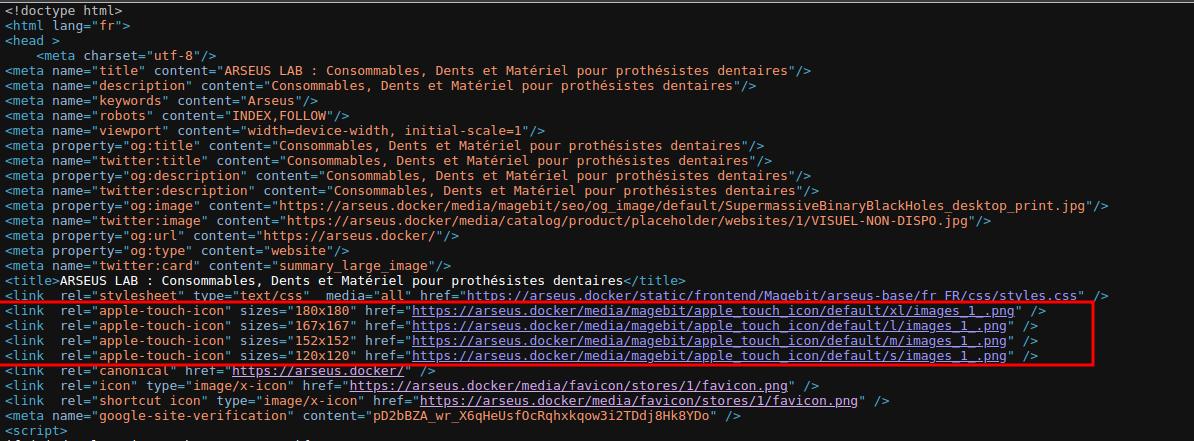
Appearance Testing
Verify Apple Touch Icon implementation.
Testing Process:
- Navigate to any page
- Press Ctrl+U to view source code
- In the head section, look for "apple-touch-icon"
HTML Sitemap
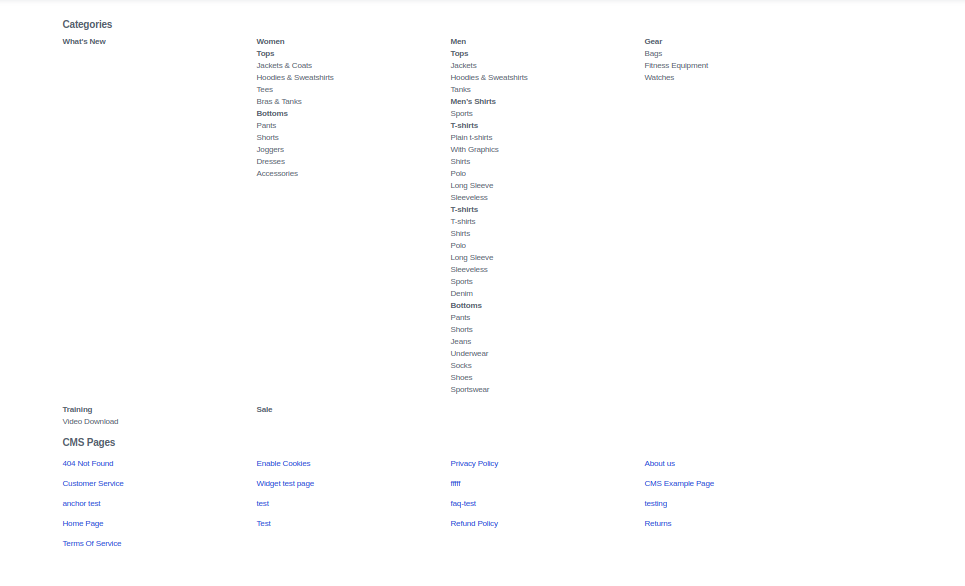
The HTML Sitemap generates a user-friendly, clickable list of links representing your website's structure.
Functionality:
- User Navigation - Provides organized access to website content
- Search Engine Optimization - Helps search engines understand site structure
- Internal Linking - Improves internal linking throughout the website
- Automatic Generation - Creates sitemap automatically
HTML Sitemap Testing
Verify HTML Sitemap functionality.
Testing Process:
- Navigate to
your-website.com/sitemap - If it returns a 404 page, the section is not enabled
- If enabled, it will show a list of directories