

Catalog Categories Configuration
Configure category display settings, images, SEO content, and navigation elements for enhanced category presentation and user experience.
Category Image Configuration
Category Image Mobile
Configure mobile-specific images for categories to optimize display across different devices.
Configuration Options:
- Upload Image - Upload or select from gallery a mobile-specific category image
- Supported Formats - JPG, GIF, PNG (Maximum file size: 4 MB)
- Image Selection - Can be selected from the gallery or uploaded manually
Category Image Path
Configure link destinations for category images to redirect users to specific pages.
Configuration Options:
- Custom Path - Specify a link to a page associated with the category image
- Example:
about-us(redirects to the About Us page) - Default Behavior - If not specified, uses default category behavior

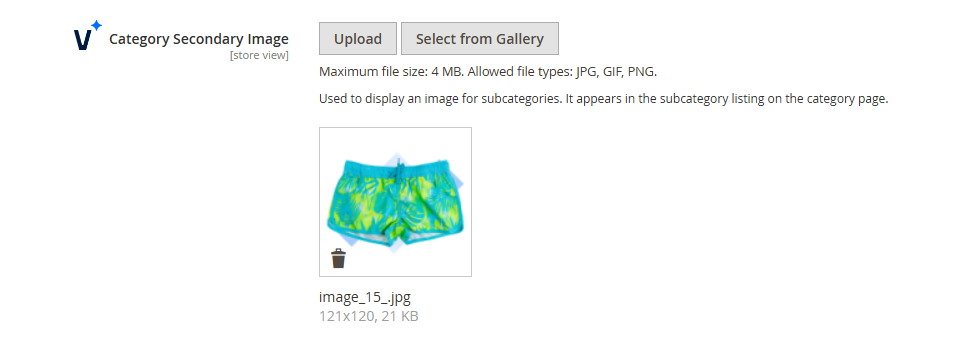
Category Secondary Image
Configure secondary images for subcategory display in category listings.
Configuration Options:
- Upload Secondary Image - Upload or select from gallery a secondary image for subcategories
- Display Location - Appears in the subcategory listing on the category page
- Supported Formats - JPG, GIF, PNG (Maximum file size: 4 MB)
Category SEO Block
Configure custom SEO content for categories using Magento's Page Builder interface.
Configuration Options:
- Edit with Page Builder - Opens the Page Builder interface for drag-and-drop content editing
- Content Types - Add text, images, videos, banners, and other content blocks
- SEO Benefits - Enhances category page search visibility and user engagement
Functionality:
- Drag-and-Drop Editor - Enables visual content management
- Rich Content Support - Multiple content block types available
- SEO Enhancement - Improves search rankings and user experience
- Informative Content - Displays rich, informative content within category pages

Display Settings
Hide Category Tree
Control category tree visibility in the storefront navigation.
Configuration Options:
- Yes - Hides the category tree from being displayed in the storefront
- No - Keeps the category tree visible for easier navigation (default)
Use Cases:
- Simplified Navigation - Useful for stores with large numbers of categories
- Interface Cleanup - Prevents interface clutter from displaying all categories
- Custom Navigation - Allows implementation of custom navigation solutions
Menu Banner Configuration
Configure promotional images for category menus across desktop and mobile views.
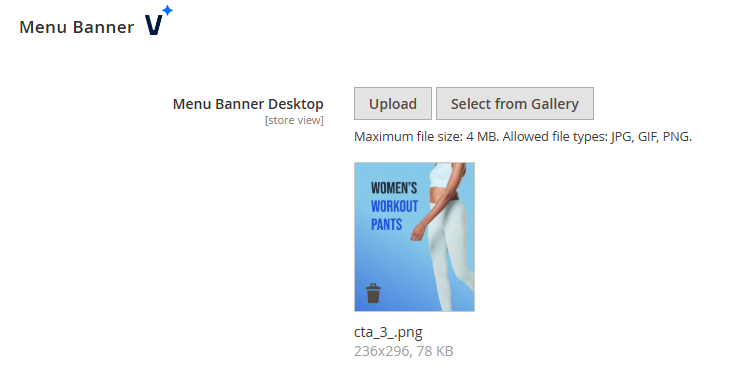
Menu Banner Desktop
Configure desktop-specific menu banner images.
Configuration Options:
- Upload Image - Upload or select an image from the gallery for desktop menu display
- Supported Formats - JPG, GIF, PNG (Maximum file size: 4 MB)
- Display Location - Appears in the desktop menu interface
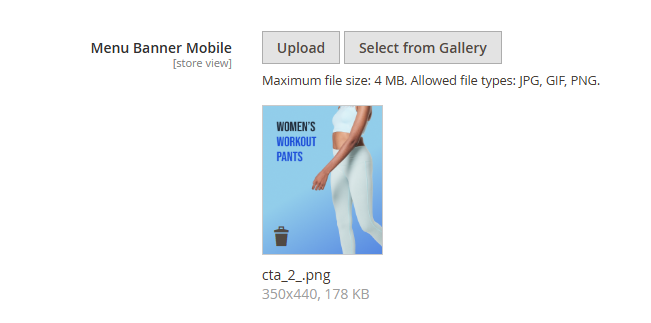
Menu Banner Mobile
Configure mobile-specific menu banner images.
Configuration Options:
- Upload Image - Upload or select an image for the mobile menu
- Supported Formats - JPG, GIF, PNG (Maximum file size: 4 MB)
- Display Location - Appears in the mobile menu interface
Menu Banner Path
Configure link destinations for menu banner clicks.
Configuration Options:
- Custom URL - Define the link destination when clicking the banner
- Example:
https://demo.ventatheme.com/women/bottoms-women/pants-women.html - Default Behavior - If left blank, clicking the banner redirects users to the current category

Configuration Benefits
Enhanced Navigation
Menu banner configuration helps enhance navigation and promote key categories or offers directly in the menu interface.
Responsive Design
All image configurations support both desktop and mobile views, ensuring optimal display across different devices and screen sizes.
SEO Optimization
Category SEO blocks provide tools for improving search engine visibility and user engagement through rich content integration.
User Experience
Category image and banner configurations improve visual appeal and provide clear navigation paths for users browsing category structures.