

Post Purchase
The Post Purchase extension sends a customer a one-click offer link after their order is placed, so they can add discounted products to a second, linked order. Each rule chooses how its offer travels: the module's own email, or a Klaviyo event for a flow to send. The discount belongs to the rule that made the offer, so no cart price rule and no coupon code are involved anywhere in the flow.
Overview
Post Purchase is a Magebit add-on module for Hyvä stores. A merchant writes rules under Marketing > Promotions > Post-Purchase Rules, and each rule owns one offer: which orders it covers, which products it offers, how long the offer stays open, what discount applies, and how it reaches the customer.
When a customer accepts an offer, the module builds a checkout that is already filled in from the original order (customer, addresses, shipping method), so the customer only has to pay. Accepting never adds items to the order that triggered the offer. It always creates a separate follow-up order, linked back to the original.
The module runs on any Hyvä theme, and on a store view running Magento's Luma theme inside the same installation. Venta Theme is suggested rather than required: with Venta installed, the offer dialogs take its modal chrome and design tokens, and without it they carry their own heading, close button and sizing. The checkout-side address lock and leave-guard dialog attach to Hyvä Checkout, to Magento's Luma checkout, and to any checkout that owns its own route once it registers an adapter. A headless or React checkout reads the offer terms and the lock over REST or GraphQL instead.
Documentation
- Benefits - Business benefits and use cases
Key features
Rules
- Rule-based offers under Marketing > Promotions, evaluated in priority order, first match wins
- Order conditions built with Magento's own condition tree (subtotal, grand total, weight, payment method, shipping country, products in the order, and more)
- A separate product filter deciding which products get offered, independent of the conditions that decide when the rule applies
- Campaign start and end dates, website and customer group scoping
- Duplicate action on the grid and on the rule form, creating the copy switched off
Offers
- A signed one-click offer link, verified against a record the customer cannot reach
- Two selection modes: add every offered product, or let the customer choose within a minimum and maximum
- A regular discount window plus an optional later window with its own discount
- Optional free shipping on the offer, separate from the late window's own free-shipping flag
- Composite products offer their variations, so a configurable product offers its variants
- Stock judged the way the checkout judges it, counting what unshipped orders have already claimed, and an offered product the cart still refuses is dropped so the rest of the offer goes ahead
Delivery
- A delivery channel chosen per rule: the module's own offer email, or a Klaviyo event
- Offer email with the products, prices, expiry and a single call to action, rendered in the store's own email chrome, sent from a configurable store contact
Post Purchase Offer IssuedandPost Purchase Offer Redeemedevents for Klaviyo, carrying the offer link, the offered products, the discount and the expiry, so the email is a flow and a reminder can stop itself- A further channel is one class and one
di.xmlentry, with no change to the rest of the pipeline
Fulfillment
- Optional combined fulfillment, pricing a follow-up order so a warehouse can pack it with the original while that original is still unshipped
- Delivery details fixed on a combined offer, enforced at place-order rather than only in the browser
- A single reduced shipping method on a combined follow-up order, at a price the merchant sets
Storefront
- Cart offer dialog and checkout guards on Hyvä store views and on Luma store views
- Address lock and leave-checkout warning on Hyvä Checkout, on Magento's Luma checkout, and on any checkout that owns its route through a small adapter
- REST endpoints and GraphQL fields reporting the offer terms and the lock to a headless or React checkout, with locked-field edits refused at the address step
- Coupon field removed from the cart and checkout on an offer cart, because a coupon is refused on it anyway
- A live offer survives everything the page does in the background: what counts as the customer leaving comes from headers the browser sets itself, so a background request, a prefetch or a prerender never drops an offer
- An offer ends on the first page the customer opens outside it, including the CMS, category and product pages a full page cache would otherwise answer, so their own cart is back before they carry on browsing
- A product added to the cart while an offer is open lands in the customer's own cart: the offer is released first, so nothing they add is discarded with it
Admin
- Linked-order banner and an order-information row on both orders in a pair
- Two sales order grid columns showing which orders came from an offer, and which order they came from
Installation
Installation Command:
composer require magebitcom/magento2-venta-theme-post-purchasePost-Installation Steps:
bin/magento setup:upgrade
bin/magento setup:di:compile
bin/magento cache:flush
Then let the active Hyvä theme pick up the module's Tailwind classes and rebuild the theme's CSS:
bin/magento hyva:config:generatenpm --prefix app/design/frontend/<Vendor>/<theme>/web/tailwind run build-prodThe module registers itself with hyva:config:generate and ships a Tailwind config for Hyvä 1.3 and 1.4 plus a CSS source for Hyvä 1.5 and later, so the theme's own hyva.config.json does not need editing. The four colour tokens it uses that Hyvä does not define come with defaults a theme is free to override.
Skipping the rebuild leaves the dialogs unstyled
Without the Tailwind rebuild the offer dialog and the leave-checkout warning render full width and without their background or border. Nothing is logged, because the markup is correct and only the CSS is missing.
Requirements
| Requirement | Version |
|---|---|
| PHP | >= 8.1 |
magebitcom/magento2-core | 0.1.* |
hyva-themes/magento2-theme-module | ^1.3.11 |
magento/framework | ^103.0 |
Suggested, not required
| Package | What it adds |
|---|---|
hyva-themes/magento2-hyva-checkout | The checkout-side address lock and leave guard on Hyvä Checkout and every checkout registered into it, Venta's included. |
hyva-themes/magento2-luma-checkout | The same guards on Magento's own Luma checkout, reached under a Hyvä theme through that package's theme fallback. |
magebitcom/magento2-venta-theme ^1.7 | Venta's modal chrome around each offer dialog. Without it the dialogs carry their own heading, close button and sizing. |
One of the two checkout packages is needed for a checkout to render at all on a Hyvä-theme store view. Without either, and equally with Hyvä Checkout installed but left on its shipped magento_luma default without the Luma fallback package, Hyvä's default theme reports that no checkout module is installed. A store view running Magento's Luma theme needs neither: Magento's own checkout renders as it always does, and the module's dialog and guards render into it. The Hyvä theme module stays required by the package even in an installation where every store view is Luma.
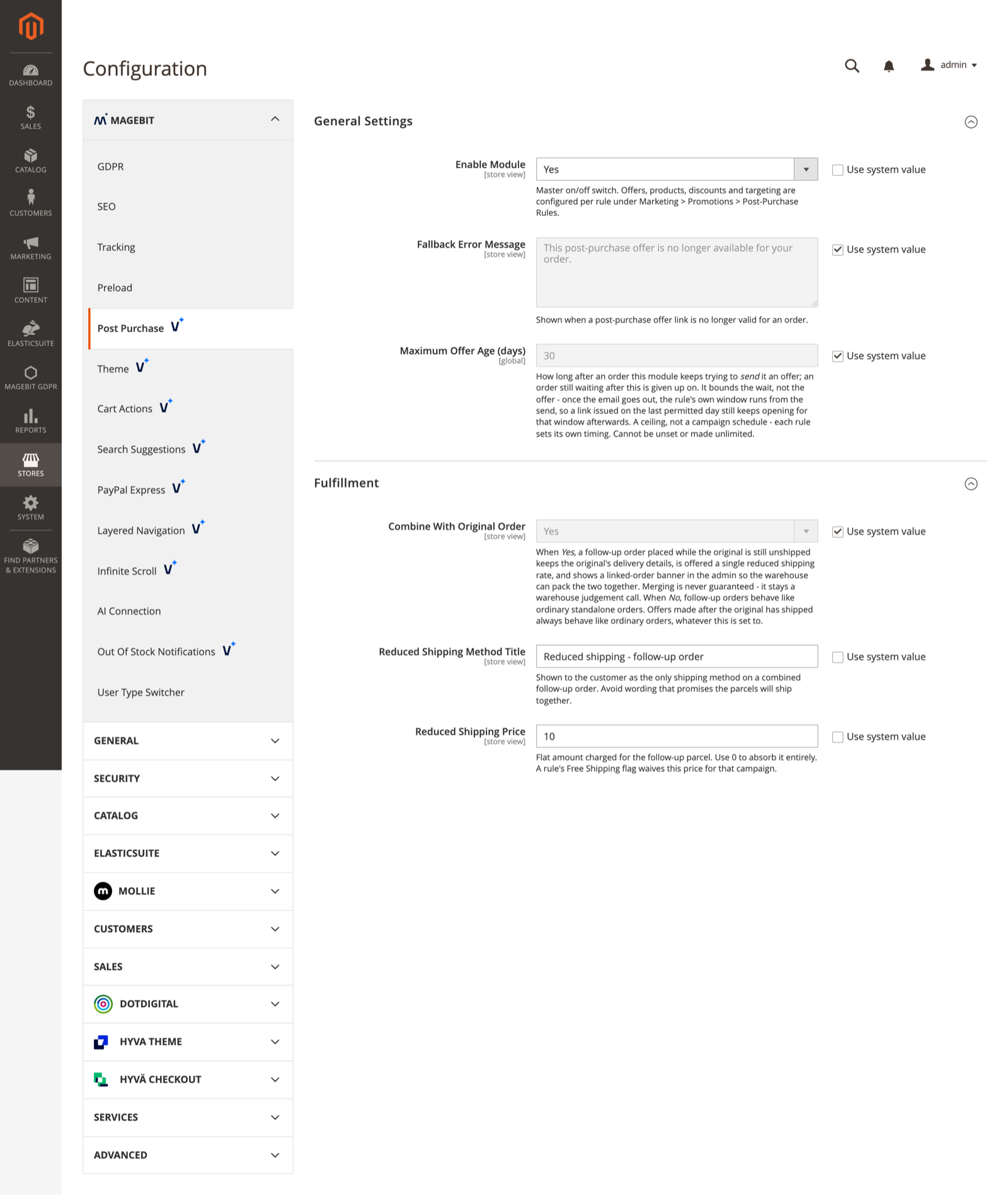
Configuration Access: Navigate to Stores > Configuration > Magebit > Post Purchase.
WARNING
The module ships with Enable Module set to No. Nothing is sent and no order is taken up until it is switched on.
Extension Configuration
The section holds three groups. Everything else, including offered products, conditions, timing, discount, delivery channel and email content, is set per rule rather than here.
General Settings
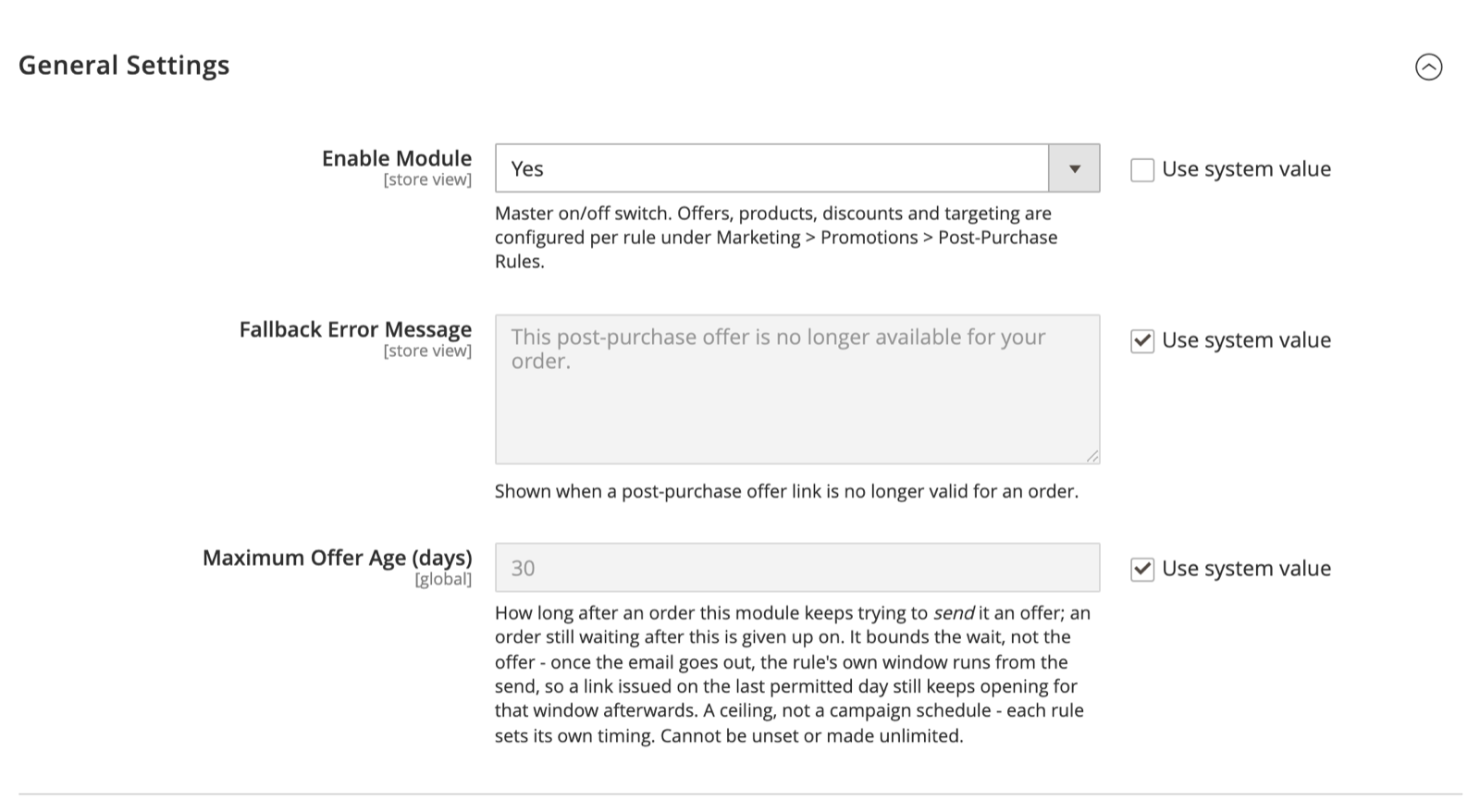
Configuration options
| Field | Scope | Default | Description |
|---|---|---|---|
| Enable Module | Store view | No | Master on/off switch. Offers, products, discounts and targeting are configured per rule. |
| Fallback Error Message | Store view | This post-purchase offer is no longer available for your order. | Shown when a post-purchase offer link is no longer valid for an order. |
| Offer Email Sender | Store view | General Contact | The store contact the offer email is sent from. |
| Maximum Offer Age (days) | Global | 30 | How long after an order the module keeps trying to send it an offer. An order still waiting after this is given up on. |
Offer Email Sender is store-wide, not per rule. It offers the same store contacts as Magento's own sales emails, and defaults to the General Contact.
Maximum Offer Age bounds the wait, not the offer. Once the email goes out, the rule's own window runs from the send, so a link issued on the last permitted day still keeps opening for that window afterwards. The field cannot be unset or made unlimited: a value that is not a whole number of days of 1 or more is refused on save, and a missing stored value falls back to 30 days.
This is the one field in the section that is global rather than per store view. It is also the ceiling the rule form validates a rule's send delay against, so the number checked at save time and the number used at runtime cannot disagree.
Fulfillment
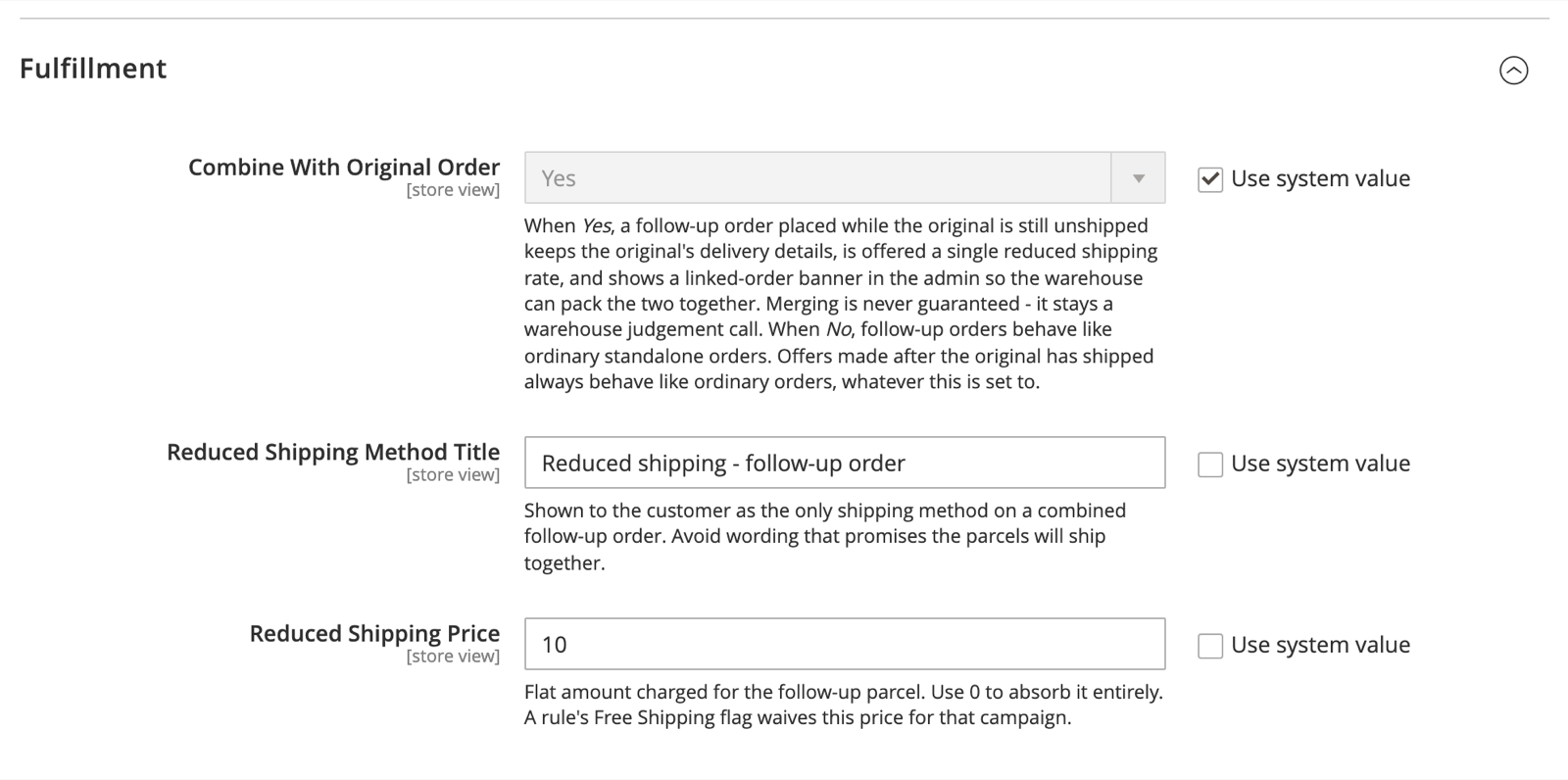
Configuration options
| Field | Scope | Default | Description |
|---|---|---|---|
| Combine With Original Order | Store view | Yes | Whether a follow-up order placed while the original is still unshipped is priced for combined fulfillment. |
| Reduced Shipping Method Title | Store view | Reduced shipping - follow-up order | Shown to the customer as the only shipping method on a combined follow-up order. |
| Reduced Shipping Price | Store view | 0 | Flat amount charged for the follow-up parcel. Use 0 to absorb it entirely. |
With Combine With Original Order set to Yes, a follow-up order placed before the original ships keeps the original's delivery details, is offered a single reduced shipping rate, and shows a linked-order banner in the admin. Merging the two parcels stays a warehouse judgement call, so word the shipping method title as a reduced rate rather than a promise that the parcels ship together.
Set it to No and new follow-up orders behave like ordinary standalone orders: ordinary carriers, no address lock, no banner. Offers accepted after the original has shipped always behave like ordinary orders whatever this is set to.
The last two fields are hidden while Combine With Original Order is No. Reduced Shipping Price accepts 0 or more, and an empty value is stored as 0. A rule's own Free shipping flag waives this price for that campaign.
Klaviyo

Configuration options
| Field | Scope | Default | Description |
|---|---|---|---|
| Private API Key | Website | empty | The Klaviyo private key (pk_..., with the events:write scope) the module posts offer events to. Read only by rules whose Delivery channel is Klaviyo event. |
The key is stored encrypted and shown obscured, and it is declared sensitive, so bin/magento app:config:dump leaves it out of the app/etc/config.php a project commits and it stays editable in the admin afterwards.
There is no enable switch for Klaviyo. A key plus a rule on the Klaviyo channel is the switch, and Enable Module still gates everything. A store that sets no key and leaves its rules on the email channel is unaffected by this group.
Post-purchase rules
Rules live under Marketing > Promotions > Post-Purchase Rules, in the same group as Catalog Price Rules and Cart Price Rules. The menu entry is hidden while the module is switched off at default scope, and the page itself is guarded by the Magebit_VentaPostPurchase::rule permission.
The rules grid
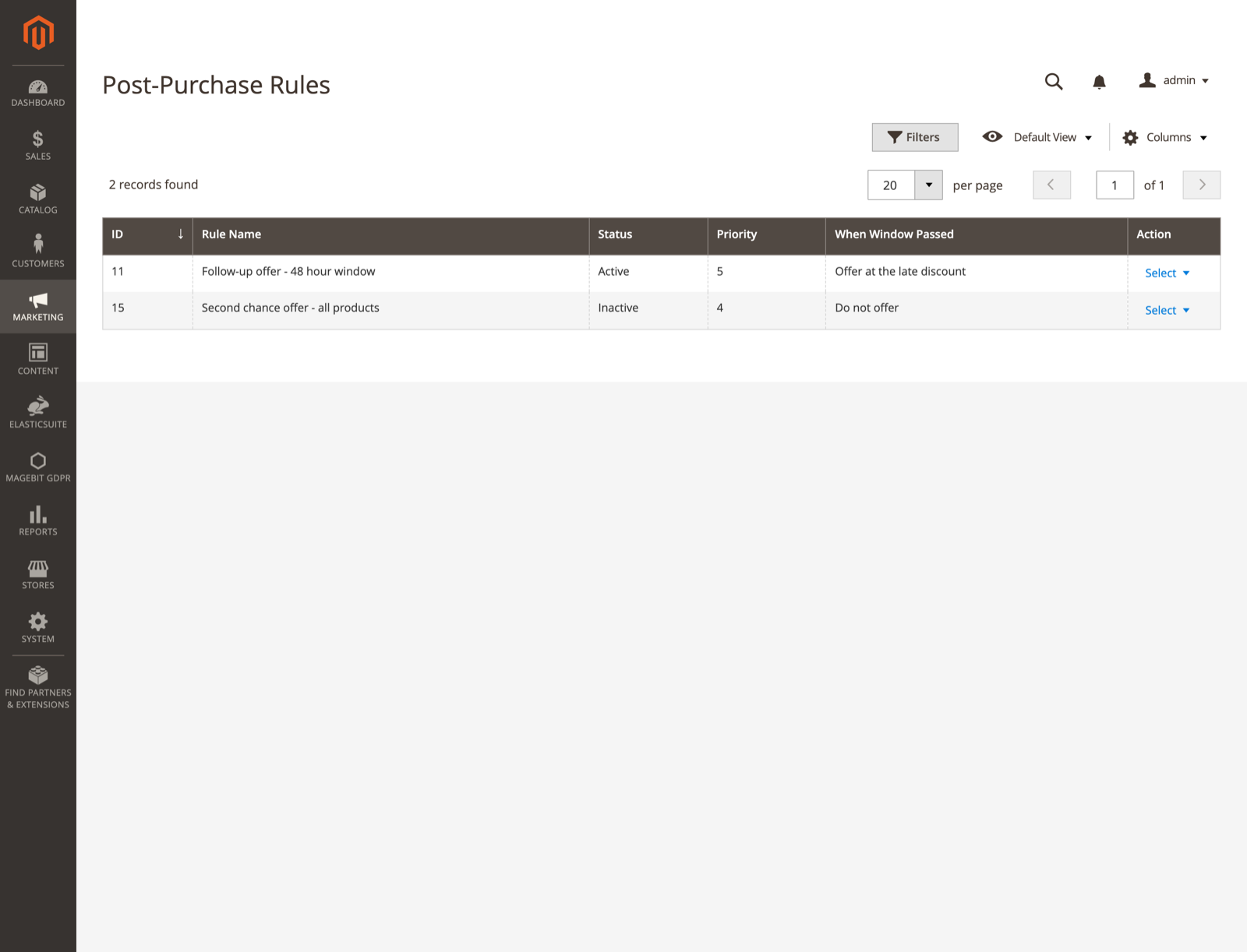
The grid has five columns: ID, Rule Name, Status, Priority and When Window Passed. A rule's website scope, timing and campaign dates are visible only by opening the rule.
Each row offers two actions. Edit opens the rule. Duplicate creates a copy switched off until it is activated, and asks for confirmation first. The same Duplicate button sits on the toolbar of any saved rule's own form.
General
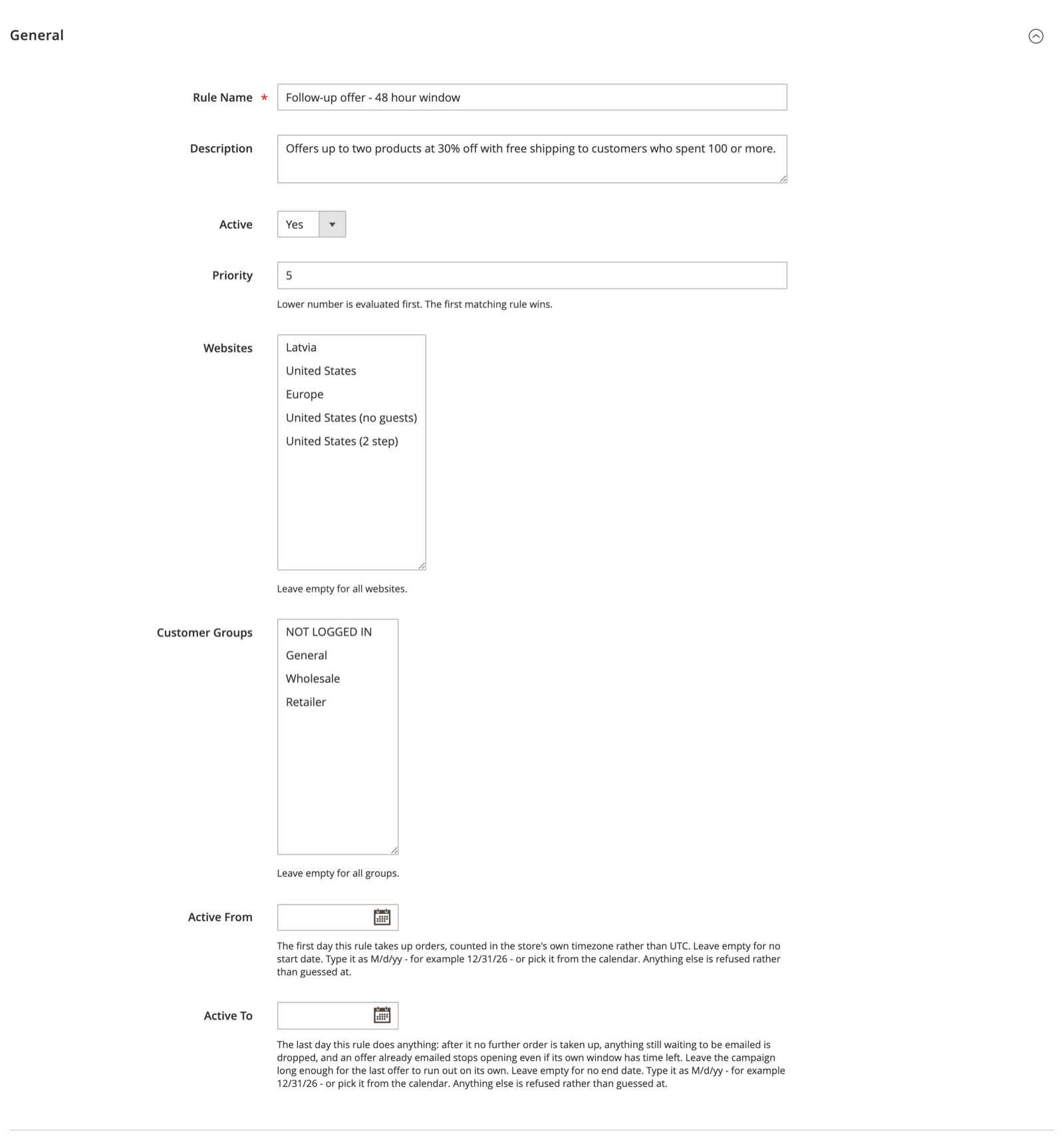
Configuration options
| Field | Description |
|---|---|
| Rule Name | Required. |
| Description | Free text, for the merchant's own reference. |
| Active | Yes or No. A new rule defaults to Yes. |
| Priority | Lower number is evaluated first, and the first matching rule wins. Defaults to 0. |
| Websites | Leave empty for all websites. |
| Customer Groups | Leave empty for all groups. |
| Active From | The first day this rule takes up orders, counted in the store's own timezone rather than UTC. Leave empty for no start date. |
| Active To | The last day this rule does anything. Leave empty for no end date. |
Both date fields state the pattern the store's admin locale expects, with a sample date in it, and they are parsed strictly. A date the locale cannot read, or one with trailing text after it, is refused with a message naming the expected pattern rather than being reinterpreted.
DANGER
Active To stops everything, including offers that were already emailed. Once it passes, no further order is taken up, anything still waiting to be emailed is dropped, and an offer link already emailed stops opening even if its own window has time left. Leave the campaign long enough for the last offer to run out on its own.
Conditions
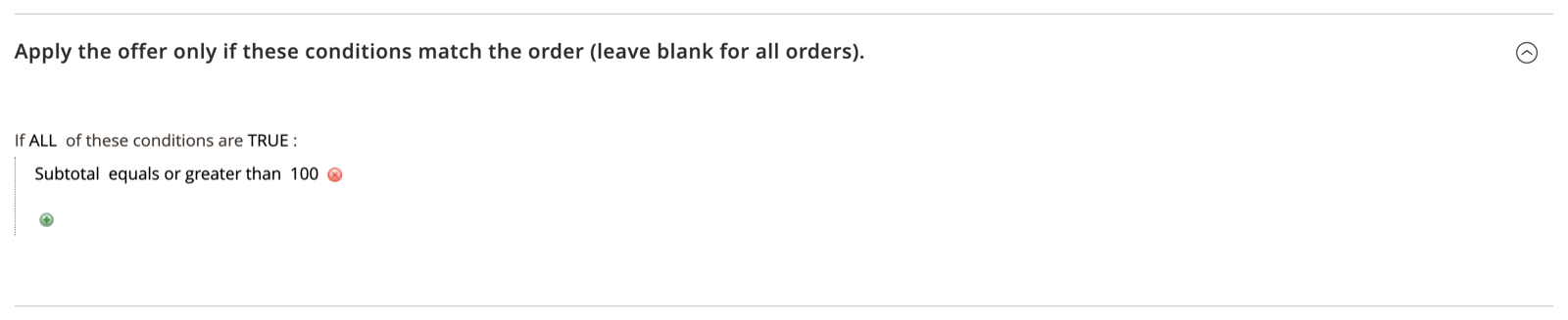
A nested ALL/ANY tree deciding which orders the rule covers. Leave it blank to cover every order. It is evaluated against the placed order when the order is taken up, and re-checked against the same rule on every later send attempt.
Three condition types can be added:
- Conditions Combination - a nested ALL/ANY sub-group.
- Product in the order - whether an item is found, or not found, in the order matching a product-attribute filter. It matches the order's top-level purchased lines together with any configurable or grouped parent the purchased product resolves to.
- Order attribute - Subtotal, Subtotal (Incl. Tax), Grand Total, Total Items Quantity, Total Weight, Customer Group, Payment Method, Shipping Method, Shipping Country, Shipping Region and Shipping Postcode.
Offered Products
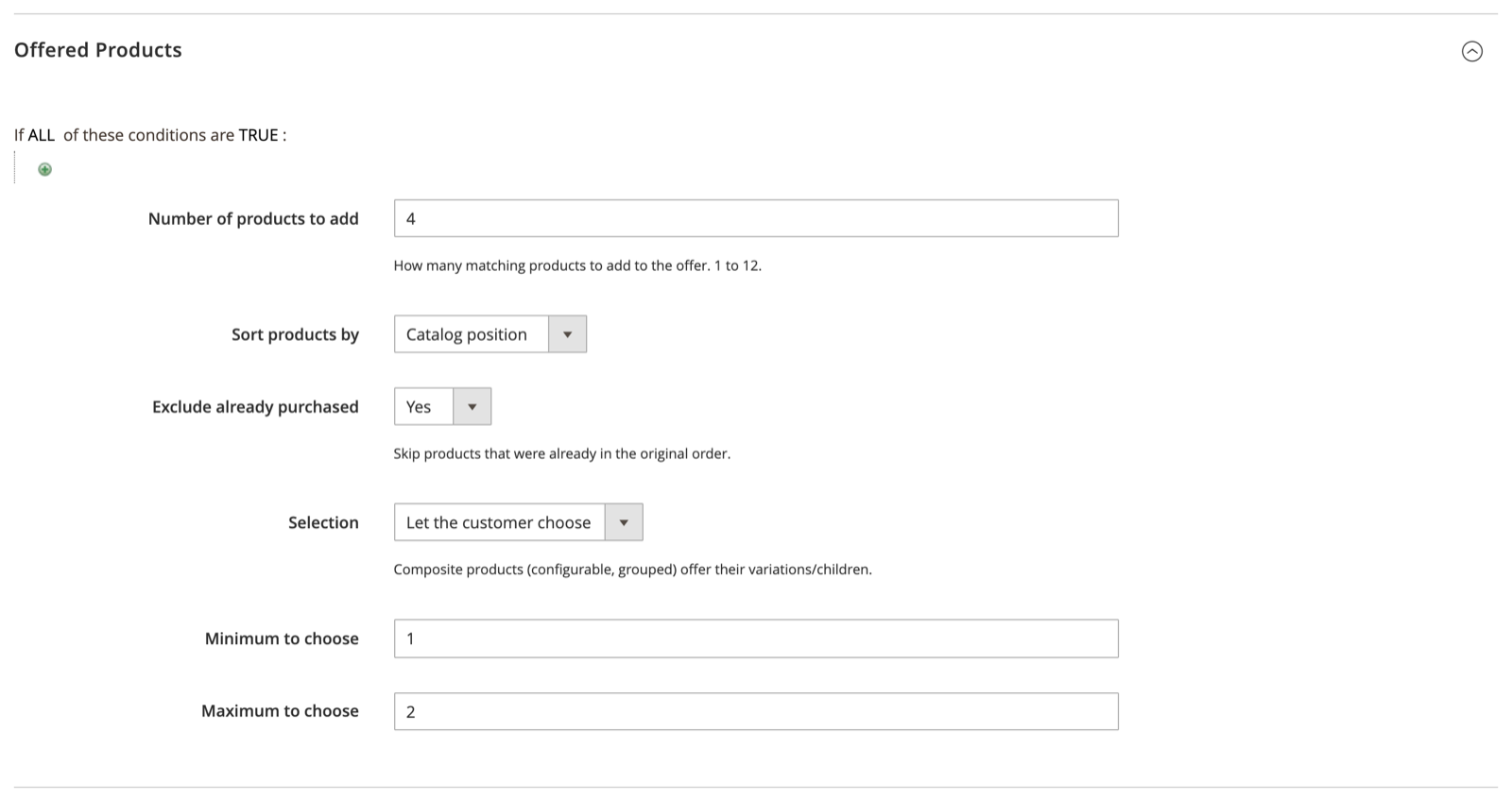
Configuration options
| Field | Description |
|---|---|
| Offer products matching these conditions | A product filter, limited to attributes flagged for use in promo rules. |
| Number of products to add | How many matching products to add to the offer, from 1 to 12. Defaults to 4. |
| Sort products by | Catalog position, Newest first, Price: low to high, Price: high to low, or Random. Defaults to Catalog position. |
| Exclude already purchased | Skip products that were already in the original order. Defaults to Yes. |
| Selection | Add all offered products, or Let the customer choose. Composite products (configurable, grouped) offer their variations or children. Defaults to Add all offered products. |
| Minimum to choose | Shown only when Selection is Let the customer choose. Defaults to 1. |
| Maximum to choose | Shown only when Selection is Let the customer choose. Defaults to 1. |
TIP
An empty product filter matches every enabled, in-stock product, the same way an empty condition tree matches every order. The rule then offers whatever the first Number of products to add products are in the chosen sort order. Set a filter when the offer should be narrower than the whole catalogue.
Stock is judged the way the checkout judges it. Every candidate product is asked whether one unit can actually be sold today in the order's own website, which counts what unshipped orders have already claimed rather than only what is on the shelf. A product with eight units in stock and eight already claimed is passed over, and the next product the filter matched takes its place, so the rule offers as many products as it asked for. On a store that sells faster than it ships, that is a narrower catalogue than the stock quantities alone suggest.
A maximum saved below the minimum is raised to the minimum when the offer is judged, so a rule can never make every selection impossible.
Timing & Discount
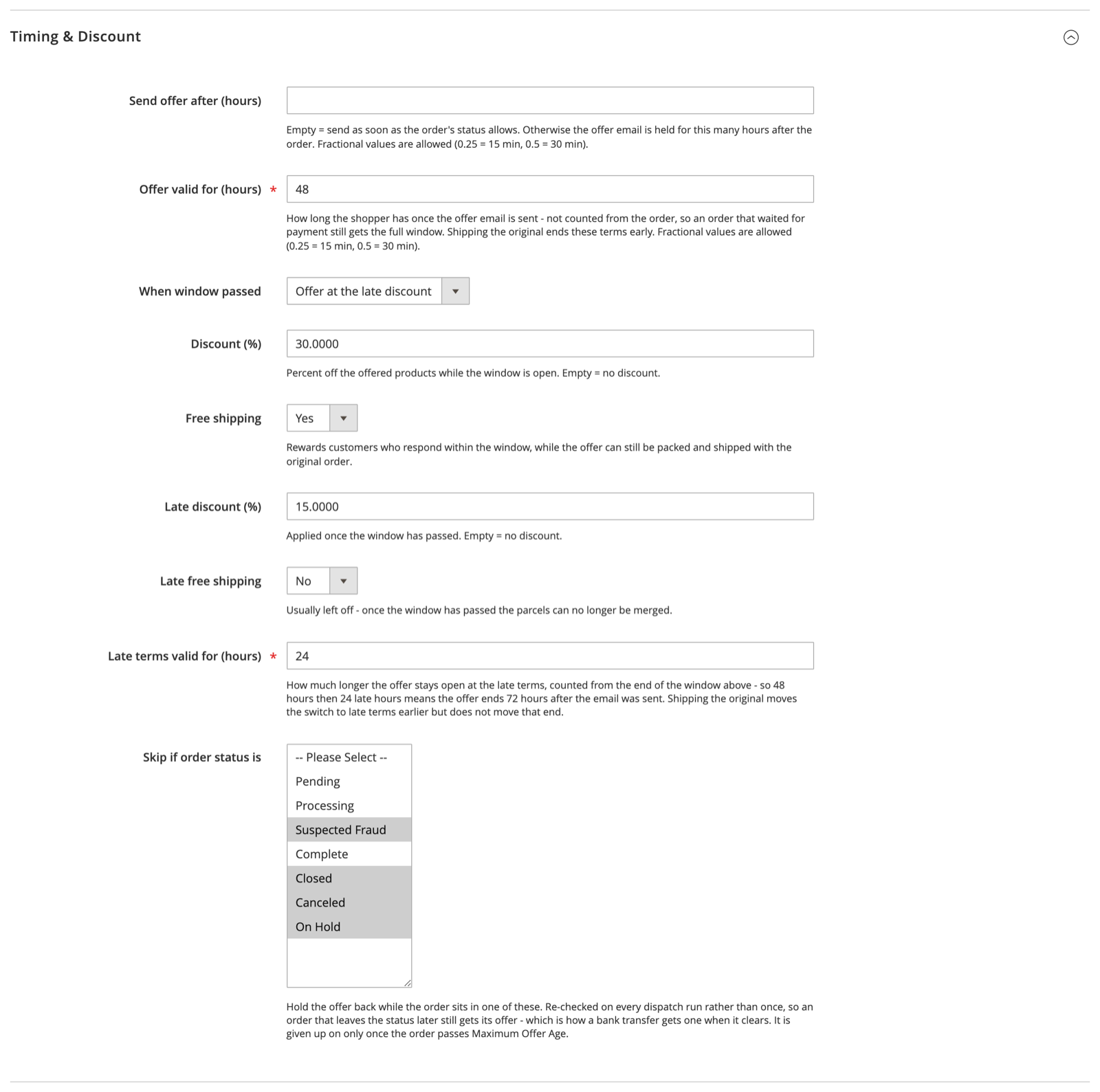
Configuration options
| Field | Description |
|---|---|
| Send offer after (hours) | Empty sends as soon as the order's status allows. Otherwise the email is held this many hours after the order. Fractional values are allowed (0.25 = 15 min). |
| Offer valid for (hours) | Required. How long the customer has once the offer email is sent. |
| When window passed | Do not offer, or Offer at the late discount. Defaults to Do not offer. |
| Discount (%) | Percent off the offered products while the window is open. 0 to 100. |
| Free shipping | Rewards customers who respond within the window, while the offer can still be packed and shipped with the original order. Defaults to No. |
| Late discount (%) | Applied once the window has passed. Shown only when Offer at the late discount is selected. |
| Late free shipping | Usually left off, because once the window has passed the parcels can no longer be merged. Defaults to No. |
| Late terms valid for (hours) | Required when the rule offers late terms. Counted from the end of the window above. |
| Skip if order status is | Hold the offer back while the order sits in one of these. |
Every window is counted from the send, not from the order. An order that waited for payment still gets its full window. 48 hours plus 24 late hours means the offer ends 72 hours after the email was sent. Shipping the original order moves the switch to late terms earlier, but it does not move that end.
Skip if order status is holds the offer back, it does not drop it. The order's current status is re-checked on every send attempt rather than once, so an order that later leaves a skipped status still gets its offer. A bank transfer that finally clears is the case this covers. Such an order is given up on only once it passes Maximum Offer Age.
Delivery
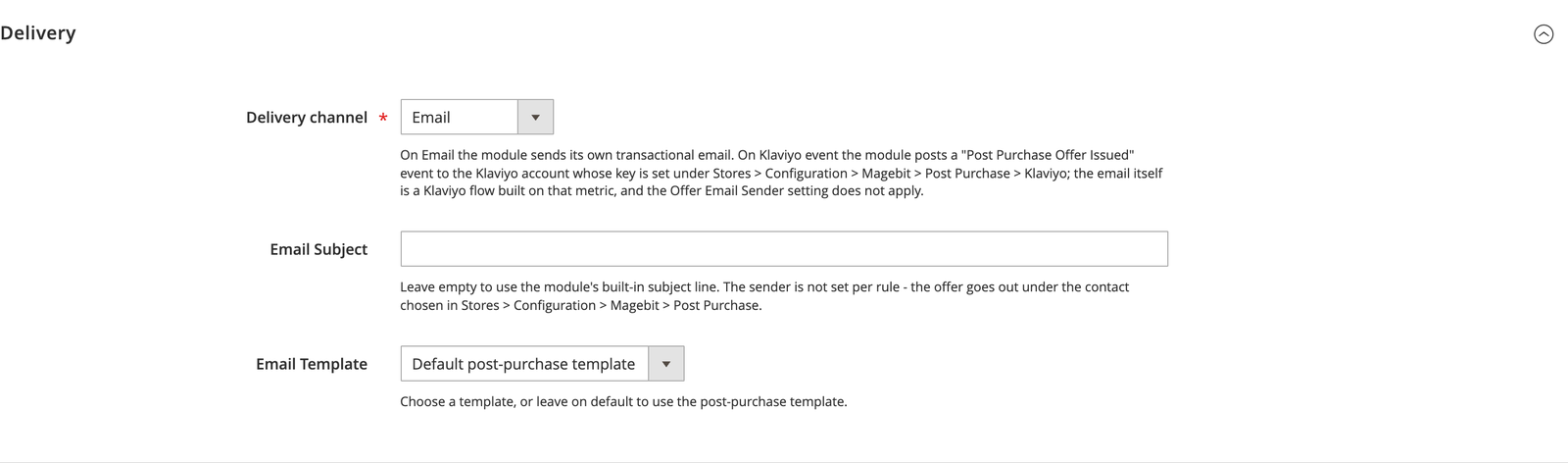
Configuration options
| Field | Description |
|---|---|
| Delivery channel | Email sends the module's own transactional email. Klaviyo event posts an event to Klaviyo instead and sends nothing itself. |
| Email Subject | Leave empty to use the module's built-in subject line, An exclusive offer just for you - grab it before it's gone! |
| Email Template | Choose a template, or leave on default to use the post-purchase template. |
The last two fields are hidden while the channel is Klaviyo event, and the Offer Email Sender setting does not apply to such a rule either. Every rule that existed before the channel was introduced is on Email, and behaves exactly as it did.
On the email channel, the template list offers the module's own default plus any transactional email template cloned from it. There is no per-rule sender field: the offer goes out from the store contact chosen under Offer Email Sender in General Settings, which defaults to the General Contact (trans_email/ident_general).
What the customer receives by email
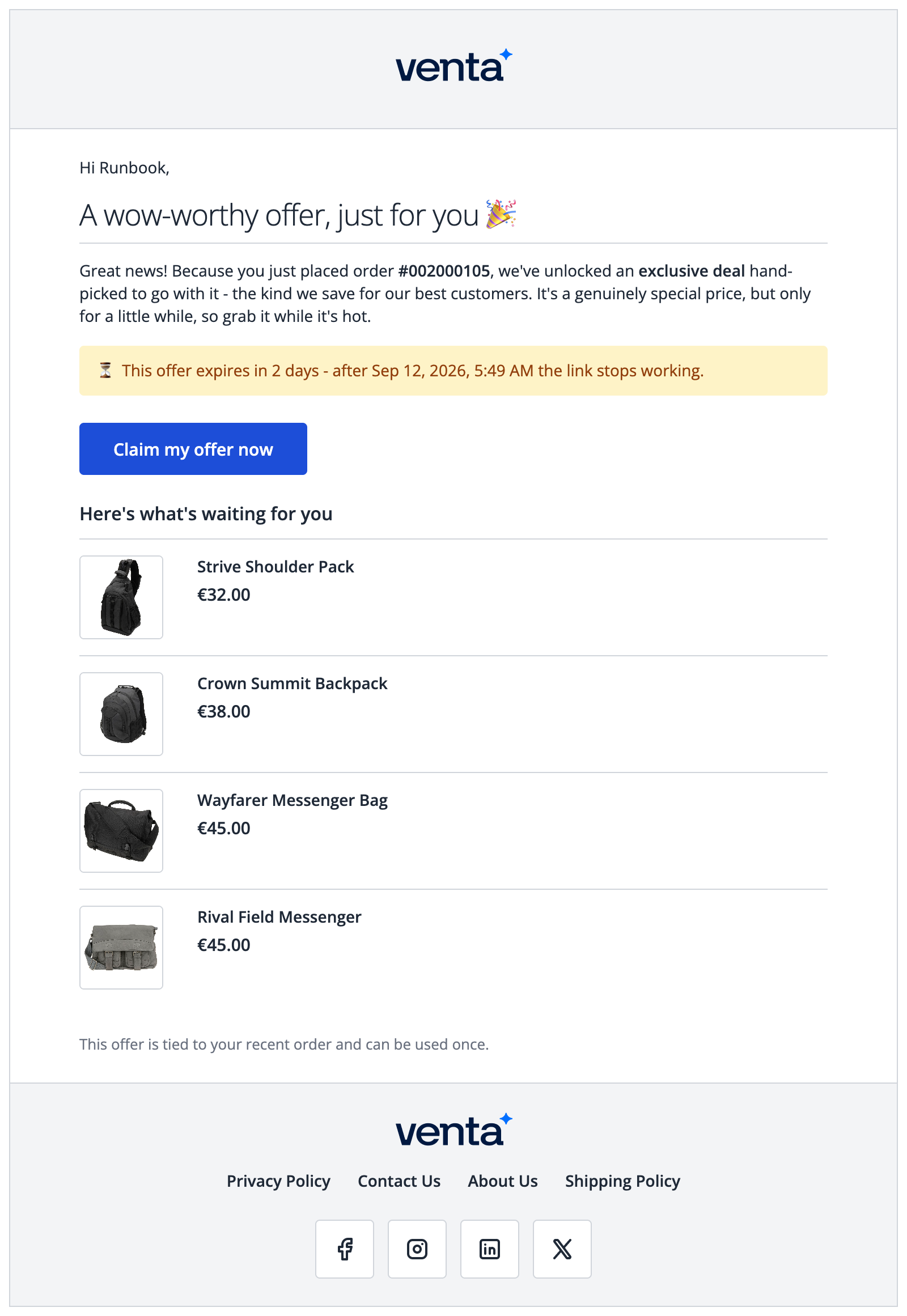
The default template renders inside the store's own email header and footer, so the logo, footer links and social icons are whatever the store's transactional emails already use. The body itself has five parts:
- A greeting using the customer's first name, and a headline.
- One paragraph naming the order the offer belongs to, so the customer knows why they got it.
- An expiry notice showing both the time left and the exact date and time the link stops working, in the store's timezone. This is the rule's Offer valid for (hours) counted from the send.
- A single Claim my offer now button carrying the signed offer link. This button is the only way into the offer.
- The offered products, each with its image, name and regular price. The rule's discount is applied at checkout rather than shown per product here, and a rule set to Let the customer choose still lists every product it may offer.
The closing line reminds the customer the offer is tied to their order and can be used once. The screenshot above was taken on the Venta demo store with the default template and a rule offering four products.
Customising the template
A clone of the default template must keep three directives, plus the variable names in its @vars block:
@subject {{var subject}}
{{var post_purchase_url}}
{{for item in items}}
The subject is a template variable rather than something set on the message, so a clone that drops that first line loses the rule's own subject line. The link is the only way the email hands the customer a working offer, and the loop is the only place the offered products render. Everything else, including wording, styling and the header and footer references, is free to change.
The Klaviyo channel
A rule set to Klaviyo event sends no email of its own. When its offer comes due, the module posts a Post Purchase Offer Issued event to the account named by the Klaviyo private key and marks the offer sent, exactly as it would after an email. The email the customer actually receives is a Klaviyo flow the merchant builds on that metric, so the copy, the design and the send timing live in Klaviyo rather than in a Magento template.
The same checks run first, and in the same order as on the email channel, so moving a rule between channels does not change which orders get an offer.
The event is profiled on the order's customer email and name, and carries what a flow needs to write the message:
| Property | What it carries |
|---|---|
order_id | The original order's increment id. |
rule_id, rule_name | The rule that made the offer. |
store_code | The order's store view code. |
offer_url | The signed offer link. This is the call to action. |
offer_expires_at, offer_expires_in | When the link stops working, as an ISO 8601 UTC timestamp and as the countdown phrase the email would have carried. |
discount_percent, free_shipping | The rule's regular terms. |
items | One entry per offered product, with name, SKU, price and image URL. |
A second event, Post Purchase Offer Redeemed, follows when the customer places the follow-up order. It carries both order numbers, the rule, the follow-up's grand total and currency, whether the order was priced for combined fulfillment, and whether it was taken on the regular or the late terms. Its purpose is to stop a reminder: add it as a flow filter or an exit condition on the same profile.
Klaviyo creates a metric the first time it receives that event, so send one offer from a test rule before building the flow. The module ships no flow and no template for this channel.
The redeemed event runs inside the customer's checkout
Placing a follow-up order from a Klaviyo-channel offer makes one HTTP call to Klaviyo while the order is being placed, capped at five seconds with no retry. A failure is logged and the order still places, so a Klaviyo outage never costs a sale - but that offer's reminder flow will not learn it was used.
Saving a rule
A rule that could never send an offer is refused before it is stored, and each message names the numbers involved:
- Offer valid for (hours) is always required.
- Late terms valid for (hours) is required when the rule offers late terms.
- The rule's wait before sending must stay under the store's Maximum Offer Age.
- The send delay plus the offer window plus the late window must fit between Active From and Active To.
Maximum Offer Age is not a field on this form. It is store configuration, one value per installation, under Stores > Configuration > Magebit > Post Purchase.
How an offer reaches a customer
Two cron jobs split the work, both in the default group on * * * * *.
| Job | What it does |
|---|---|
post_purchase_intake | Decides, once, which rule owns a newly placed order, and when that order's offer may be sent and given up on. |
post_purchase_dispatch | Asks every minute whether an order is ready yet, and sends the offer on its rule's channel when it is. |
Between the two sits one record per order, holding the order, the rule it was assigned to, and the offer's state.
Intake runs once per order, while the order is new. It walks the active rules in priority order and takes the first one whose conditions match. Because it never looks at an order twice, a rule created tomorrow cannot reach an order placed today. An order no rule covers is recorded as such rather than left unexplained.
Dispatch re-checks the same rule, never the others. For each order that has come due it checks, in order, whether the deadline has passed, whether the frozen rule still exists and still covers the order, whether the order has been cancelled or closed, and whether the order is currently in one of the rule's skipped statuses. Only an order that clears all of that is sent an offer. An order that is not ready yet is left alone and asked again next run.
Two runs cannot both send the same offer: a run claims the record in the database immediately before sending, and a run that loses that claim stops without sending.
Delivery is at-least-once rather than exactly-once. If the offer goes out but the record cannot be updated afterwards, the record is reclaimed 15 minutes later and may be sent a second time. A send that fails spends one of the configured attempts (sales_email/general/async_sending_attempts, default 3), and an offer is given up on once those are spent. The number of offers sent per run is capped by sales_email/general/sending_limit, default 50.
A run also stops after ten minutes and leaves whatever it did not reach for the next minute's run, untouched. The batch cap alone does not bound a run, because a single send can block: a Klaviyo account that is rate-limiting makes the module wait out the delay it asks for. Both cron jobs share the default group, whose jobs run one after another in a single process, so a run that never ended would hold up everything queued behind it.
INFO
Only an order placed through a checkout that goes through Magento's order-placement service is taken up. An order created by an ERP sync, a data import, or a direct API call that bypasses that flow is never enrolled.
The offer link
The link carries the order, the rule, an issue time and a signature. Opening it re-checks all of that before anything happens: the module is enabled both at the store the link was opened at and at the order's own store, the signature is valid, the offer was actually sent and is still within its window, and the rule still covers the order.
The issue time is signed into the link, so a customer cannot extend their own offer by editing the URL. Every timing decision is made from the record on the server rather than from the URL.
A link is also refused once a follow-up order already exists for the original order, so revisiting a used link cannot create a second one. Cancelling a follow-up order releases that hold, and the original offer link works again.
A product the cart refuses when the offer is built - stock that moved between the offer being sent and the link being opened, most often - is left out and the rest of the offer goes ahead. The SKU, the order and the reason are logged as a warning. Only when nothing at all can be added does the customer get a message instead of an offer.
Where the customer lands depends on the rule's Selection setting.
Add all offered products
The offer quote is built straight away and the customer goes to checkout with the offered products already in it, at the rule's discount.
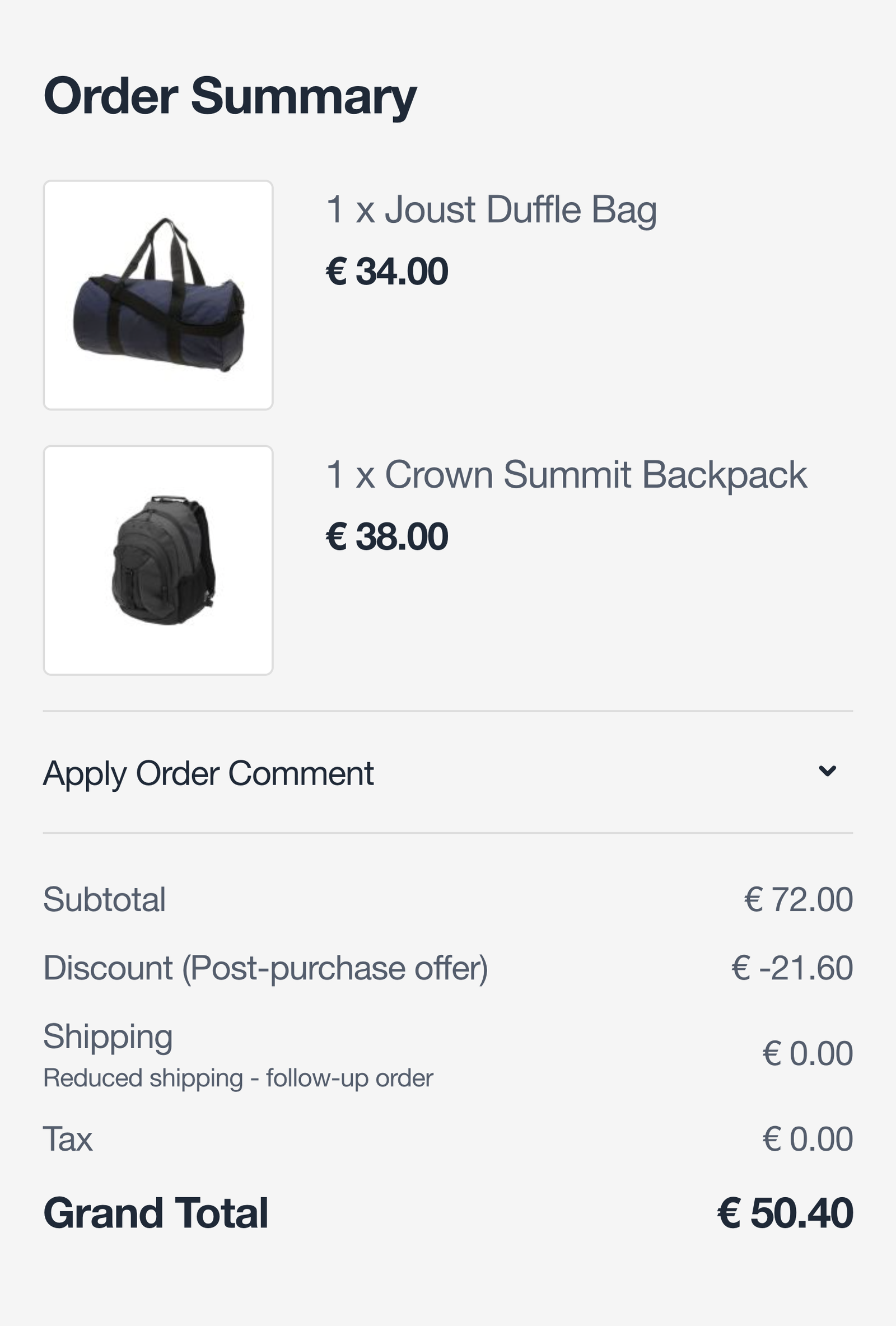
The discount reaches the summary on its own line, without a coupon code behind it, and the discount-code field the checkout normally carries is gone.
Let the customer choose
The customer goes to the cart instead, where a dialog lists the offered products and the bounds the rule set.
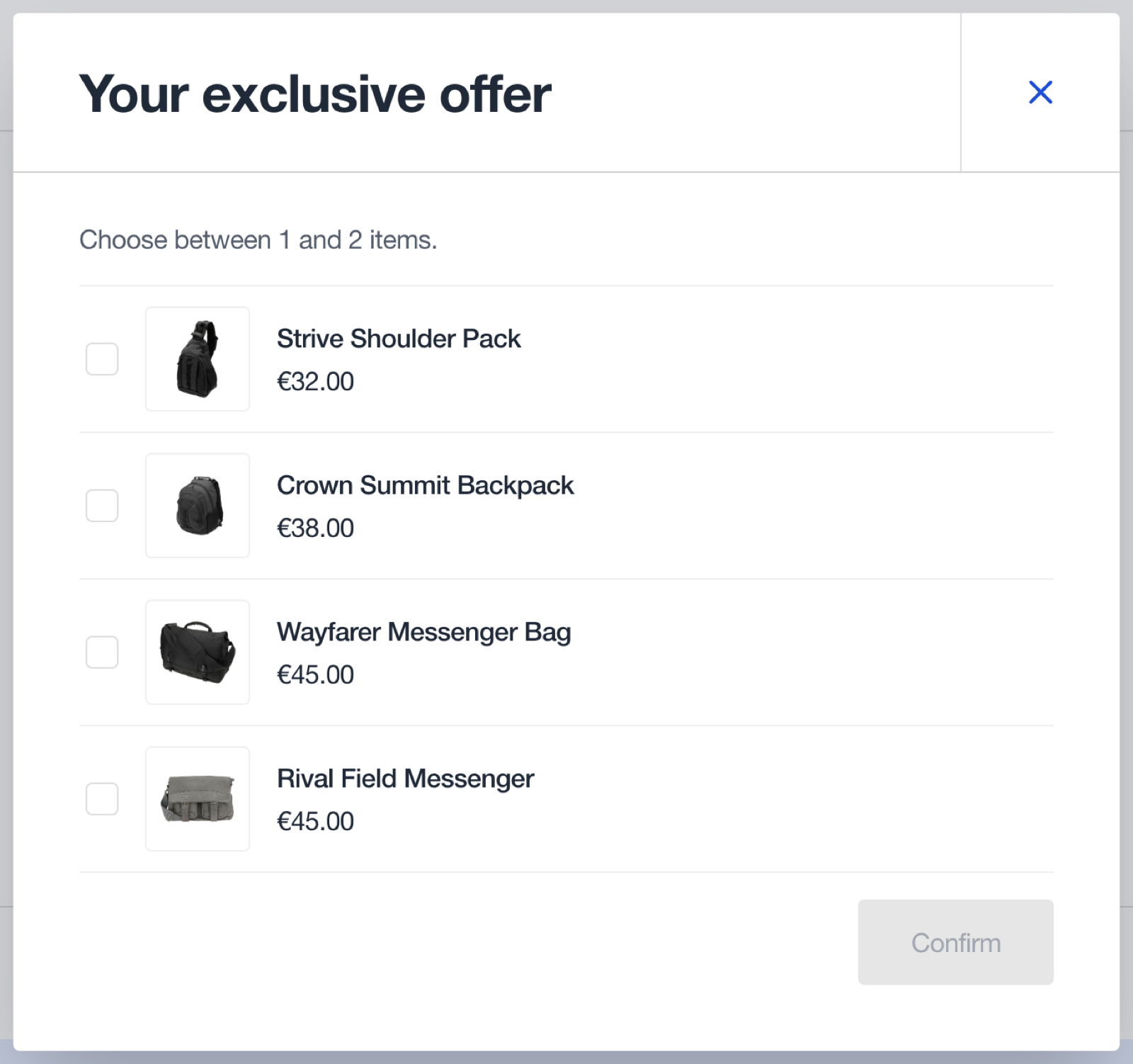
The selection is judged on the server against a freshly resolved product list, not against whatever the dialog showed when it loaded. A product that is no longer on offer is rejected, and so is a selection outside the rule's minimum and maximum.
Once a selection is confirmed, the customer's own pre-offer cart is saved and handed back afterwards, and the coupon field is removed from both the cart and the checkout order summary. A coupon code is refused on an offer quote anyway, so the field is taken away rather than left to fail.
Closing the dialog, or leaving checkout, asks the customer to confirm and then releases the offer.
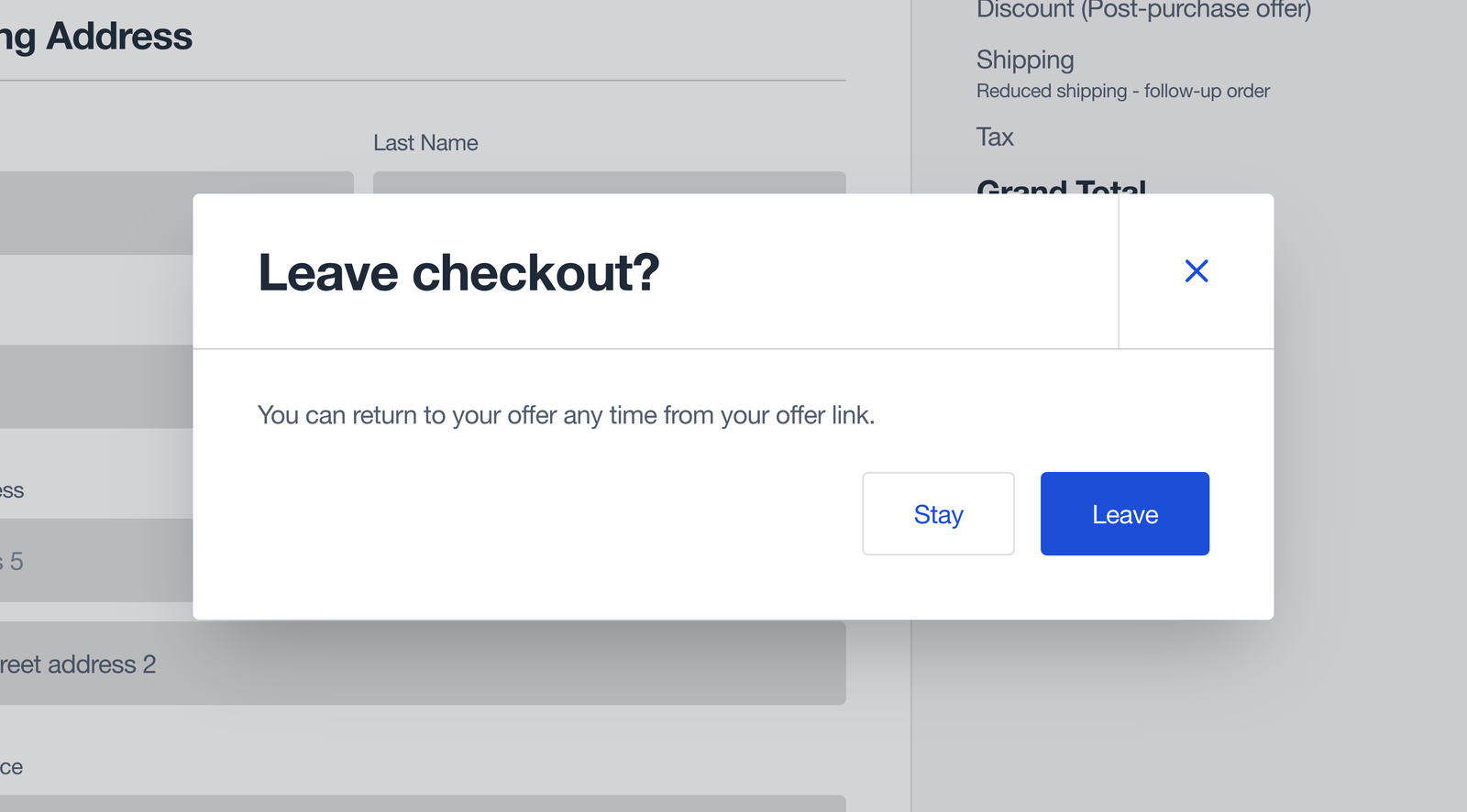
Leaving is not destructive: the offer link opens the offer again for as long as its window lasts.
Combined fulfillment
An accepted offer becomes its own order. When the offer was made while the original order was still unshipped, and Combine With Original Order is on, that follow-up order is priced for combined fulfillment.
Such an order keeps the original's delivery details and is offered exactly one shipping method, at the configured Reduced Shipping Price under the configured Reduced Shipping Method Title. Every other carrier is hidden from it. A rule's own Free shipping flag brings that price to zero; a rule's Late free shipping flag never affects it, because a late offer is never priced for combined fulfillment in the first place.

Delivery details on a combined offer are fixed. The checkout greys those fields out, blocks typing and pasting into them, and puts back any value that is changed.
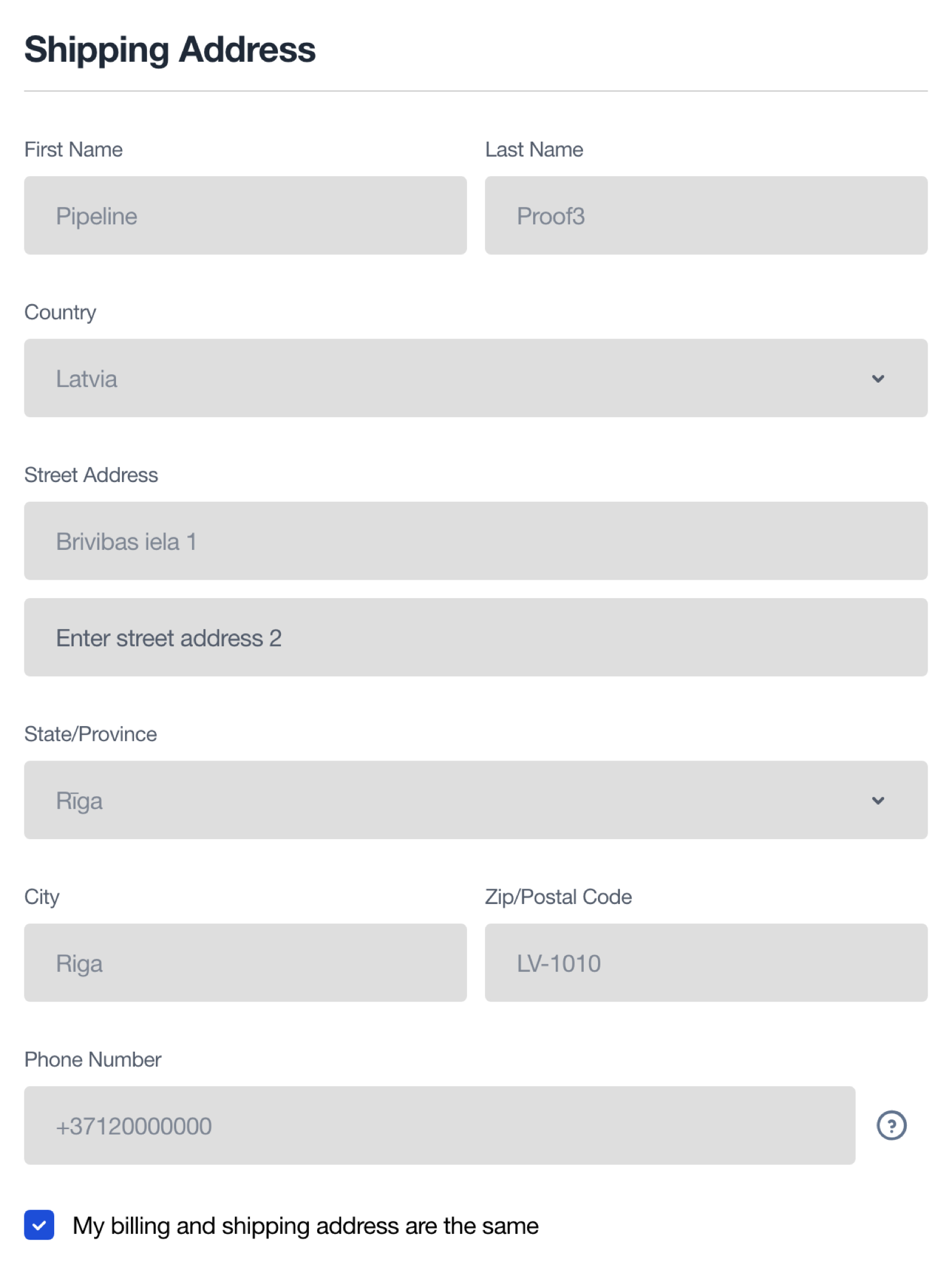
The greying is only the visible half. The server refuses the order outright if the submitted address or email differs from the original order's, and that check is the one that decides, so editing the page or posting through the API is refused at place-order rather than allowed through.
WARNING
The visual lock is drawn by the checkout the store view renders. It ships for Hyvä Checkout, for every checkout registered into it (Hyvä's own default, mobile and onepage, Venta's venta_onepage and venta_default), for Magento's Luma checkout under a Hyvä theme, for a Luma-theme store view, and for any checkout that owns its route and registers an adapter. A headless checkout draws nothing of its own and has to read the lock instead; its address mutations are refused with the lock's message while the shopper is still on the address step. On any checkout the module does not reach, the customer finds out only when the order is refused at the end. The refusal itself holds everywhere.
Nothing verifies that the two parcels were actually packed together, and the reduced price is charged whether or not they were. The banner is a prompt for the warehouse, not an instruction.
Turn combined fulfillment off with Combine With Original Order, never with anything else. There is a shipping-carrier switch underneath this feature that is deliberately not exposed in the admin. Switching it off out of band leaves a follow-up order with no shipping method at all, because ordinary carriers stay hidden while the replacement is gone, and nothing about it appears in the logs. If a follow-up checkout ever shows no shipping options, check that first.
Post-purchase orders in the admin
Sales order grid
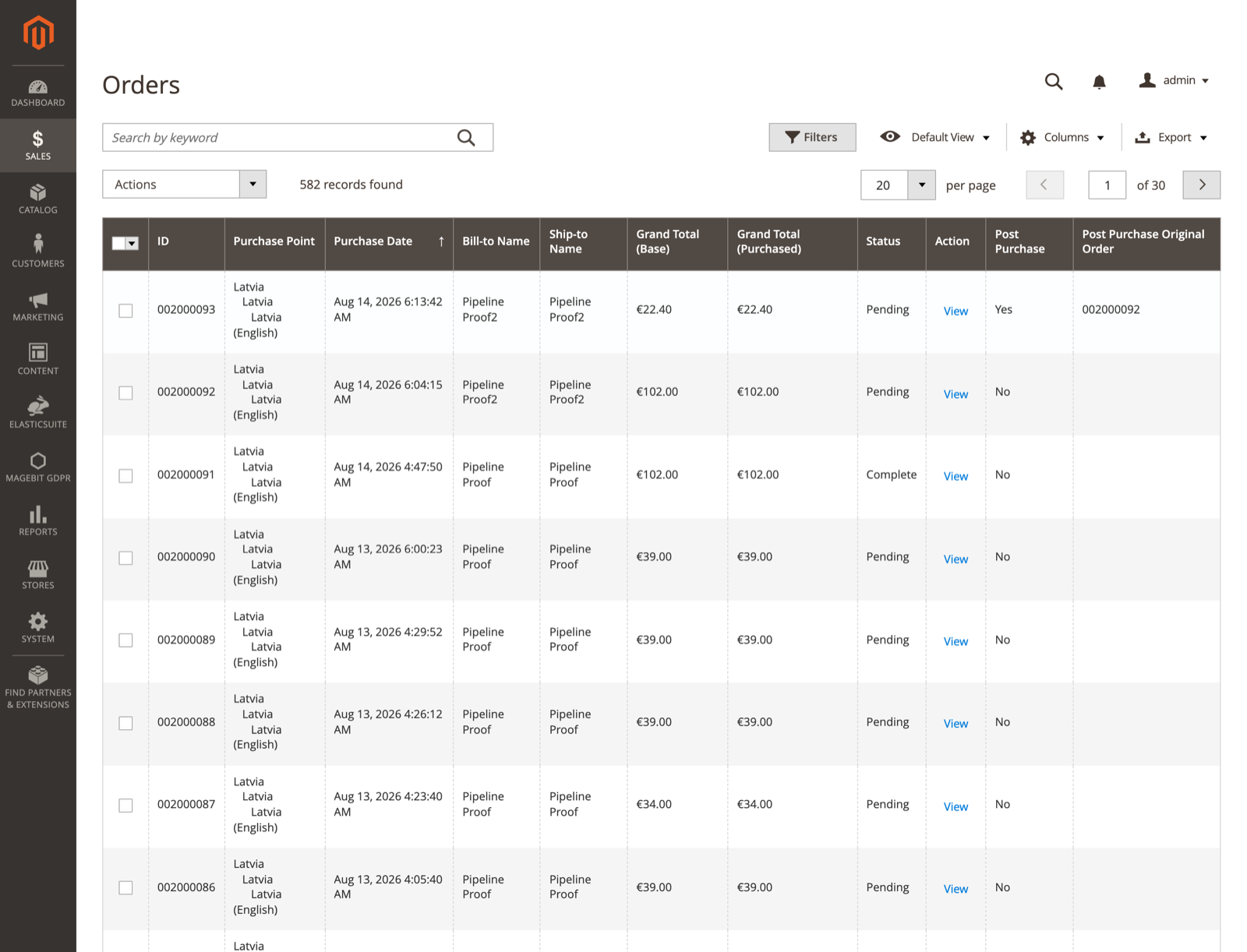
Two columns are added, both hidden until they are switched on under Columns in the grid toolbar. Both sort and filter.
| Column | Description |
|---|---|
| Post Purchase | Whether this order was created from a post-purchase offer. |
| Post Purchase Original Order | The increment id of the order it was created from. |
Order view
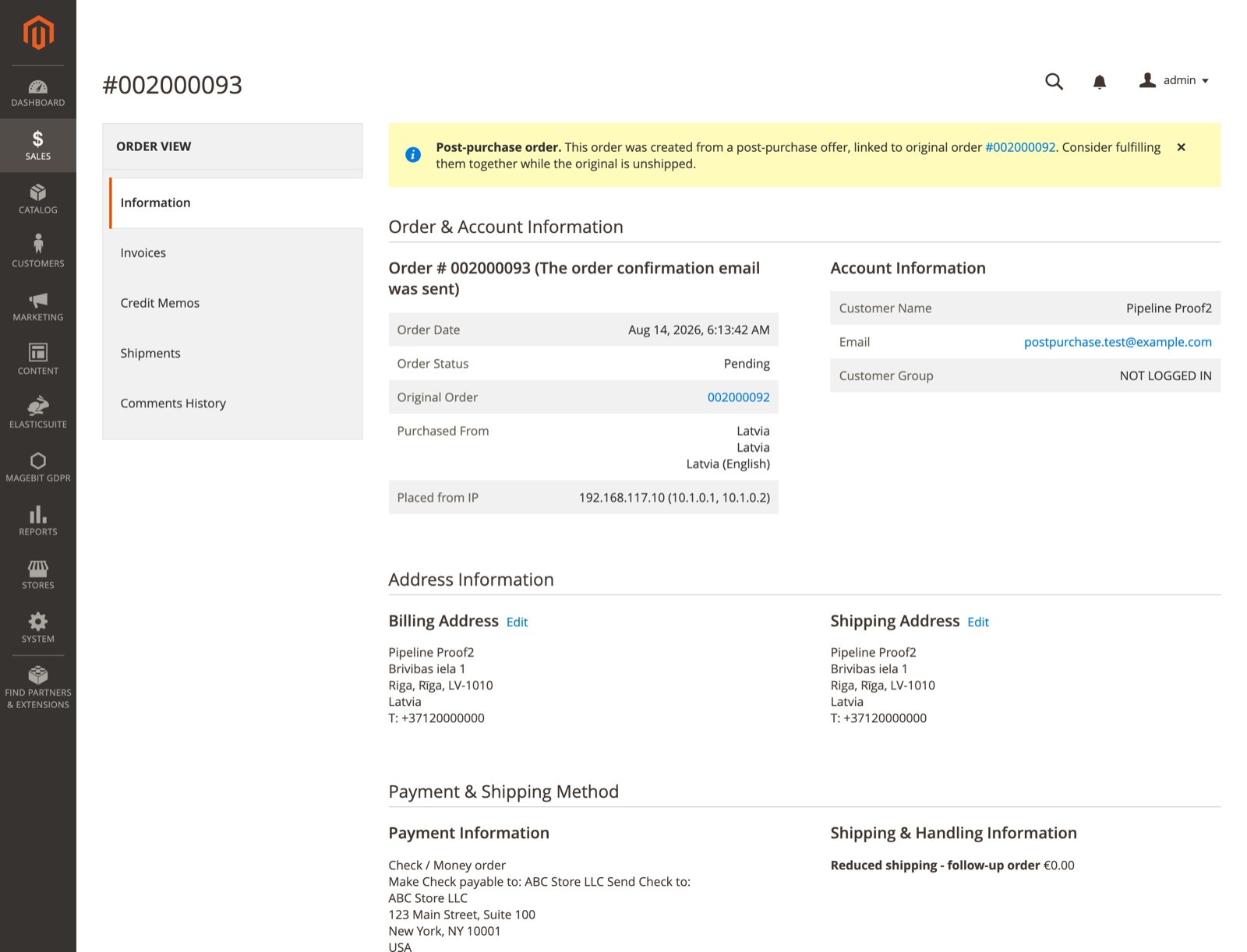
A dismissible banner appears at the top of the order view, and on the New Shipment page, whenever there is a link worth announcing. On a follow-up order it names the original order. On an original order it names every follow-up order spun off from it.
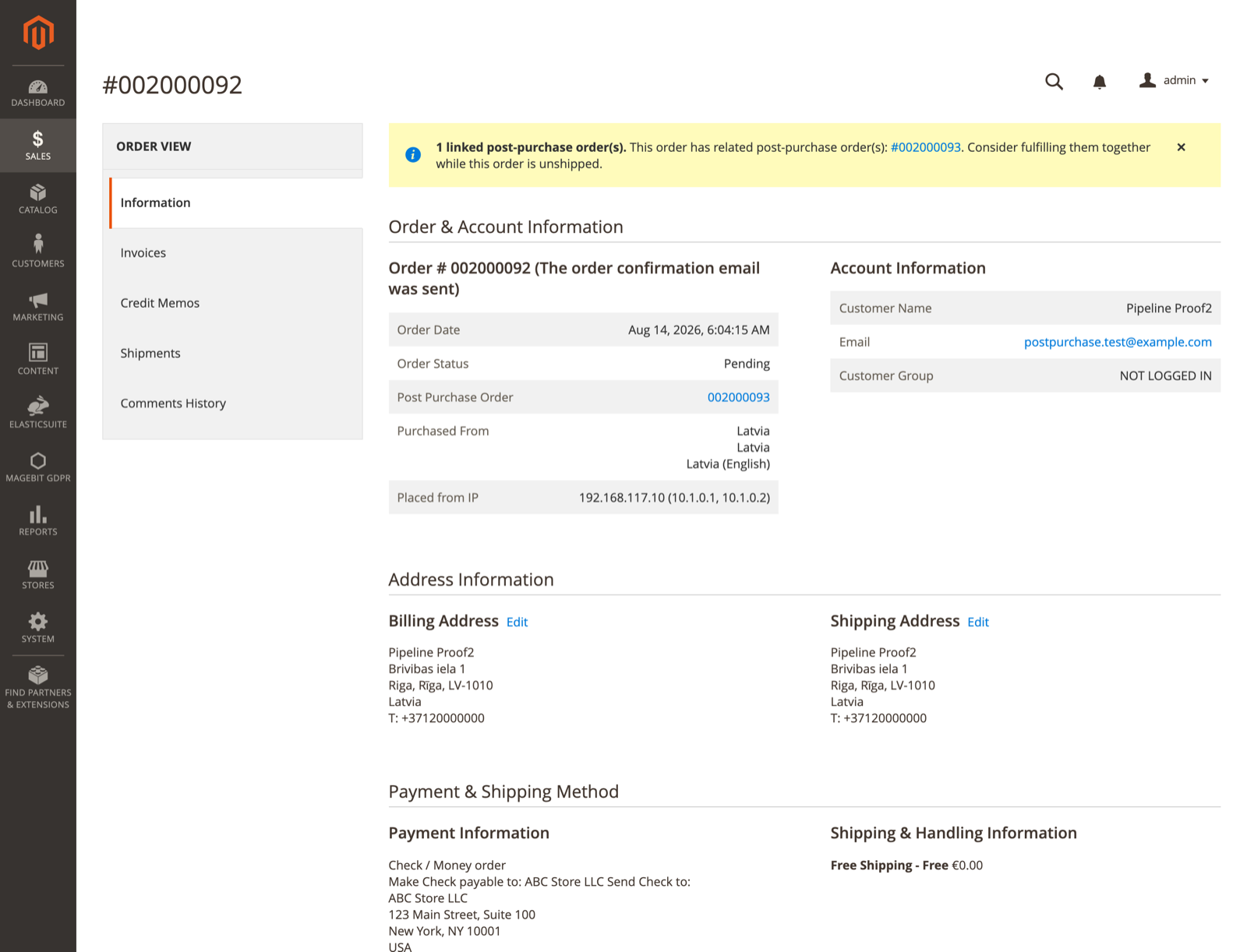
Dismissing the banner hides it for that browser session only. It returns on the next visit.
The banner shows only for a pair that was actually priced for combined fulfillment, and it follows the order's own history rather than today's settings: an order stamped while the setting was on keeps its banner after the setting is switched off. Only new orders stop being stamped.
Both order views also carry a row in the order information table pointing at the other order, labelled Original Order on a follow-up order and Post Purchase Order on an original. That row is not tied to combined fulfillment, so it shows for every linked pair and stays after the banner is dismissed.
Returns
Each order in a pair is refunded or returned through the ordinary credit memo process for that order, on its own. The module does not merge the two or special-case a return spanning both.
Developer notes
Tables
| Table | Contents |
|---|---|
magebit_postpurchase_rule | One row per merchant-authored rule, including both serialized condition trees. Indexed on (is_active, priority). |
magebit_postpurchase_candidate | One row per order, ever. Holds the frozen rule, the offer's state, its two deadlines and its issue time. order_id is unique and cascades from sales_order. Indexed on (state, send_after). |
A candidate row is never deleted, only closed with a reason: no_rule, campaign_too_short, gave_up, terminal_status, rule_withdrawn or send_failed.
Columns added to core tables
sales_order-is_post_purchase,post_purchase_original_order_id,post_purchase_combine_shipment,post_purchase_claim,post_purchase_intake_state.sales_order_grid-is_post_purchaseandpost_purchase_original_increment_id, the latter joined in at grid-index time.quote-is_post_purchase,post_purchase_original_order_id,post_purchase_discount_percent,post_purchase_free_shipping,post_purchase_combine_shipment,post_purchase_issued_at,post_purchase_offer_state(regularorlate) andpost_purchase_expires_at(UTC). A quote with neither of the last two stored reads as a regular offer with no expiry.quote_item-post_purchase_offer_item, marking a row the offer added so the discount applies to it.
Api\Data\PostPurchaseAttributesInterface is the single source of these names. An integrator writing an order through a path that bypasses checkout can set post_purchase_intake_state to pending to opt that order in.
Service contracts
| Interface | Purpose |
|---|---|
Api\RuleRepositoryInterface | create(), getById(), save(), delete(). Exists so a rule lookup can be decorated. |
Api\CandidateRepositoryInterface | create(), getByOrderId(), save(). No delete(), because a candidate row stays put. |
Api\PostPurchaseLockRepositoryInterface | getForCustomerCart(), getForGuestCart(). Which delivery fields an offer cart is held at. |
Api\PostPurchaseOfferRepositoryInterface | getForCustomerCart(), getForGuestCart(). Whether a cart is an offer and on what terms. |
Api\Dialog\ChromeInterface | Lets a theme declare that it draws its own dialog title, close control and padding. |
Api\Data\PostPurchaseAttributesInterface | Names every order and quote column the module stamps. |
etc/extension_attributes.xml adds is_post_purchase and post_purchase_original_order_id to OrderInterface, so an OMS, WMS or ERP reading orders through the standard API can tell which orders came from an offer and which order each came from.
Storefront layouts
The cart offer dialog ships for both stacks: a Hyvä dialog on the hyva_checkout_cart_index handle, which asks for hyva_modal so the modal JavaScript it runs on is present on any Hyvä theme, and a Luma dialog on the plain checkout_cart_index handle, built on Magento's modal widget. Each is gated so it renders only on its own kind of store view. The checkout-side guards ship on two layouts: hyva_checkout_index_index for Hyvä Checkout and every checkout registered into it, and checkout_index_index for Magento's Luma checkout, whether reached under a Hyvä theme or on a Luma-theme store view.
The guard blocks themselves live in two reusable handles, magebit_postpurchase_guards_hyva for an Alpine and Tailwind checkout and magebit_postpurchase_guards_luma for a RequireJS and Knockout one, which the two checkout layouts pull in.
Templates live under Magebit_VentaPostPurchase:: and override through the normal theme fallback. The two dialogs share their sizing through ViewModel\OfferDialog, so a theme changes it there rather than in two templates.
Dialog chrome
The offer dialog and the leave-checkout warning need a title, a close control and padding. Venta's modal supplies all three, so on Venta the module draws none of its own; on plain Hyvä it draws all three. A theme with a modal of its own declares that through Api\Dialog\ChromeInterface, added to the chromes list on Model\Dialog\ChromePool in di.xml ahead of the shipped VentaChrome. First match wins.
Checkout adapters
Each checkout supplies its own place-order selector, re-render event names and the regions of its markup the address lock must leave alone, through Model\Checkout\Adapter\CheckoutAdapterInterface. The module ships three adapters: one for Hyvä Checkout, one for Venta's checkouts, and one for Luma. The first two are keyed by checkout namespace on Model\Checkout\Adapter\AdapterPool in di.xml, and a Hyvä Checkout namespace with no adapter of its own falls back to the Hyvä adapter and keeps the guards. The Luma adapter is not in that pool: Magento's own checkout renders on its own route, where Model\Checkout\Adapter\LumaResolver supplies it directly.
<type name="Magebit\VentaPostPurchase\Model\Checkout\Adapter\AdapterPool">
    <arguments>
        <argument name="adapters" xsi:type="array">
            <item name="my_checkout" xsi:type="object">Vendor\Module\Model\Checkout\Adapter\MyCheckout</item>
        </argument>
    </arguments>
</type>
The hands-off regions are what stop the lock catching a field that merely shares a name with a delivery field. Luma renders a second input named username inside its sign-in modal, and its adapter excludes that modal so the checkout email field is locked while the sign-in one is not.
A checkout that owns its route, rather than registering into Hyvä Checkout, renders the guards without patching the module. In your own module: implement the adapter; declare a virtualType of Model\Checkout\Adapter\ConfiguredResolver carrying it; pull magebit_postpurchase_guards_hyva or magebit_postpurchase_guards_luma into your checkout's layout with one <update> line and override the adapterResolver argument on that handle's lock and guard blocks with your virtual type; and follow Custom checkout routes below so the offer survives the route. A checkout that finishes on its own success route also registers Observer\RestoreCartAfterOrder on that route's postdispatch event. The module repository carries a worked example under dev/fixtures/StubCheckout/, and the README has the step-by-step recipe.
Custom checkout routes
The offer link redirects to the checkout and, in choose mode, to the cart. Both targets and the routes on which offer session state survives are declared in the module's etc/frontend/di.xml rather than fixed in code.
| Argument | On | Default |
|---|---|---|
checkoutPath | Model\Offer\Destination | checkout |
cartPath | Model\Offer\Destination | checkout/cart |
activeAllowedActions | Observer\ResetAbandonedOffer | checkout_index_index, hyva_checkout_index_index, hyvaReactCheckout_reactcheckout_index, checkout_onepage_success |
chooseAllowedActions | Observer\ResetAbandonedOffer | checkout_cart_index |
A store whose checkout lives on its own route sets checkoutPath and adds the route's full action name to activeAllowedActions in its own di.xml. Named array items merge, so the name adds to the shipped list. Both are needed: a path is not an action name, and neither can be derived from the other. Repointing cartPath needs the same treatment on chooseAllowedActions, or a choose-mode offer is cleared the instant the shopper lands on the cart and the dialog silently never renders.
Spell an action name the way routes.xml spells the route id, capitals and all, because the comparison is strict. Hyvä React Checkout declares hyvaReactCheckout, so its action name carries the capital R and an all-lowercase copy of it matches nothing. An action name is also not a layout handle: a hyva_-prefixed name such as hyva_checkout_onepage_success is the twin Hyvä applies to every handle on a Hyvä theme, and no request ever arrives carrying it. Hyvä Checkout has one controller and finishes on Magento's own checkout/onepage/success, which is already in the list.
An unrecognised route ends the offer
On any page the shopper opens outside the list, the observer treats the offer as abandoned and restores their pre-offer cart. Hyvä React Checkout takes /checkout over with a Forward rather than a redirect, so the URL stays the same while the action name changes, which is why its own route ships in the default list and checkoutPath still needs no change on such a store.
What counts as leaving
Only a page the customer actually opened. The module reads Sec-Fetch-Dest, a header the browser sets on every request and no script can forge or omit: a page load carries document, while a background fetch(), an XMLHttpRequest and a sendBeacon all carry empty. A prefetch or a prerender is refused as well, so a page the browser guessed at never drops an offer the customer is still holding. Where no Sec-Fetch-* header arrives - an old browser, a plain-HTTP origin, or a proxy that strips Sec-* headers - the module falls back to Magento's own AJAX test plus an Accept: text/html check.
Nothing in the storefront has to cooperate for this: theme templates, custom modules and third-party code need set no header for a background call to be read as one. Two storefronts are the exception, and both want their own Model\Request\NavigationDetector bound with a di.xml preference. One rendered inside an iframe carries Sec-Fetch-Dest: iframe on every navigation within it, so offer state never resets there at all. One driven by an AJAX-navigation library such as htmx or Turbo fetches the next page and swaps the document, so the request that really is the customer leaving carries empty.
The full page cache
None of that runs on a page the cache answers, so while an offer is open the customer's pages are kept out of the cache. The module writes a value unique to the open offer into Magento's X-Magento-Vary cookie - the same mechanism customer groups and login state already reach the cache key through - so the page the customer opens after leaving the offer reaches Magento and the offer ends there. A store on Magento's generated VCL or on Fastly needs no change for this, and the cost is one uncached render per offer: the page that ends an offer is stored under neither cache key.
Hyvä prefetches links on hover by default, and a click answered from a prefetch never reaches the server at all, so the magebit_postpurchase_offer_open handle removes Hyvä's speculation rules from every page rendered while an offer is open. Every other page keeps its prefetch. Prefetching from anywhere else - a third-party script, or the browser guessing from the address bar - costs one URL each, and an edge that caches HTML without honouring X-Magento-Vary defers the reset to the next uncacheable page.
Adding to the cart is guarded on its own rather than left to the reset, so neither depends on the other. On the storefront, an add releases the offer first, hands the customer's own cart back, and puts the product in that; over REST and GraphQL the add is refused instead.
Reading the offer from a headless checkout
A checkout the module renders nothing into, such as Hyvä React Checkout or a PWA, can ask a cart two questions: whether it is a post-purchase offer and on what terms, and which delivery fields it is held at. Both surfaces are read-only and advisory: discount codes are refused and the order is checked at place-order regardless of what the client renders. Both come from one service per question, so REST and GraphQL cannot disagree.
| Surface | Offer terms | Delivery lock |
|---|---|---|
| REST, customer cart (customer token) | GET /V1/carts/mine/post-purchase-offer | GET /V1/carts/mine/post-purchase-lock |
| REST, guest cart (anonymous, masked id) | GET /V1/guest-carts/:cartId/post-purchase-offer | GET /V1/guest-carts/:cartId/post-purchase-lock |
GraphQL, on Magento's own cart(cart_id:) query | Cart.post_purchase_offer | Cart.post_purchase_lock |
The guest endpoints answer only for a cart with no owning customer. A masked id belonging to a customer's cart gets the same 404 Magento's own guest-cart routes give. The GraphQL fields hang off Cart rather than a root query so that Magento's own cart resolution does the ownership check.
Offer terms tell the client what kind of cart it is holding. coupons_accepted is the field that says to hide the discount-code input: it is false on every offer cart, including a late one that holds no delivery fields at all.
| Field | Meaning |
|---|---|
is_offer | Whether the cart was built from a post-purchase offer link. |
original_order_increment_id | The order the offer followed, by its customer-facing number. |
discount_percent | The discount already applied by the module's own totals collector. There is no code behind it. |
free_shipping | Whether the offer waives the shipping price. |
is_late | Whether the offer carries the rule's late terms. A late offer is never priced for combined delivery, so its lock reports nothing held. |
coupons_accepted | Always false on an offer cart. |
expires_at | When the offer link stops opening, ISO 8601 UTC. |
The delivery lock tells the client which fields to render read-only, and with what value.
{
  cart(cart_id: "MASKED_ID") {
    post_purchase_lock {
      is_locked
      reason
      original_order_increment_id
      locked_fields { name value }
      abandon_url
    }
  }
}| Field | Meaning |
|---|---|
is_locked | Whether any delivery field is held. false for an ordinary cart and for an offer accepted after the original shipped. |
reason | Why the fields are held, worded for showing to a shopper. |
original_order_increment_id | The order whose delivery details this cart is held at. |
locked_fields[] | Canonical field names with the value the server enforces. Never a markup name. One email, street lines as street.0 and street.1, plus firstname, lastname, telephone, city, postcode, country_id and region or region_id. |
abandon_url | Where to POST, with the session cookie and the form key, to drop the offer and restore the pre-offer cart. Built against the cart's own store, so a multi-store install gets one answer from either protocol. |
The REST payloads have the same fields in snake case. Dropping an offer is deliberately not a mutation: it swaps the session's active quote, and a second implementation of that bookkeeping could disagree with the first.
Adding a product to an offer cart is refused, over REST and over both GraphQL add paths, with a message saying the cart holds an offer. POST /V1/carts/:quoteId/items, /V1/carts/mine/items, /V1/guest-carts/:cartId/items, addProductsToCart and the per-type add*ProductsToCart mutations are all covered; editing a row already on the offer cart is not. Leave the offer through the abandon_url the lock payload carries, then add to the cart that comes back. The storefront does the opposite and moves the product to the customer's own cart without saying anything, because a storefront shopper holds no cart id that could be left pointing at the wrong cart.
The server refuses a locked-field edit before place-order. On a cart held for combined delivery, GraphQL's setShippingAddressesOnCart, setGuestEmailOnCart, and setBillingAddressOnCart when it also sets the shipping address, are refused with the lock's own message as a GraphQlInputException, so the client can show it on the address step. On a cart that is not an offer, the guards are inert and every one of those mutations behaves as it always did.
The discount
The discount is resolved once when the offer quote is built and stored on that quote, then applied by the module's own totals collector at sort order 320, after Magento's sales rules and before shipping and tax. Only quote rows the offer added are discounted, so a product the customer adds alongside the offer is priced normally.
At place-order the stored discount is re-resolved and the order is refused if it no longer matches. That is what stops a quote left open in a browser tab from being submitted at a price the rule has stopped offering.
Troubleshooting
No offers are being sent
- Confirm Enable Module is Yes for the order's store view.
- Confirm Magento cron is running, and that
post_purchase_intakeandpost_purchase_dispatchappear incron_schedule. - Check the rule is Active, that its campaign dates cover today in the store's timezone, and that its website and customer group scope include the order.
- Check the order is not sitting in one of the rule's Skip if order status is statuses.
- Check the order has not passed Maximum Offer Age.
- Failures from both jobs are logged with exception context, so they land in
var/log/exception.lograther thanvar/log/system.log.
A rule is matching orders but never sends anything
An offer with no products left to sell is not sent at all. The attempt is logged and no send attempt is spent, so a rule whose products have gone out of stock or disabled goes quiet rather than sending an empty offer. Check that the rule's product filter still matches enabled, in-stock products, and that Exclude already purchased is not removing everything the filter found. In stock here means sellable right now: a product whose whole quantity is already claimed by unshipped orders does not count, even though the admin still shows the quantity on the shelf.
A Klaviyo-channel rule sends nothing
- Confirm the Private API Key is set for the order's website, under
Stores > Configuration > Magebit > Post Purchase > Klaviyo. A missing key fails the send before any request is made, and the message invar/log/exception.lognames the config path. - Confirm the key is a private key (
pk_...) carrying theevents:writescope. Klaviyo answers a key without it with a 4xx, and the status and the start of its response body are logged. - Check the rule's Delivery channel really is Klaviyo event. A rule left on Email sends an email and posts nothing, whatever the key is set to.
- In Klaviyo, the metric only exists once the first event has arrived, so a flow cannot be built before a first offer has gone out.
- The same checks as on the email channel apply first. Work through No offers are being sent before looking at Klaviyo at all.
The Klaviyo reminder flow does not stop after a follow-up order
The Post Purchase Offer Redeemed event is posted during the follow-up order's checkout, and it is deliberately allowed to fail without taking the order down with it: one attempt, a five-second cap, no retry. A timeout, a rejected key or a Klaviyo outage therefore loses that one event silently as far as the customer is concerned. The failure is logged with both order numbers, in var/log/exception.log rather than var/log/system.log.
The offer has fewer products than the rule asks for
A product the cart refused when the offer was built was dropped so the rest could go ahead. var/log/system.log carries a warning naming the SKU, the order and the reason, which is usually stock that moved between the offer being sent and the link being opened. The customer is told nothing, so an offer that is routinely short is worth chasing in the log rather than in the rule. In choose mode it is worth chasing sooner: a selection that loses a product this way arrives at checkout below the rule's Minimum to choose.
An offer link shows an error
The link is refused when the module is off for the order's store, when the offer's window (and late window) have passed, when the campaign's Active To has passed, when the rule no longer covers the order, or when a follow-up order already exists for the original. Cancelling that follow-up order makes the link work again.
A follow-up checkout shows no shipping methods
The combined fulfillment carrier has been switched off out of band while combined fulfillment is still on. Ordinary carriers stay hidden from a combined order, so removing its one replacement leaves nothing. Nothing is logged, because the carrier that would log it is never asked.
The customer could edit a locked address field
Check which checkout the store scope uses under Stores > Configuration > Hyvä Themes > Checkout. The visual lock ships for Hyvä Checkout, the checkouts registered into it, and Luma; a custom checkout with its own markup needs a checkout adapter, and a headless checkout has to read the lock. The order is still refused at place-order if the address differs from the original.
The offer link lands on the checkout with the customer's old cart
The checkout runs on a route the module does not recognise, so the offer was treated as abandoned on arrival and the pre-offer cart restored. Hyvä React Checkout's route ships in the allow list. Any other custom checkout route is added under Custom checkout routes. Check the spelling of an entry that looks right and still does nothing: the match is case-sensitive, and a layout handle in the list never matches a request. If the choose-mode dialog never appears on a custom cart route, the same applies to chooseAllowedActions.
An offer is dropped by a request the customer did not make
A background call only drops an offer when it looks like a page load, which happens when no Sec-Fetch-* header reaches Magento - a reverse proxy that strips Sec-* headers, or a store served over plain HTTP, where browsers send none - and the call asks for Accept: text/html. Stop the proxy stripping the header, or have the call ask for the content type it actually wants, or set X-Requested-With: XMLHttpRequest on it, which the fallback path still honours. A store that controls none of those binds its own navigation detector.
An offer outlives the page the customer left it on
The offer ends on the first page the customer opens outside it, which needs that page to reach Magento rather than the cache. Check that the edge in front of the store honours X-Magento-Vary: Magento's generated VCL and Fastly both do, and a CDN that caches HTML on its own terms may not. Where it does not, the offer ends on the next uncacheable page instead - usually the cart. Nothing the customer adds in the meantime is lost either way, because adding to the cart ends the offer on its own.
A headless client cannot add a product to the cart
The cart it is adding to is an open post-purchase offer, and the add is refused over REST and GraphQL alike with "This cart holds a post-purchase offer and cannot take other products. Leave the offer first." POST the abandon_url from the lock payload to drop the offer, then add to the cart that comes back. Editing a row already on the offer cart is unaffected.
The cart dialog says the offer could not be loaded
The dialog's content request failed. Both the Hyvä and the Luma dialog show "We could not load this offer. Please refresh the page." and disable Add to cart. Check var/log/exception.log for the underlying request failure, and that the offer link is still valid for the order.
The offer dialog is unstyled, full width, or has no close button
On a stock Hyvä theme this means the theme's Tailwind build has not picked the module up yet. Run bin/magento hyva:config:generate, rebuild the theme's CSS and flush the cache.
The offer dialog never opens on the cart page
Check which stack the store view runs. The Hyvä dialog is declared on hyva_checkout_cart_index and the Luma one on checkout_cart_index; each renders only on its own kind of store view, so a store view misdetected as the wrong stack shows neither.