

Social Login
The Social Login extension lets customers sign in to a Venta store with an existing social account instead of a store password. It ships nine providers (Google, Facebook, Apple, Amazon, Twitter, LinkedIn, Instagram, Microsoft, Seznam), links social accounts to existing customers rather than creating duplicates, and adds a section to My Account where customers connect and disconnect providers themselves. Authentication runs through the HybridAuth OAuth library.
Documentation
- Benefits covers what the extension adds for merchants and shoppers.
Installation
Installation Command:
composer require magebitcom/magento2-venta-social-loginPost-Installation Steps:
bin/magento module:enable Magebit_SocialLogin
bin/magento setup:upgrade
bin/magento cache:flush
Configuration Access: Navigate to Stores > Configuration > Magebit > Social Login to access the Social Login configuration options.
Requirements
| Requirement | Version |
|---|---|
| PHP | 8.1 or higher |
| Magento | 2.4.x |
| Venta Theme module | 1.6.3 or higher |
| Magebit Core | any current release |
| HybridAuth | 3.x, installed by Composer |
Venta below 1.5.11
On Venta releases before 1.5.11 the theme does not render the blocks this module attaches to, so the buttons and the account section stay invisible after installation. See Venta below 1.5.11 for the three template changes needed. From 1.5.11 onward they ship in Venta core and no changes are required.
Extension Configuration
The module is disabled by default. Every setting is available at default, website, and store view scope.
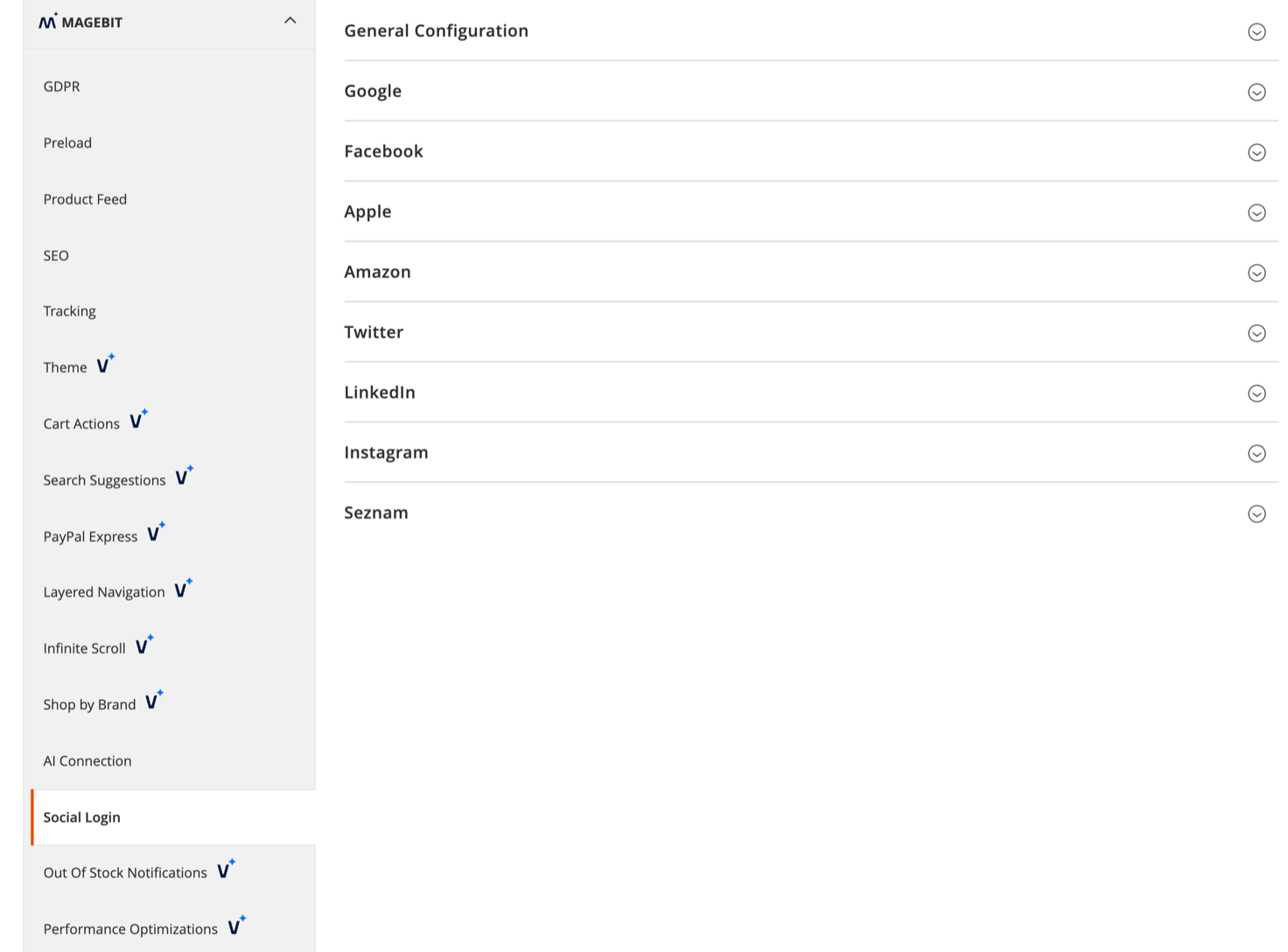
General Configuration
Configuration options
| Field | Description |
|---|---|
| Enable Social Login | Master switch for the module. With this off, no buttons render and no provider group takes effect. |
| Use Redirect Service | Route the OAuth callback through an external redirect service. Intended for local development, where providers refuse to call back to a private hostname. |
| Redirect Service URL | Address of that service, for example https://redirectmeto.com/. Only shown when the redirect service is enabled. |
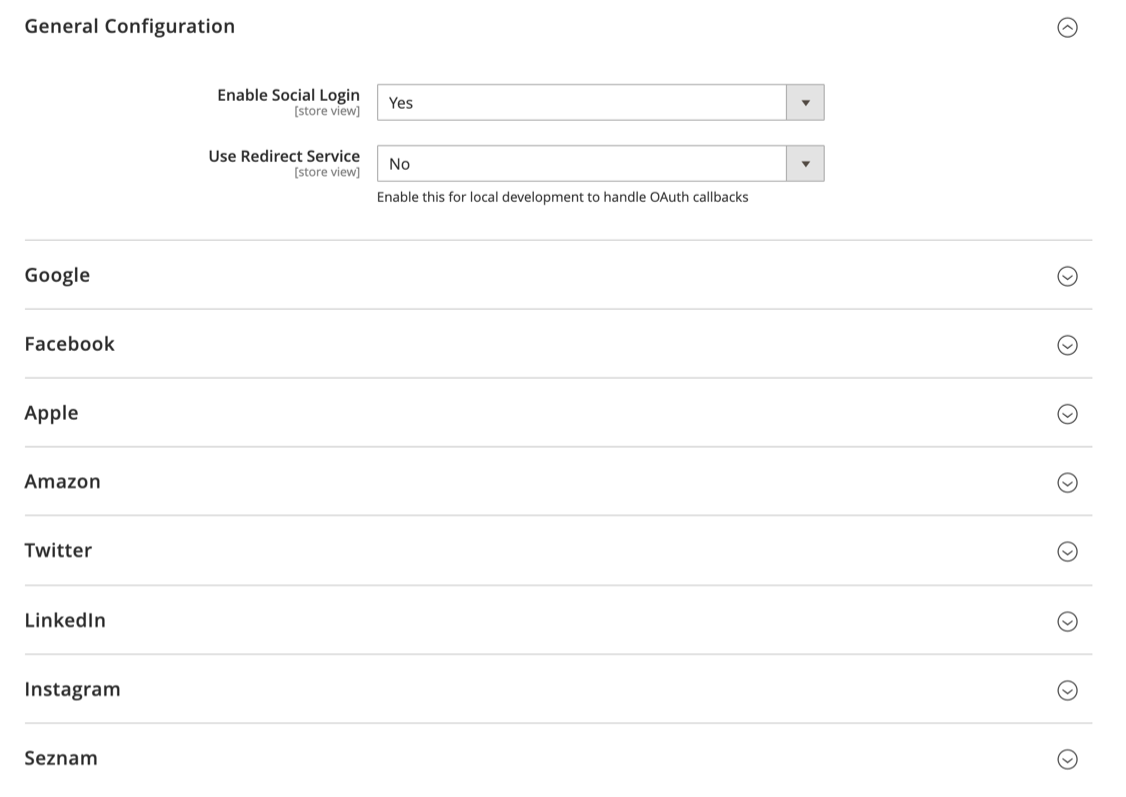
Provider groups
Each of the nine providers has its own group with the same four fields. Groups appear in this order: Google, Facebook, Apple, Amazon, Twitter, LinkedIn, Instagram, Microsoft, Seznam.
Configuration options
| Field | Description |
|---|---|
| Enabled | Show this provider's button on the storefront. |
| Sort Order | Position of the button relative to the other providers. Providers sharing a sort order fall back to alphabetical order. |
| Client ID | OAuth client identifier from the provider's developer console. Facebook labels this the App ID. |
| Client Secret | OAuth client secret, stored encrypted. Facebook labels this the App Secret. |
Client ID and Client Secret appear once the group is enabled.
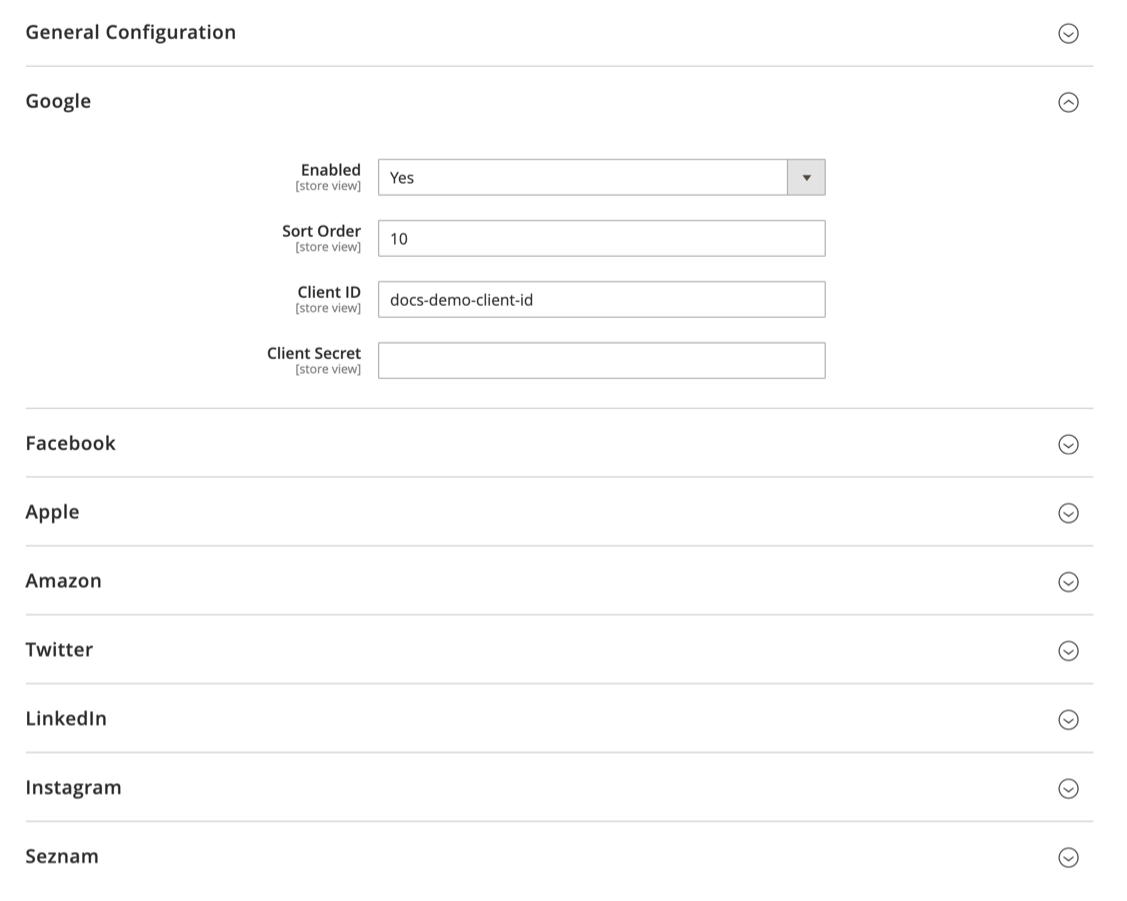
Provider setup
Every provider needs an OAuth application registered on its own developer platform, with the store's callback URL allowed. The callback URL follows one pattern:
https://<your-domain>/social/login/callback/provider/<provider-code>Provider codes are google, facebook, apple, amazon, twitter, linkedin, instagram, microsoft, and seznam.
Google
- Create a project in the Google Cloud Console.
- Under APIs & Services > Credentials, create an OAuth 2.0 Client ID of type Web application.
- Add
https://<your-domain>/social/login/callback/provider/googleto the authorized redirect URIs. - Copy the client ID and client secret into the Google group in Magento and set Enabled to Yes.
Facebook
- Create an app in Facebook Developers.
- Add the Facebook Login product to the app.
- Under Facebook Login settings, add
https://<your-domain>/social/login/callback/provider/facebookas a valid OAuth redirect URI, and add your domain to the app domains. - Copy the App ID and App Secret into the Facebook group's Client ID and Client Secret fields, then set Enabled to Yes.
Other providers
Apple, Amazon, Twitter, LinkedIn, Instagram, Microsoft, and Seznam follow the same shape: register an OAuth application on the provider's platform, allow the callback URL above, then paste the credentials into the matching group. Seznam is requested with the identity scope, which returns the account's email address and name.
Local development
Most providers reject callback URLs on hostnames they cannot resolve, which blocks OAuth testing on a local domain. Set Use Redirect Service to Yes and leave Redirect Service URL at https://redirectmeto.com/. The module then prefixes the callback with that address, so the provider calls the public service and the service forwards the request to your local store. Turn this off on staging and production.
Storefront behaviour
Buttons render when the module is enabled and at least one provider group is enabled. Credentials are not checked while rendering, so a provider enabled without a client ID shows a button that fails at the provider's end.
Login page
Provider buttons sit above the email and password fields on customer/account/login, separated from the form by an "Or" divider. Each button shows the provider icon and the label Sign in with <provider>.
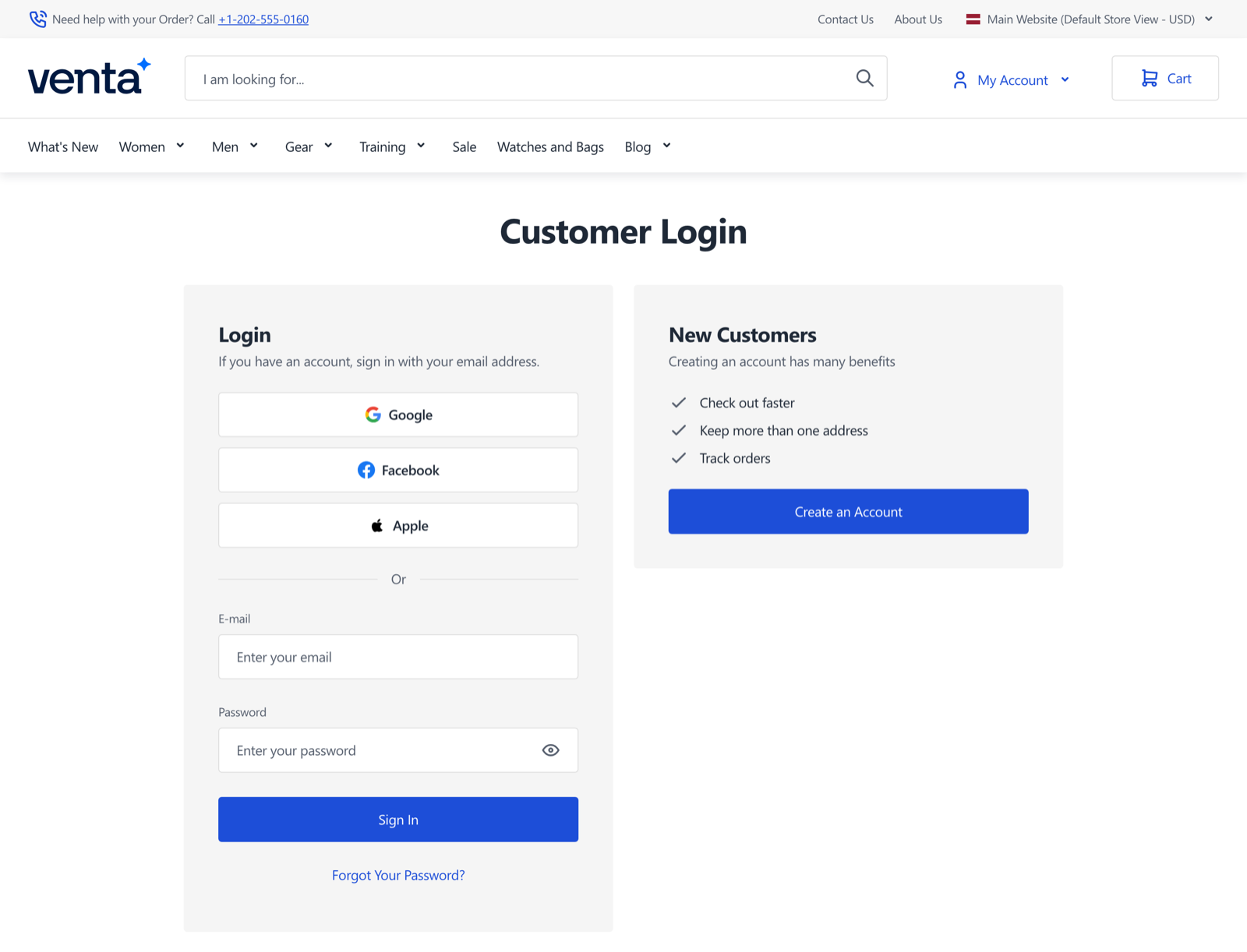
Header sign-in dropdown
The same buttons appear in the sign-in dropdown in the header for signed-out visitors, so customers can authenticate without opening the login page. On narrow viewports the label shortens to the provider name.
My social media
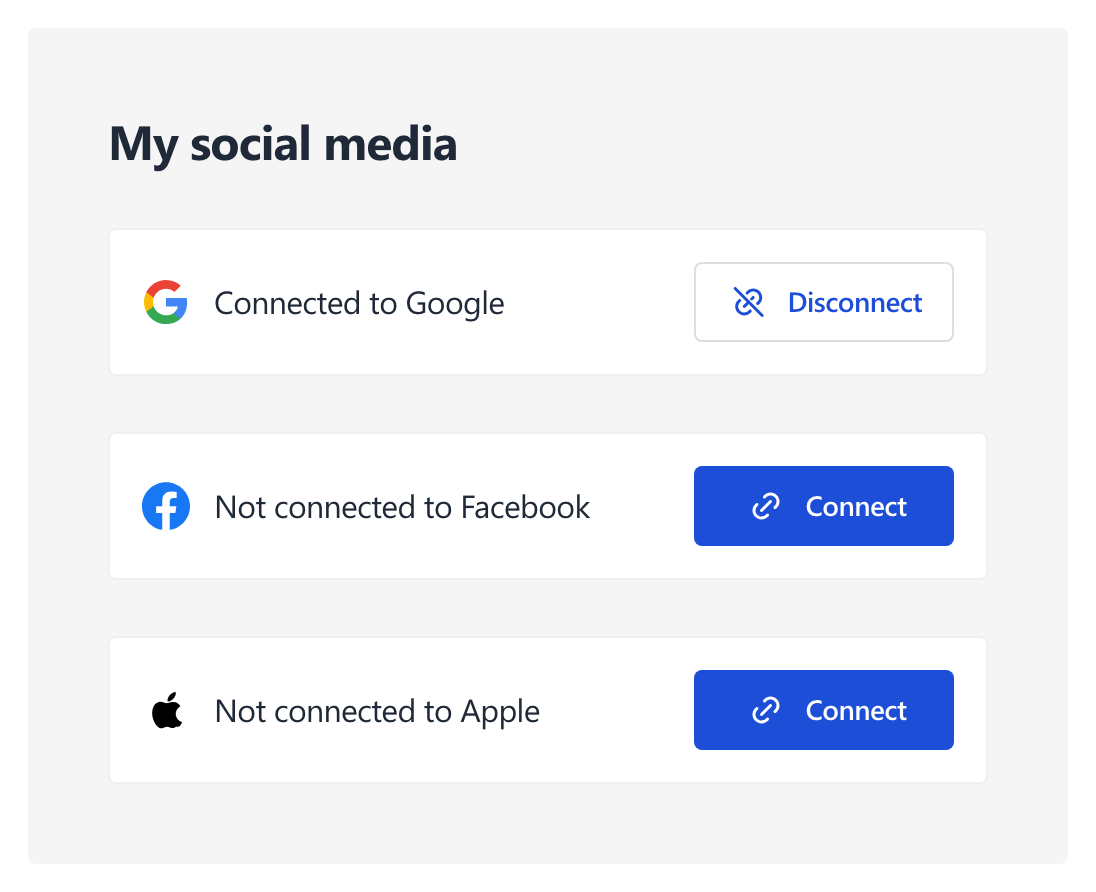
The account edit page gains a My social media panel listing every enabled provider with its current state, either Connected to <provider> or Not connected to <provider>. Each row has a Connect or Disconnect button. The panel is hidden while the module is disabled.
Authentication flow
After the customer authorizes the store at the provider, the callback controller takes one of four paths.
| Situation | Result |
|---|---|
| Customer is already signed in | The provider is linked to that customer and the customer returns to the account edit page with Successfully linked your <provider> account. |
| No customer exists for the provider's email | An account is created, the customer is signed in, and lands on the account dashboard with Successfully logged in with <provider>. |
| The email already belongs to a customer | The customer is sent to a login form titled Link Your Social Account and asked to sign in once so the two can be joined. The message reads We found an existing account with this email address. Please log in to link your <provider> account. |
| The provider returned no email or no name | The customer is sent to the Complete Your Profile form to supply the missing fields before the account is created. |
Two situations end the flow early. A customer who cancels at the provider returns to the login page with "Social login was cancelled." A social account already linked to a different customer is refused with "This social account is already linked to another customer."
The Complete Your Profile form uses Hyvä form validation and pre-fills whatever the provider did return. Submitting it with an email that already exists in the store is refused rather than merged.
Developer notes
Routes
All module routes sit under the social front name.
| Route | Purpose |
|---|---|
social/login/redirect/provider/<code> | Starts authentication and redirects to the provider |
social/login/callback/provider/<code> | Receives the provider's callback |
social/login/link | Sign in to link a social account to an existing customer |
social/login/completeprofile | Collects fields the provider did not return |
social/account/unlink | Removes a link from the signed-in customer |
Database
Links live in magebit_social_login_token, one row per customer, provider, and website: customer_id, website_id, provider, social_id, plus created and updated timestamps. A unique key on provider, social ID, and website stops one social account being attached to two customers on the same website. Rows are removed with their customer or website.
Templates
| Template | Renders |
|---|---|
social/login/buttons.phtml | Buttons on the login page |
social/login/links.phtml | Buttons in the header dropdown |
social/login/complete_profile.phtml | Complete Your Profile form |
account/social/accounts.phtml | My social media panel |
Provider icons are SVGs under view/frontend/web/svg/social/. Adding an icon there and a group to system.xml is what a new provider needs on the Magento side; the OAuth adapter itself comes from HybridAuth.
Logging and permissions
The module writes to its own log at var/log/magebit_social_login.log, covering account creation, linking, and provider initialisation failures. Missing credentials are logged there rather than shown to the customer.
Admin access is controlled by the Magebit_SocialLogin::config ACL resource under Stores > Settings > Configuration.
Venta below 1.5.11
Venta 1.5.11 added the two extension points this module needs. On earlier releases, add them by hand.
In Magento_Customer/templates/form/edit.phtml, render the additional-block child after the form:
    </form>

    <div>
        <?= /** @noEscape */ $block->getChildHtml('customer.account.additional') ?>
    </div>
In Magento_Customer/layout/customer_account_login.xml, add the block the buttons attach to:
    <referenceBlock name="customer_form_login">
        <block name="form_above_fields"/>
    </referenceBlock>
In Magento_Customer/templates/form/login.phtml, output that block above the fields:
<?= $block->getChildChildHtml('form_above_fields') ?>Apply these in your child theme rather than editing the Venta theme in vendor/.
Troubleshooting
No buttons on the login page
Check Enable Social Login and at least one provider's Enabled at the store view you are testing. Confirm the module is active with bin/magento module:status Magebit_SocialLogin, then flush the cache. On Venta below 1.5.11, apply the template changes above.
The provider rejects the callback
Compare the redirect URI registered with the provider against https://<your-domain>/social/login/callback/provider/<code>, including the scheme and any trailing slash the provider records. Providers match this string exactly.
Authentication fails with no visible error
Read var/log/magebit_social_login.log. A missing client ID or client secret is recorded there, and the customer sees only a generic failure message.
The customer is asked to complete a profile every time
The provider is not returning an email address or a name. Check the scopes granted to the OAuth application, and confirm the customer's account at the provider has a verified email.