

Style Guide
The Style Guide extension adds two storefront pages that render the Venta design system on its own: one for colours, type, buttons, icons, form fields, messages, modals, shadows, and pagination, and one for the Image Resizer options. Use them to check a child theme's styling against the base theme, and to copy the class, markup, or icon call you need instead of hunting for it in the templates.
Keep this out of production
Both pages are unauthenticated GET routes. The module ships no ACL, no login check, no developer-mode gate, and no config flag to switch them off. On a live store the pages publish your design system to anyone who guesses the URL. Install with --dev and keep the module out of production deployments.
Documentation
- Benefits covers what the pages are worth to a team building a child theme.
Installation
Installation Command:
composer require --dev magebitcom/magento2-venta-theme-style-guidePost-Installation Steps:
bin/magento module:enable Magebit_StyleGuide
bin/magento setup:upgrade
bin/magento cache:flush
--dev and production builds
module:enable writes Magebit_StyleGuide into app/etc/config.php, which is committed. A production build run with composer install --no-dev then has the module listed as enabled but its code absent, and setup:upgrade or setup:di:compile fails on the missing class. Either keep the module disabled in the committed config.php and enable it only in local environments, or exclude the entry from the production build.
Configuration Access: This module has no admin configuration. Both pages are reached by URL:
https://your-development-environment.dev/style-guide
https://your-development-environment.dev/style-guide/index/imageresizer
Requirements
| Requirement | Version |
|---|---|
| Magento | 2.4.x |
| Hyvä theme module | any current release |
| Venta Theme | any current release, supplies every utility class the pages demonstrate |
| Magebit Image Resizer | any current release, required by the image resizer page |
composer.json declares only magento/framework, so Composer will not pull the rest in for you. In practice the module needs Hyvä (for the SvgIcons, Modal, and HyvaCsp view models and the hyva.formValidation and dispatchMessages JavaScript), Venta Theme (for the compiled CSS behind every class on the page), and Magebit_ImageResizer (whose view models the second page instantiates directly). Without the Image Resizer installed, /style-guide/index/imageresizer throws.
The split repository is an add-on to magento2-venta-theme and takes no code changes of its own. All changes are made in the magebitcom/venta monorepo and split out from there.
Style guide page
The page replaces the storefront chrome with its own: the header container, footer, page title block, top-menu backdrop, and ElasticSuite footer are removed by layout, and the module renders a bg-primary bar with the Magebit and Hyvä logos in their place. An injected <style> block zeroes the page wrapper margins and drops the max-width, so the content runs full width.
Sections appear in this order.
Colors
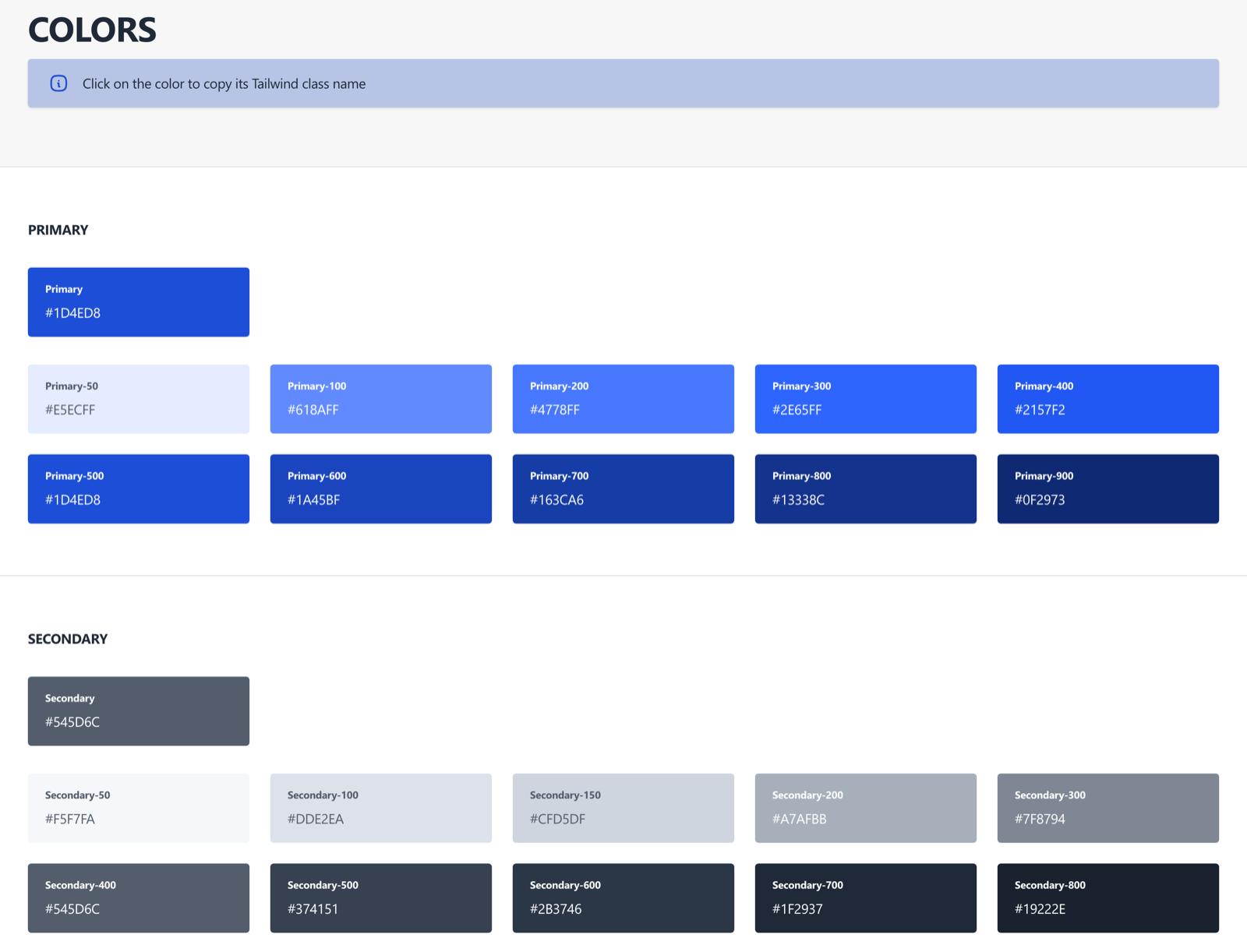
Swatches for every colour in the theme, each labelled with its class and hex value. Grouped as:
- Primary - the base
primaryswatch, then 50 through 900. - Secondary - the base
secondaryswatch, then 50 through 900, including the extra 150 step. - Grayscale - white, gray 50 through 900, and black.
- Error states and others - success, info, warning, and error, each with its
-lightand-extra-lightvariants, plussale. - Overlays - the popup overlay colour.
- Containers -
container-lighter,container, andcontainer-darker, with an on-page reminder to use the container colours rather than grays on cards, rows, and columns.
Typography
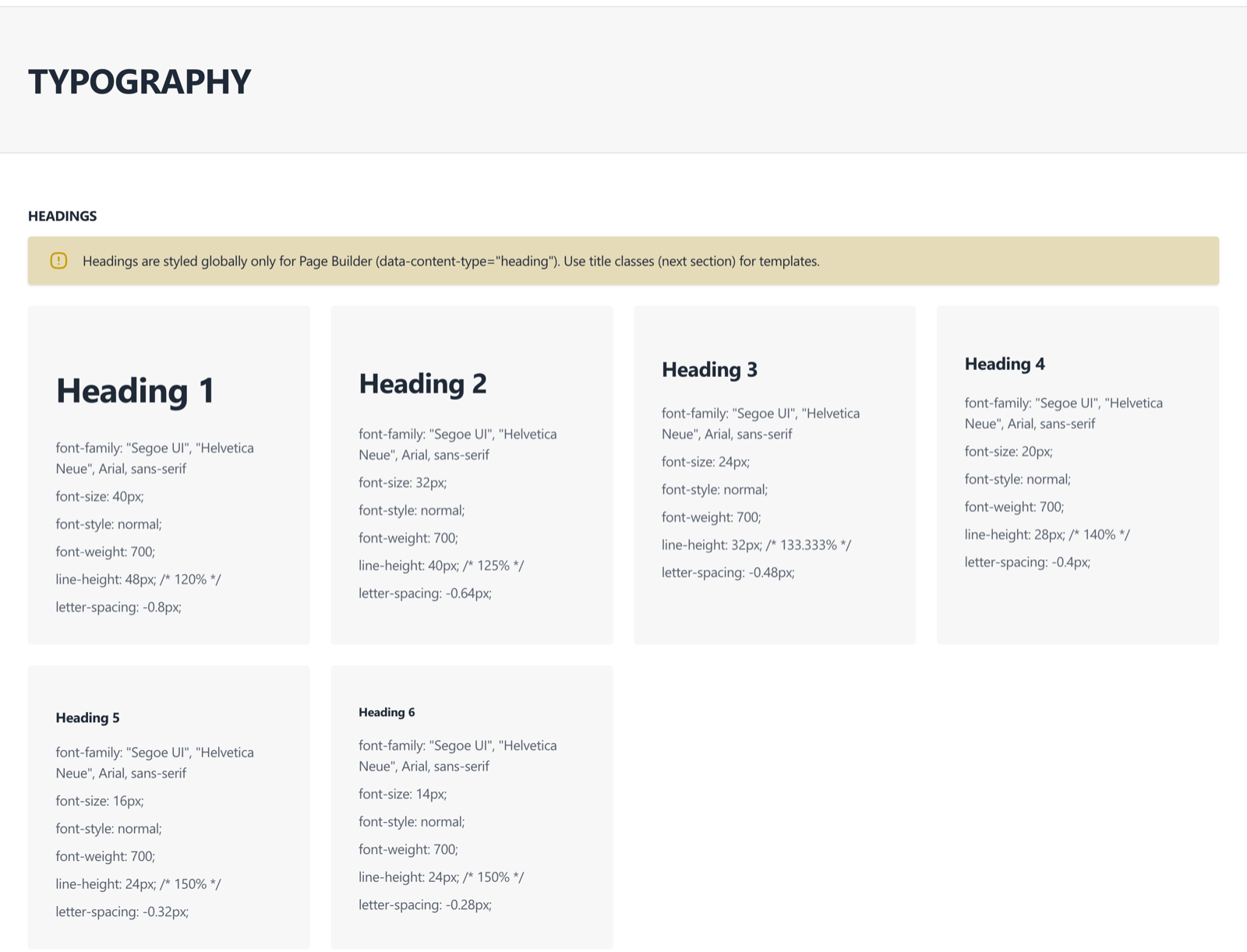
- Headings -
h1throughh6carryingdata-content-type="heading". The section notes that heading elements are styled globally for Page Builder content only, and that templates should use the title classes instead. - Titles - the seven-step scale:
title-2xl,title-xl,title-lg,title-md,title-sm,title-xs,title-2xs. These work with@apply. - Text -
text-md,text-sm,text-xs, andtext-2xs, each in regular and bold. - Lists -
ol-listandul-list. Lists carry no styling by default, so these classes are what apply it.
Buttons
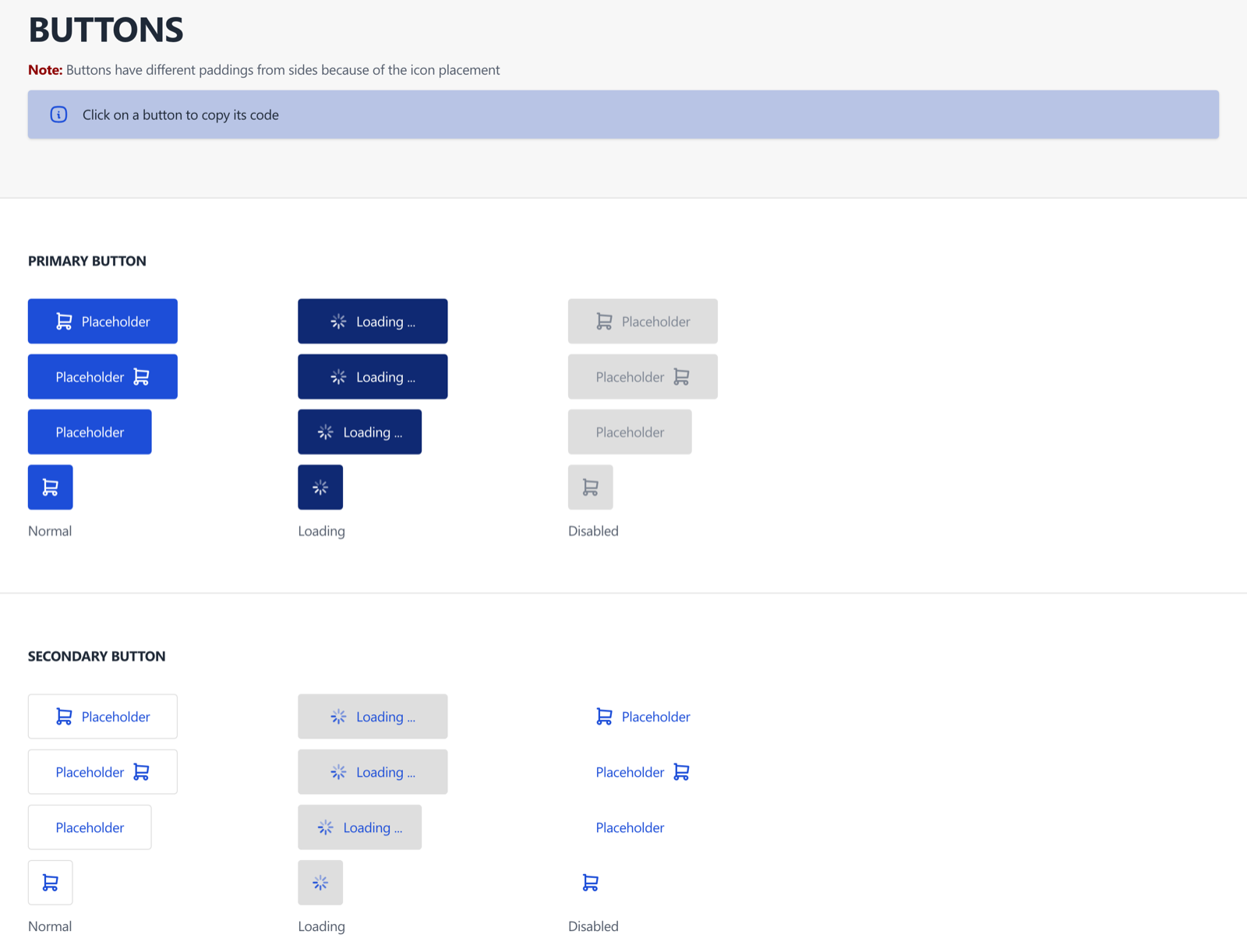
Five btn-* variants, each in the standard and square (btn-sq) shapes, with leading and trailing icon spacing shown as pl-7.5 and pr-7.5. The buttons carry different side padding depending on where the icon sits.
| Variant | States shown |
|---|---|
btn-primary | Normal, Loading, Disabled |
btn-secondary | Normal, Loading, Disabled |
btn-link | Normal, Loading, Disabled |
btn-secondary-dark | Normal, Loading, Disabled |
btn-link-dark | Normal, Loading |
The -dark variants are the on-primary versions, for buttons sitting on a coloured background. Two further patterns follow the variants: the wishlist and compare icon buttons, and a working add-to-cart button with its own Alpine component.
Clicking a button copies its full markup, not a class name.
Icons
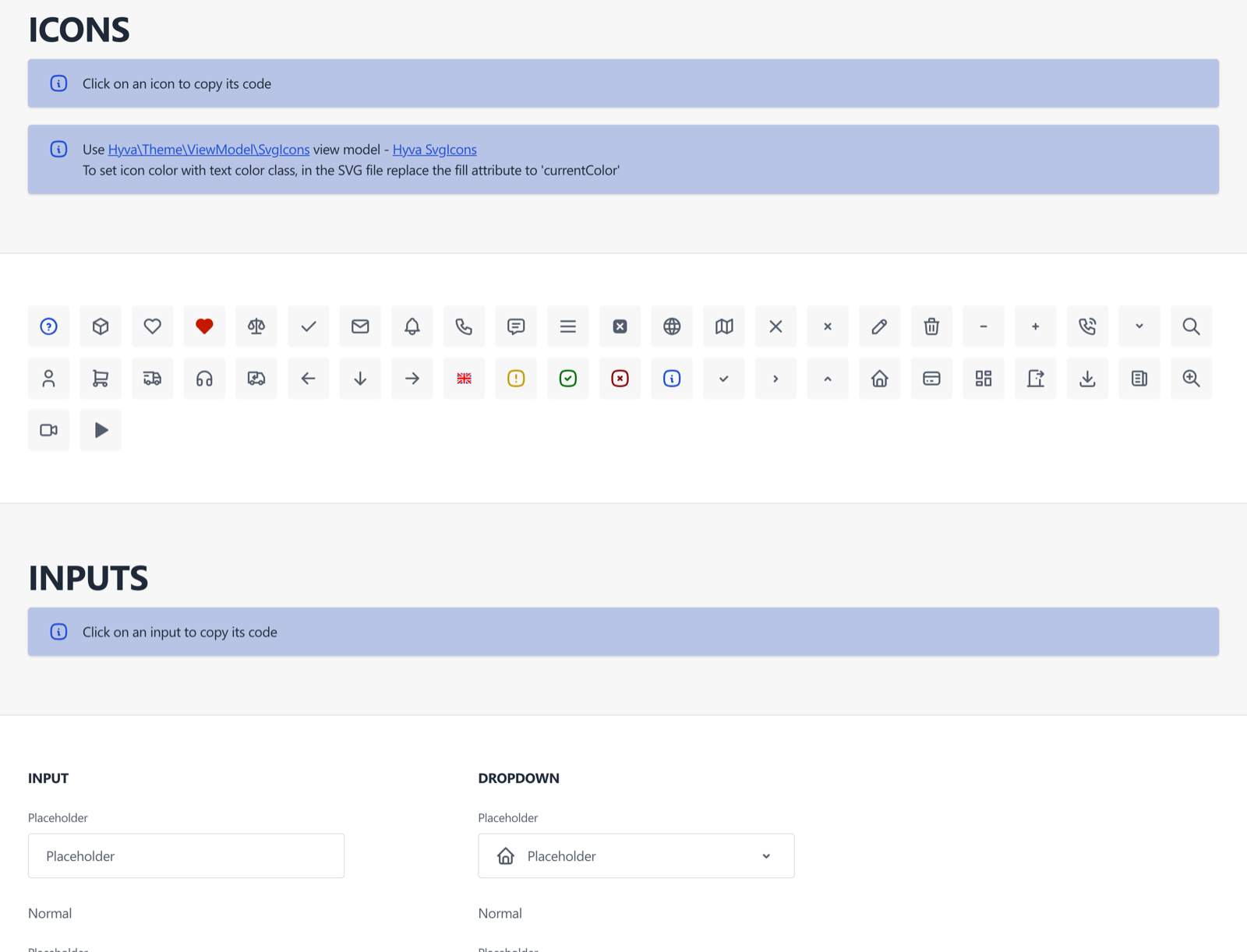
48 icon tiles rendered through the Hyvä SvgIcons view model. Clicking a tile copies the whole echo statement, ready to paste into a template:
<?= /** @noEscape */ $icons->heartHtml('w-6 h-6') ?>Most tiles use the magic *Html() method form. One uses renderHtml('icons/x-small', ...), which is the form to reach an icon whose name does not map to a method.
TIP
An icon follows the current text colour only when its SVG uses fill="currentColor". An SVG with a hard-coded fill ignores text colour classes.
Inputs
Text inputs and dropdowns in their normal, disabled, success, and error states, plus a textarea and the search field with its clear and submit buttons. Hyvä form validation is initialised on the section with custom success and error rules, so the states shown are the ones real validation produces.
Elements
- Checkboxes - With and without labels, in four states: default, checked, disabled, and disabled checked.
- Radio buttons - In the same four states.
- Links - In their normal state.
Popup messages
The four message types rendered inline, in the order warning, success, error, info. Below them, four buttons dispatch a real message through window.dispatchMessages, so the storefront message area can be checked as well as the inline styling.
Modal popup
A working example of the theme's modal, built with the Hyvä Modal view model. The body demonstrates the withTitle() and withContent() calls, so a child theme's modal styling can be checked without building a page that opens one.
Shadows
The four shadow utilities, shadow-100 through shadow-400, each on a swatch alongside its box-shadow value.
Pagination
The Venta pager markup, driven by a fixed list of ten pages in Alpine so the previous, numbered, and next controls can be styled and checked. It is a markup demonstration rather than a live pager: there is no page-size control, and the controls do not drive a product listing.
Useful links
Links to the image resizer page and to a /cms-example page. The CMS example is not part of this module and resolves only on a store where that page exists.
Copying from the page
Three copy behaviours are in use, depending on the click target.
| Click target | What lands on the clipboard |
|---|---|
| A class name printed beside an element | That class name |
| A colour swatch or an icon tile | The value or the full PHP echo statement behind it |
| A button, input, or element demo | The element's own markup |
Copied markup has its SVGs replaced with {{ icon class="..." }} placeholders and its validation message containers stripped, so an icon call needs filling in after pasting. Every copy raises a browser alert to confirm.
The page was made CSP compliant in 1.0.3: behaviour moved onto data-* attributes and named Alpine components, and each inline script block is registered through HyvaCsp. It works on stores running a restrictive Content Security Policy.
Image resizer page
The second page renders four bundled source images through the Image Resizer with different options applied.
| Section | What it demonstrates |
|---|---|
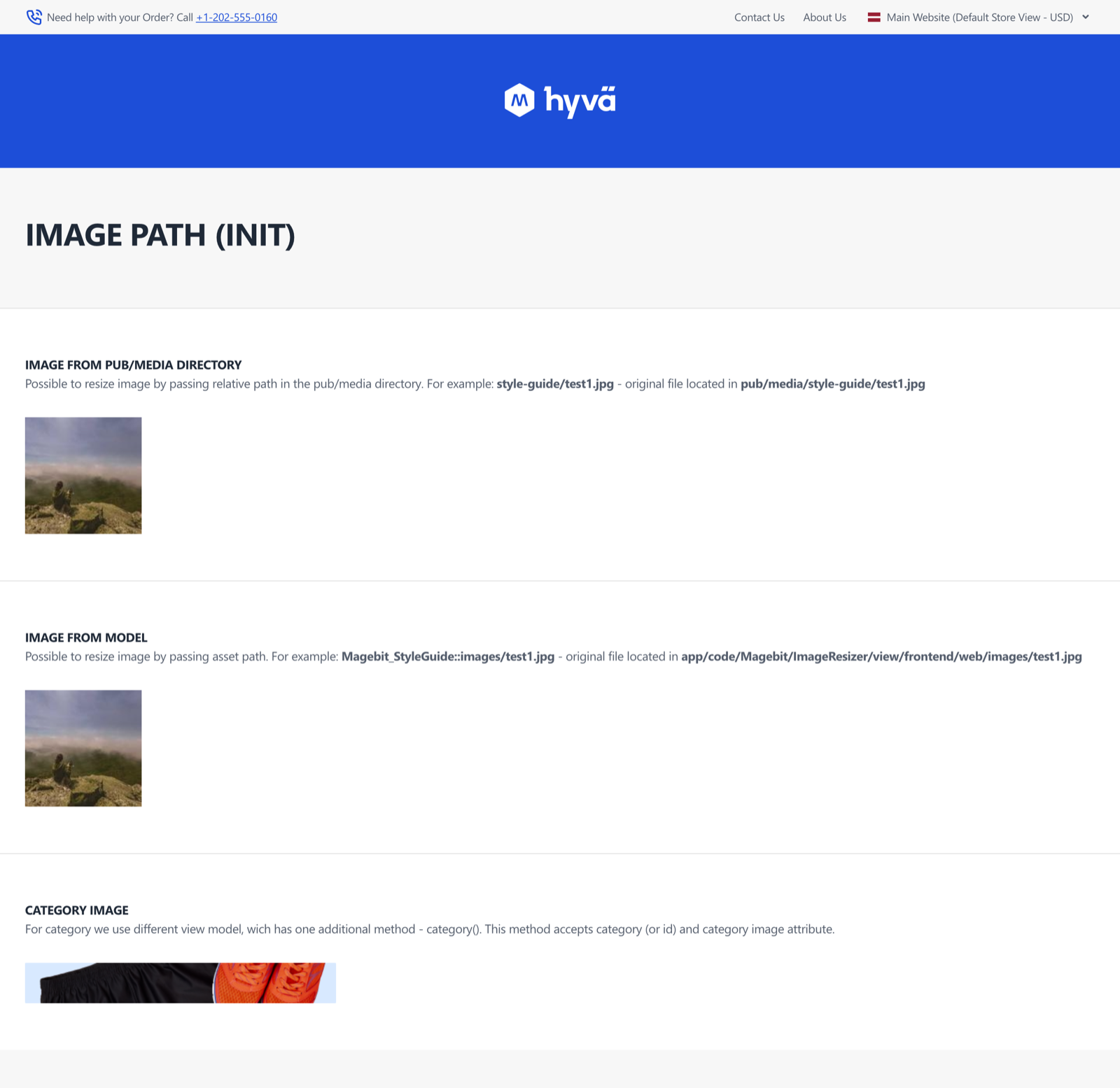
| Image path | Three ways to reach an image: a pub/media path, a module asset path, and a category image |
| Configurations | Where options can be set and which source wins: view.xml <vars>, view.xml <image>, init() attributes, then per-method attributes |
| Resize | Passing only a width or only a height, so the other dimension follows |
| Aspect ratio | The same image with keepAspectRatio true and false |
| Constrain only | constrainOnly true and false, which decides whether an image may be upscaled past its original size |
| Frame | keepFrame true and false at a fixed 800 by 800 |
| object-fit: cover | setObjectFit, which crops server-side the way the CSS property crops in the browser, and overrides keepFrame and keepAspectRatio |
| Quality | One image at quality(1), the worst case, against the catalog default |
| Rotate | rotate(90) applied on its own |
| Background | backgroundColor filling a kept frame larger than the image, which keepTransparency overrides and which defaults to white |
| Placeholder | The catalog placeholder and a custom placeholder, both for a missing image |
| Watermark | A watermark applied to the output, over the catalog watermark that applies by default |
| Picture tag generation | A responsive <picture> built from an image ID, and the same without a separate mobile source. Retina and WebP sources are generated for both |
Two demos depend on store content rather than the module: the pub/media example expects pub/media/style-guide/test1.jpg, and the category example is hard-coded to category ID 20. On a store without either, those two render placeholders.
For the resizer's own API and defaults, see the Image Resizer extension.
Developer notes
Tailwind registration
The module registers itself with Hyvä's config generation on the hyva_config_generate_before event, which adds its own directory to the list Tailwind scans for class names. Without it a production Tailwind build in a child theme would purge the utilities the style guide is there to demonstrate, and the pages would render unstyled. This shipped in 1.0.1.
Routes
| URL | Controller | Layout handle |
|---|---|---|
/style-guide | Magebit\StyleGuide\Controller\Index\Index | styleguide_index_index |
/style-guide/index/imageresizer | Magebit\StyleGuide\Controller\Index\ImageResizer | styleguide_index_imageresizer |
The route front name is style-guide and the route id is styleguide. The image resizer handle inherits the style guide handle and then removes the style guide block, which is why that page keeps the same logo header and the same chrome removals.
The style guide layout also pulls in the hyva_form_validation and hyva_modal handles, which is what makes the input and modal sections work.
Troubleshooting
The page renders unstyled
The pages rely entirely on the theme's compiled CSS. Check that the active theme is Venta Theme or a child of it, and that the Tailwind build ran after the module was enabled. If a child theme's production build purged the classes, confirm the module is enabled so its hyva_config_generate_before observer can register its templates with the Tailwind scan.
The image resizer page throws
The page instantiates the Image Resizer view models directly and composer.json does not declare that dependency. Install Magebit_ImageResizer and re-run setup:upgrade.
Copy buttons do nothing
The copy handlers are Alpine components registered through HyvaCsp. On a store with a Content Security Policy, confirm the module is at 1.0.3 or later, since earlier versions used inline expressions that a restrictive policy blocks.
Production deploy fails after installing the style guide
A --no-dev build does not ship the module's code, but app/etc/config.php still lists it as enabled, so setup:upgrade fails on the missing class. Remove the Magebit_StyleGuide entry from the committed config.php, or make the deploy tolerate a dev-only module.
Some image resizer demos show placeholders
The pub/media demo needs pub/media/style-guide/test1.jpg and the category demo needs a category with ID 20. Neither ships with the module.